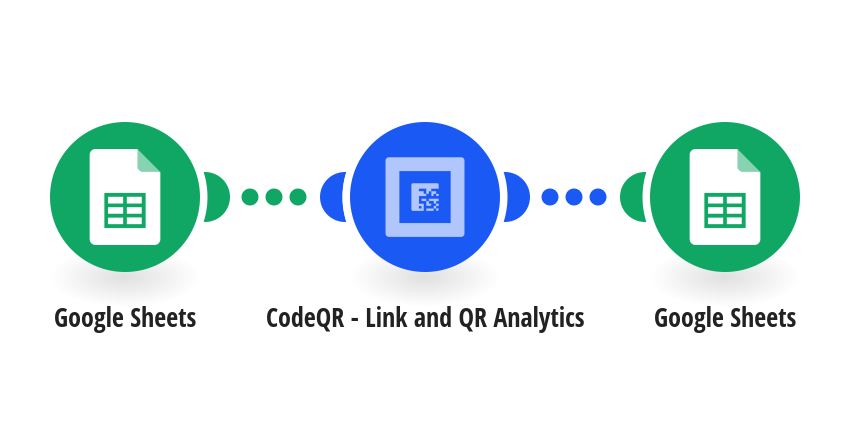
Turn a list in Google Sheets into QR codes for your labels, one per row, ready to print. Every time a row is added, this template: - creates a static QR code in CodeQR that opens the row's URL - names it with the row's Label Text, so you can find it in your CodeQR dashboard - writes the QR code's ID and a link to its PNG image back into the same row Set up the sheet with four headers in row 1: Label Text, URL, QR Code ID, QR Code Image. Fill in Label Text and URL and leave the other two empty. The QR Code Image column can then feed any label or mail-merge tool that inserts an image from a URL. Static QR codes are unlimited on CodeQR Pro and above. On Free and Starter they count toward your monthly QR code limit. When you turn the scenario on, choose "All" to process the rows already in the sheet, or "From now on" for new rows only. Apps used: Google Sheets, CodeQR This template was created by CodeQR. Learn more at https://codeqr.io
This is a predefined template that will make the creation of your scenario much easier. Of course, you can always expand and customize the scenario to meet your own individual needs.
 Google Sheets
 CodeQR - Link and QR Analytics