Track how fast your team replies on WhatsApp in Google Sheets (TimelinesAI) - step 2 of 2: fill in replies
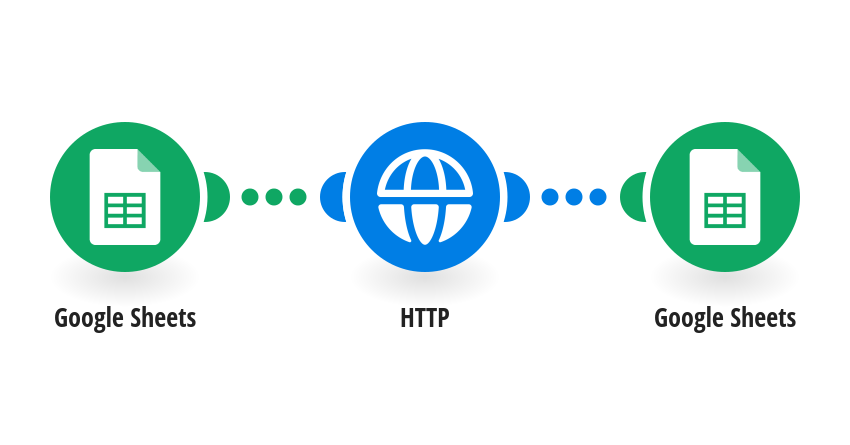
See how long customers wait for a reply on WhatsApp. Step 2 of 2: every 15 minutes, for each customer still waiting, Make checks the chat for your team's first reply and writes when it came and how many minutes it took. How it works: 1) Google Sheets lists the rows with a waiting time and no reply yet (filled by step 1 of 2). 2) TimelinesAI returns the replies sent in that chat since the customer started waiting. 3) The first reply's time goes into column D and the reply time in minutes into column E. Average column E for your team's response time. What you need: Step 1 of 2 running on the same sheet; your TimelinesAI API token. Good to know: Times are to the minute, in your Make organization's time zone. Change the 15 minutes in the scenario schedule if you need it more or less often. New to TimelinesAI? Connect your WhatsApp number and start your free trial: https://timelines.ai/whatsapp-make-integration?utm_source=make&utm_medium=template&utm_campaign=sheets-reply-times
This is a predefined template that will make the creation of your scenario much easier. Of course, you can always expand and customize the scenario to meet your own individual needs.
 Google Sheets
 HTTP