How to build Make automations and AI agents in ChatGPT
Describe repeatable work in ChatGPT and create Make automations and AI agents that keep running, whether or not ChatGPT is open.


A note on availability: OpenAI has temporarily disabled the Make plugin for ChatGPT while it updates automation tool support. The Make platform itself is unaffected — your scenarios, agents, and connections are all running as normal. In the meantime, you can still build and manage Make automations from ChatGPT or Codex via MCP —follow our setup guide. We'll update this article as soon as plugin access is restored.
The Make plugin for ChatGPT lets you build, run, search, and review Make automations and AI agents directly in a ChatGPT conversation.
Describe the outcome you need, such as a weekly status report or an AI agent that drafts replies to new leads, and Make creates it, connects the required apps, and sets it to run on a schedule or trigger.
It keeps running in Make's cloud, whether or not ChatGPT is open.
Start with the outcome you need in ChatGPT
Repeatable work often becomes clear in conversation before it becomes a documented process.
A team might be discussing how to compile a weekly status report, respond to inbound leads, or route form submissions to a task board. Instead of stopping at the discussion, describe the result you need in plain language.
The Make plugin for ChatGPT can create a Make automation from that description, connect the required apps, and set it to run on a schedule or a trigger.
This gives an operations lead or automation owner a practical place to begin: state what should happen, then create a scenario that can continue handling that work.
For example, you can describe a weekly status report that gathers the needed information on a schedule. The conversation starts with the report the team needs.
The resulting automation handles the recurring collection of information rather than requiring someone to recreate the same request every week.
You can also build AI agents through the plugin by describing the work they need to do. One example is an agent that monitors an inbox for new leads and drafts replies with availability.
The draft remains for human approval, which keeps the approval step part of the process.
The key distinction is between discussing recurring work and putting that work into motion. ChatGPT can be the conversation layer where you describe the outcome. If you're weighing where each tool fits, see AI agents vs ChatGPT.
Make creates the automation or AI agent that carries it out. Learn more on the Make plugin listing for ChatGPT.
Check running work without leaving the conversation
Creating an automation is only part of managing recurring work. Teams also need to find the right scenario, run it when needed, and understand what happened after it runs.
The plugin supports those checks from the same ChatGPT conversation.
In ChatGPT, you can search and filter automations by name, folder, or status. When you find the automation you need, you can run it and review its output.
Results appear as searchable tables with status badges and pagination, so you can scan automation history without leaving the conversation.
The information appears in interactive ChatGPT widgets with searchable tables, status badges, pagination, and structured results.
That matters when a team has more than one automation to review. Instead of relying on an informal description of what is running, you can search for the relevant automation and inspect its status and results.
For example, an operations lead can search for an automation by folder while discussing the next task. They can run it, review the output, and look at past execution results in that same conversation. The conversation remains a place to act on the current task and check the work already running.
Does the automation still run in Make after you close ChatGPT?
ChatGPT gives teams another place to build and manage automation work. It does not move the automation runtime or the existing setup that supports it out of Make.
Automations continue to run in Make's cloud whether or not ChatGPT is open. Make provides the scheduling, retries, error handling, and access to Make's app library that keep the automation running after the conversation ends.
Your automations, app connections, stored data, permissions, and governance remain in your Make organization.
You can also inspect and edit automations in Make's visual landscape. This gives teams a way to begin from a conversation while keeping their existing connections and governance where they already manage them.
Consider a team that creates recurring form-routing automation from ChatGPT. The scenario continues to run in Make's cloud after the team closes ChatGPT. Later, if the team needs to inspect or edit the automation, they can open it in Make's visual landscape.
This approach lets ChatGPT fit into how a team already discusses work without requiring a separate place for automation setup, permissions, or governance.
How do you set up the Make plugin for ChatGPT?
Installing the Make plugin in ChatGPT takes five steps: check your accounts, install the plugin, connect Make, describe the work, then confirm it runs.
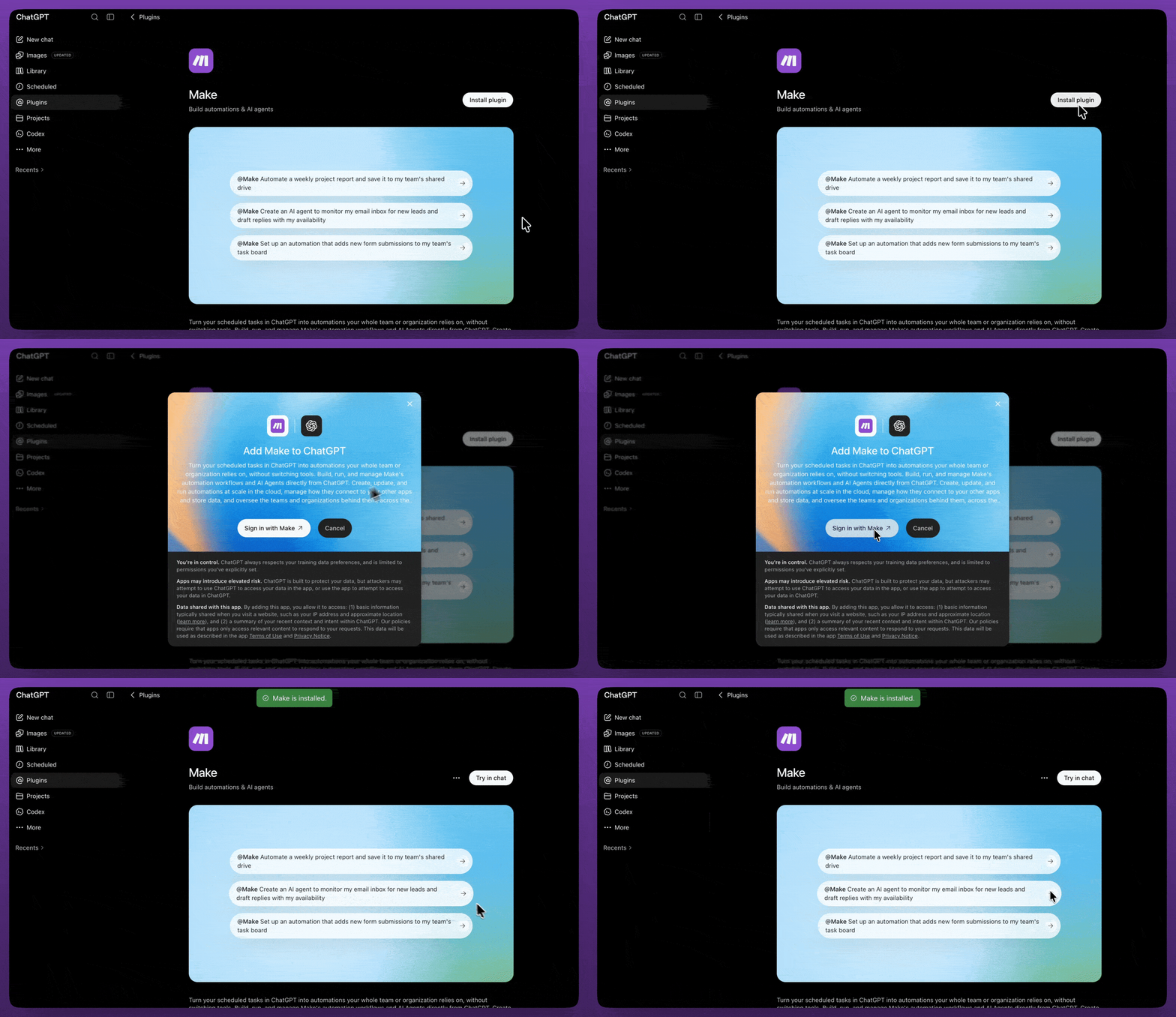
Step 1: What do you need before you start?
The plugin needs one account on each side, and nothing beyond that.
If you work in a Business, Enterprise, or Edu workspace in ChatGPT and cannot find the listing, your administrator sets availability in workspace plugin settings.
Step 2: How do you install the plugin in ChatGPT?
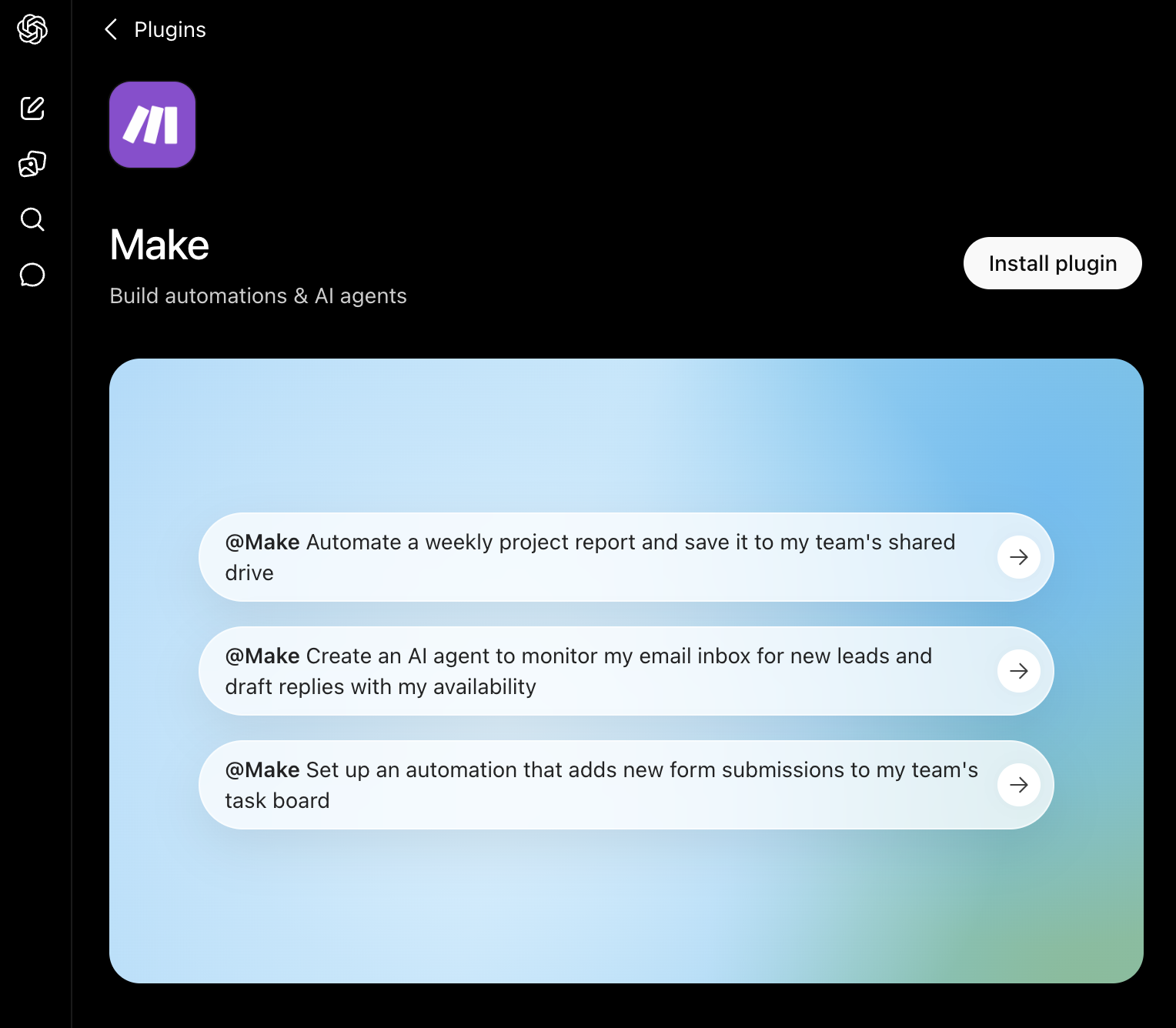
Open ‘Plugins’ in ChatGPT or Codex, find the Make listing in OpenAI's official plugin directory, and select ‘Install plugin’.
Installation starts the setup flow for the apps the plugin uses.
A few things worth knowing at this stage:
- The listing shows the skills and included apps before you install, so you can review scope first.
- Installing does not override provider or workspace permissions. Each app still asks for its own authorization.
- Once installed, call the plugin in a conversation with an @ mention, or from the + menu.
Step 3: How do you connect your Make account?
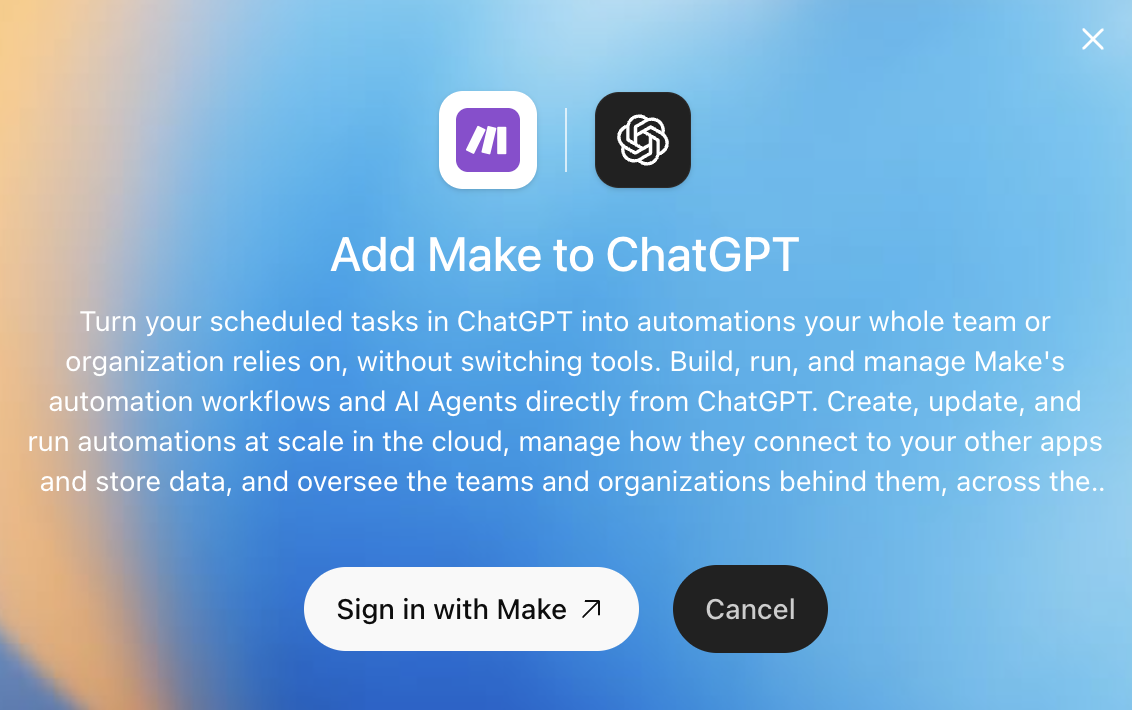
Select ‘sign in with Make’ when ChatGPT prompts you, then sign in with the Make account you already use.
The plugin works against that organization, so your existing scenarios, app connections, stored data, permissions, and governance stay where they are.
You are granting ChatGPT a way to reach your Make organization, not copying anything out of it.
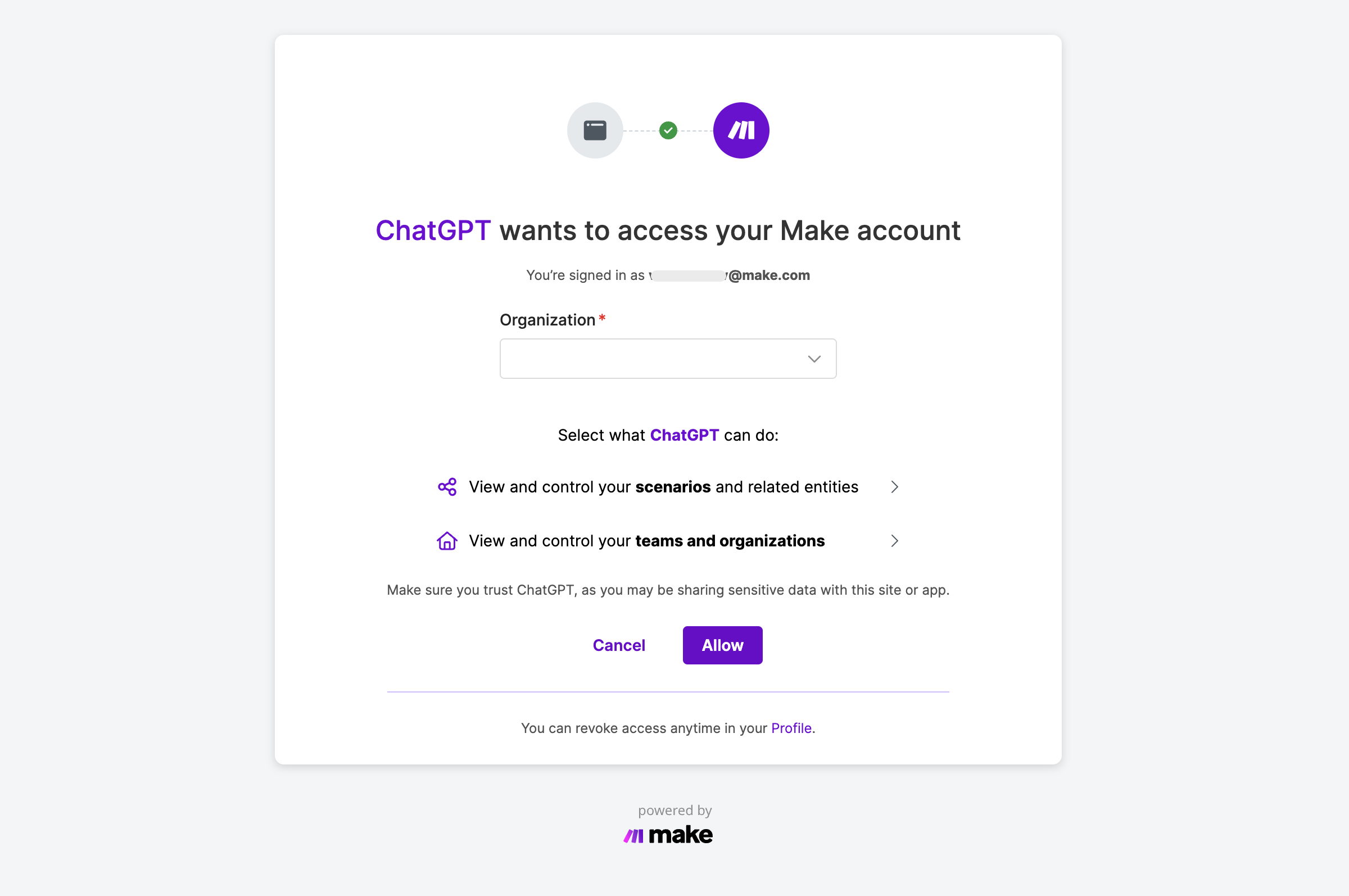
If your team runs more than one Make organization, check which one you authenticated against before you start building.
Scenarios created through the plugin land there.
Step 4: How do you describe the work you want automated?
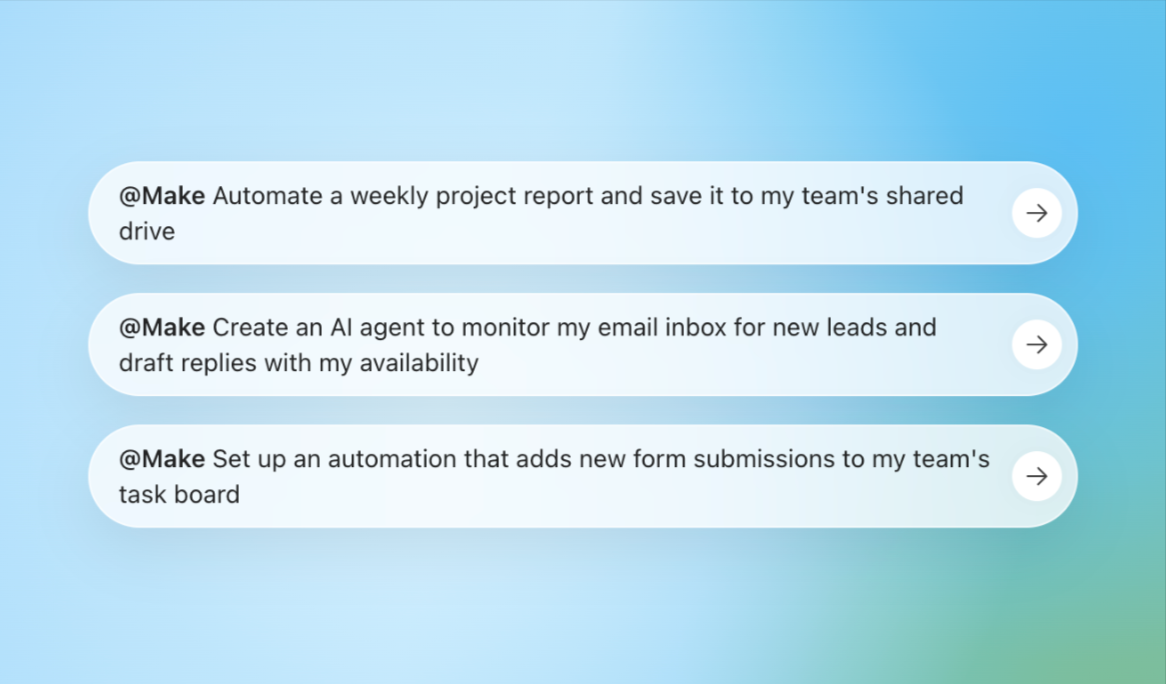
Describe the outcome rather than the modules. Make interprets the request, selects the apps, and sets a schedule or a trigger.
A useful request names four things:
- The trigger: what starts the work, such as a new form submission or a weekly schedule
- The source: where the information comes from
- The action: what should happen with it
- The destination: where the result should land
For example: "Every Friday, compile the week's project updates from our task board and save the summary to the team's shared drive."
Make builds the scenario, connects the apps it needs, and asks you to authorize anything it cannot reach yet.
Step 5: How do you confirm the scenario is running?
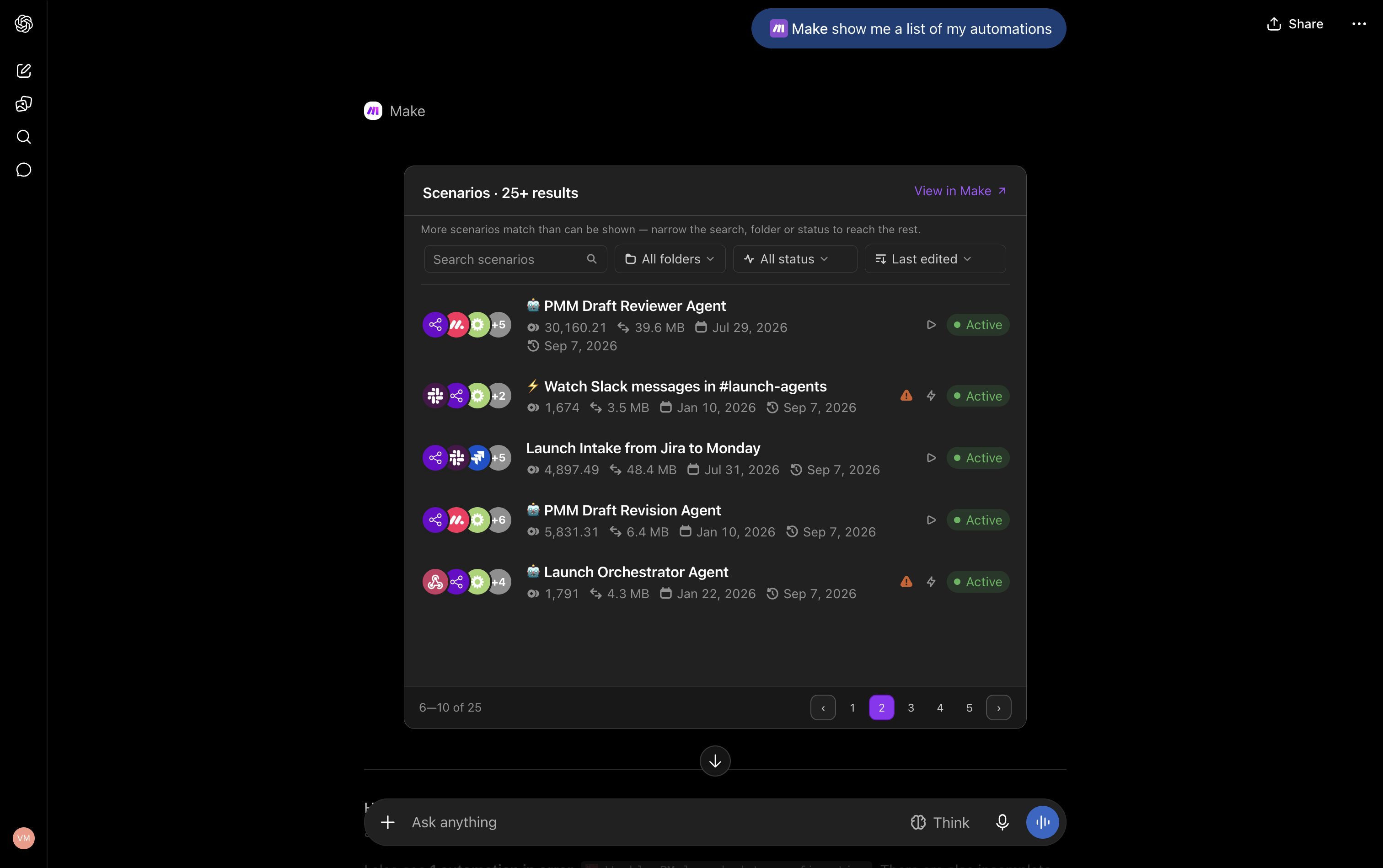
Run it once from the conversation and read the output.
Results come back as searchable tables with status badges, so you can see which steps completed and what they produced.
Then open the scenario in Make's visual landscape to review the modules, adjust the schedule, or add error handling.
The scenario continues running in Make's cloud whether or not ChatGPT is open, so this step confirms the automation is live rather than a draft that only exists in a chat thread.
Match the plugin to the work that repeats
The strongest use cases start with work that already has a recurring pattern. A one-time question in ChatGPT may only need an answer.
A process that needs to happen each week, whenever a lead arrives, or whenever someone submits a form is a different kind of request.
Weekly status reports are one example. Rather than revisiting the same request each week, a team can describe the report they need and create an automation that gathers the necessary information on a schedule.
Inbound lead handling is another example. A team can build an AI agent that monitors an inbox for new leads and prepares personalized lead-response drafts with availability.
Because the drafts are prepared for human approval, the team keeps the approval decision in the process.
Form routing follows the same pattern. If submitted information needs to reach a task board, the work is not just a question about where the data should go.
You'll find ready-made versions in the template library.
It is a recurring task that can run from a trigger and be checked later when the team needs to review it.
Developers working in Codex can use the same search and review tools to check on automations mid coding session, without switching context.
Use the plugin when a request needs to become running, repeatable work that you can later find, run, and manage. The initial ChatGPT conversation provides the starting point.
The Make automation or AI agent provides the work that continues after the conversation moves on.
Ready to turn your next ChatGPT conversation into a running automation?
The Make plugin for ChatGPT lets teams act on repeatable work when the idea comes up.
You can describe the result in ChatGPT, then use Make to keep the automation running, visible, and governed whether or not ChatGPT is open.
Available on all Make plans, including Free, in the browser, the ChatGPT Work desktop app, and Codex.
Install Make from the official OpenAI ChatGPT plugin directory, authenticate with your existing Make account, and describe one recurring task to create a Make automation.
Frequently asked questions
Q.1 What can I do with the Make plugin for ChatGPT?
You can build, run, search, and review Make automations inside a ChatGPT conversation. You can also build AI agents by describing the work you need done.
Q.2 Do Make automations keep running after my ChatGPT conversation ends?
Yes. Automations continue to run in Make's cloud whether or not ChatGPT is open, with scheduling, retries, error handling, and access to Make's app library.
Q.3 Can I find and check an automation I already created?
Yes. You can search and filter automations by name, folder, or status, run an automation, review its output, browse execution history, and review results from past runs.
Q.4 Do my existing Make connections and permissions stay in Make?
Yes. Automations, app connections, stored data, permissions, and governance remain in your Make organization. You can also inspect and edit automations in Make's visual landscape.
Q.5 Where can I use the Make plugin for ChatGPT?
The plugin works in the browser, the ChatGPT Work desktop app, and Codex. It is available on all Make plans, including Free.
Related blogs
Tool and strategies modern teams need to help their companies grow.
AI
MCP vs API: what's the difference, and which one do you need in 2026?
AI agents need tools, as well as data. Here's how MCP and APIs each provide them, and how Make uses both.

Raife Dowley
September 4, 2026
AI
AI agents vs ChatGPT: what's the difference in 2026?
Most teams use ChatGPT. Few use AI agents. Here is the difference and how to start automating with Make.
Raife Dowley
May 19, 2026
AI
What is an agentic loop? (and how to build one) in 2026
The agentic loop is the heartbeat of every AI agent. Here's what it is, how it works, and how to build one.
Raife Dowley
June 1, 2026