How to Create a ChatGPT-powered Telegram Bot That Replies
In this tutorial, we’ll show you how to build a Telegram bot that replies to messages with incredible accuracy and purpose as it’s powered by ChatGPT.

Sharing updates, answering frequently asked questions, providing feedback, and more: These are some of the problems that a ChatGPT-powered Telegram Bot solves on the spot by automatically replying to incoming messages.
While this is not a native Telegram feature, it’s easy to build it with Make.
In this tutorial, we’ll show you how to build a Telegram bot that replies to messages with incredible accuracy and purpose as it’s powered by ChatGPT.
The resulting solution is also available as a Make template (a pre-configured scenario that you can deploy in minutes), but following the tutorial is useful if you want to learn how to create automation solutions from scratch.
Before we jump into the details, make sure you have what’s needed to deploy this solution:
- A Make account (Core Plan or above).
- A ChatGPT account with API tokens.
- A Telegram account.
All set? Then let’s not waste another minute!
Step 1: Create a new scenario and install a Telegram Bot
The first thing we’ll do is install a Telegram Bot. Here’s a quick guide that shows you how to do it.
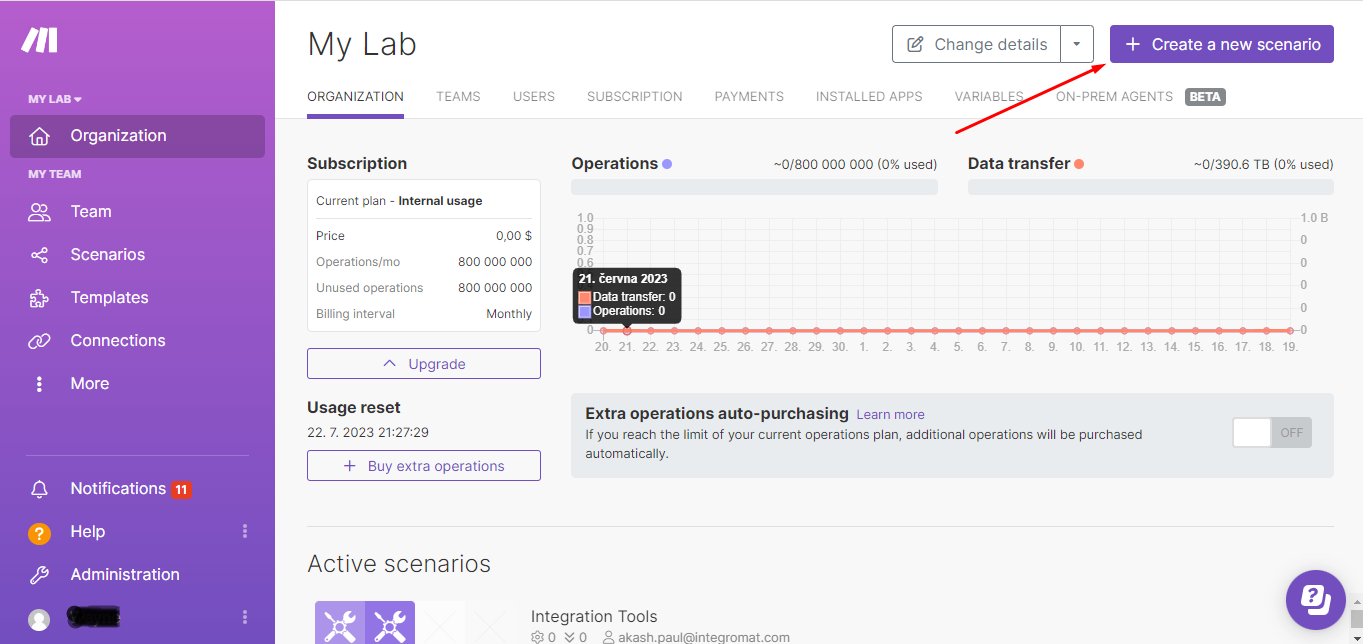
Next, log into your Make account, and click the Create a new scenario button to open the scenario builder.
The first app we’re to going add to the scenario is the Telegram Bot app. Search for the app and select the Watch Updates module.
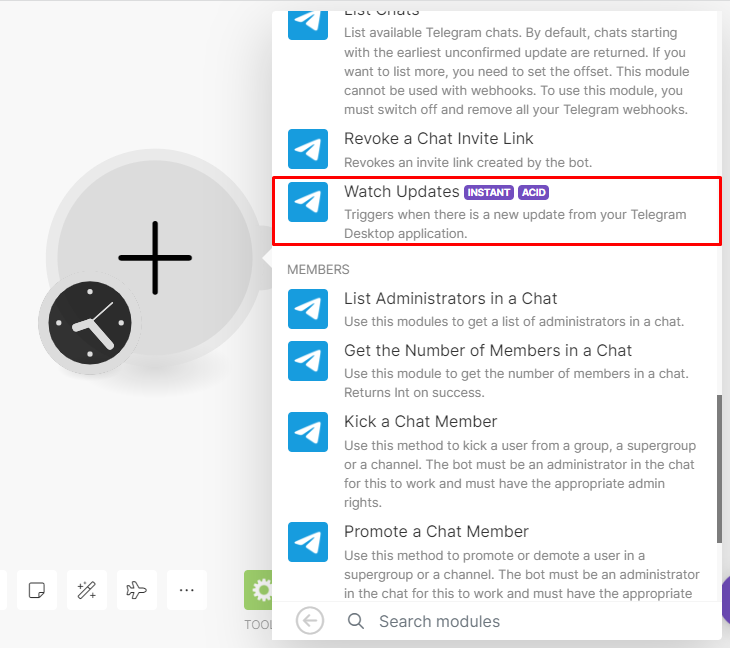
This module relies on a webhook that will instantly trigger the scenario when new messages are received in Telegram.
In the module’s configuration box, click Add to create a webhook.
You will need to connect your Telegram account to Make and then click Save to create the webhook.
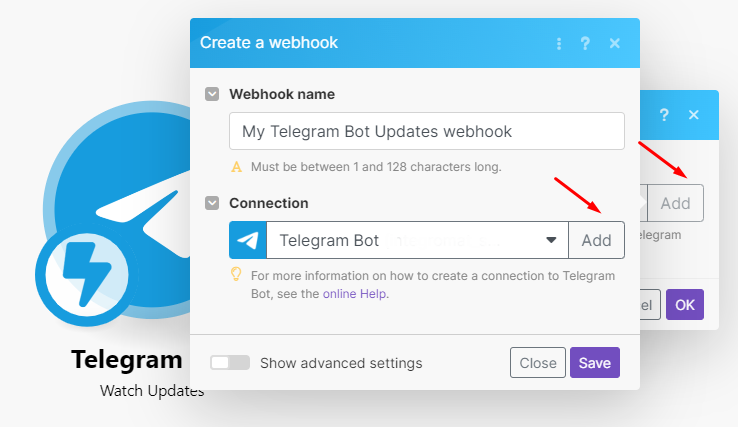
There’s nothing more to do here since Make automatically attaches the webhook in Telegram for you, so once ready, click OK and move on to the next step.
Step 2: Add the OpenAI module
The next step is to add the OpenAI app to create a reply to the message received.
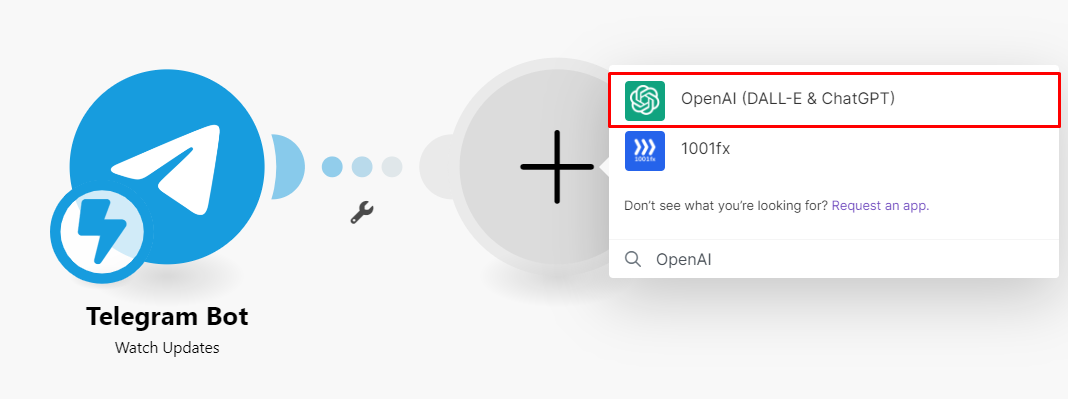
Click the plus sign on the side of the Telegram Bot module to open the search box, search for the OpenAI (DALL-E & ChatGPT) app, select it, and then pick the Create a Completion module.
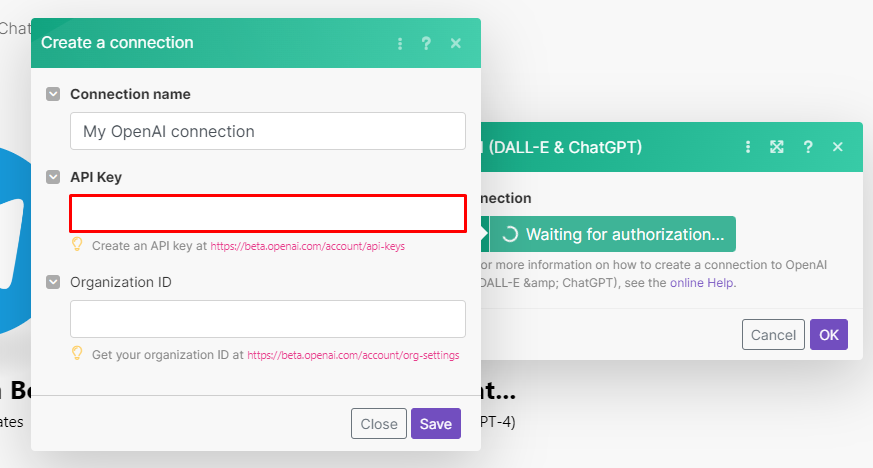
Start configuring this module by connecting your OpenAI account to Make.
You’ll need your API key to do this, which you’ll find in your OpenAI account’s user settings.
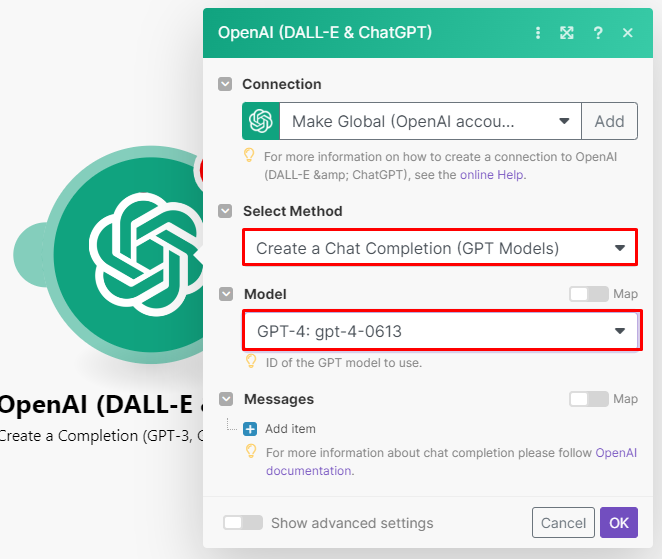
Next, select the Create a Chat Completion option, as this will output a full reply for you.
Then select the latest language model, or alternatively, the one for which you’ve purchased the corresponding tokens.
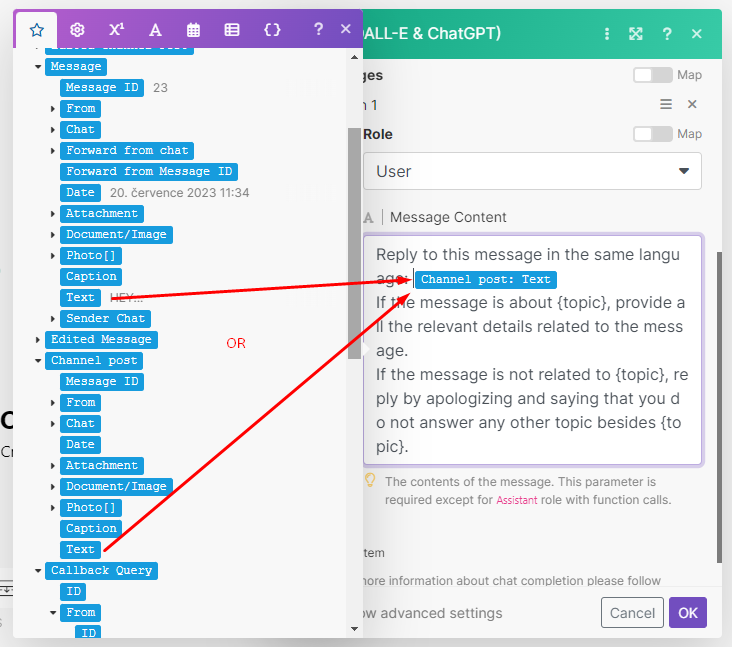
Let’s keep going. Select User as the Role, and use the following prompt:
Reply to this message in the same language: {channel_post.text}
If the message is about {topic}, provide all the relevant details related to the message.
If the message is not related to {topic}, reply by apologizing and saying that you do not answer any other topic besides {topic}.
Important: Replace {topic} with your own topic. The prompt ensures that no other topic questions or requests will be answered.
Depending if the Bot will be receiving direct messages or via a channel, replace {channel_post.text} with either the message text or channel text data item from the Telegram Bot module. See the image below for reference.
Bonus: The prompt creates a reply in the sender’s language!
Step 3: Add the final Telegram module
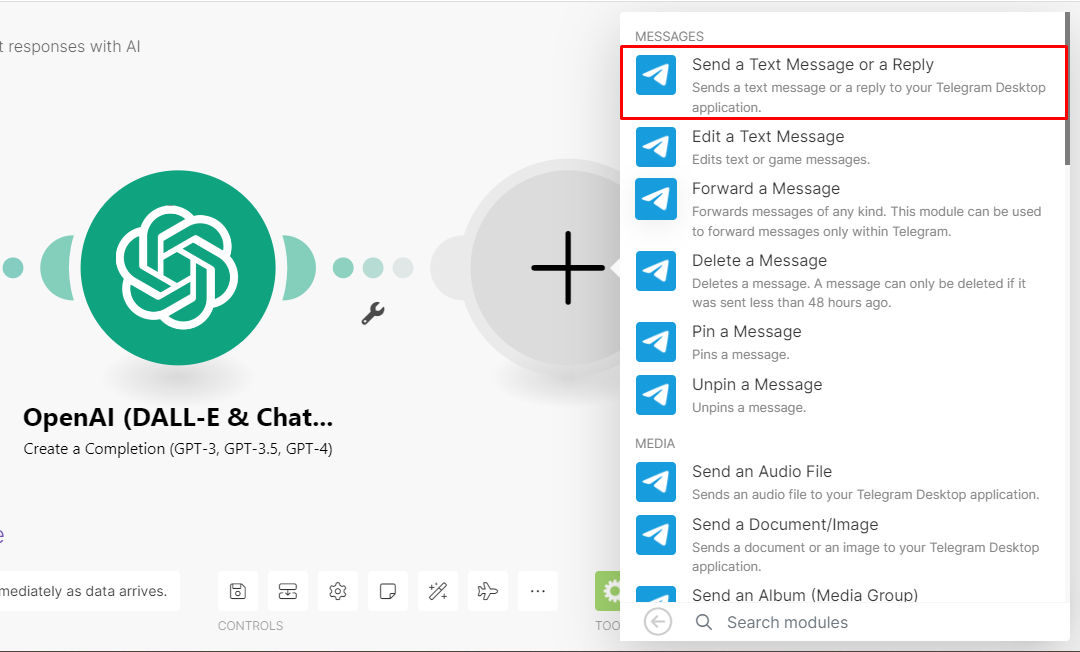
The last step is to send the reply back to Telegram. To achieve this, we have to add the Telegram - Send a Text Message or a Reply module to our scenario.
Select your Telegram connection (it’ll be there as you already connected your Telegram account to Make), and configure the module as follows:
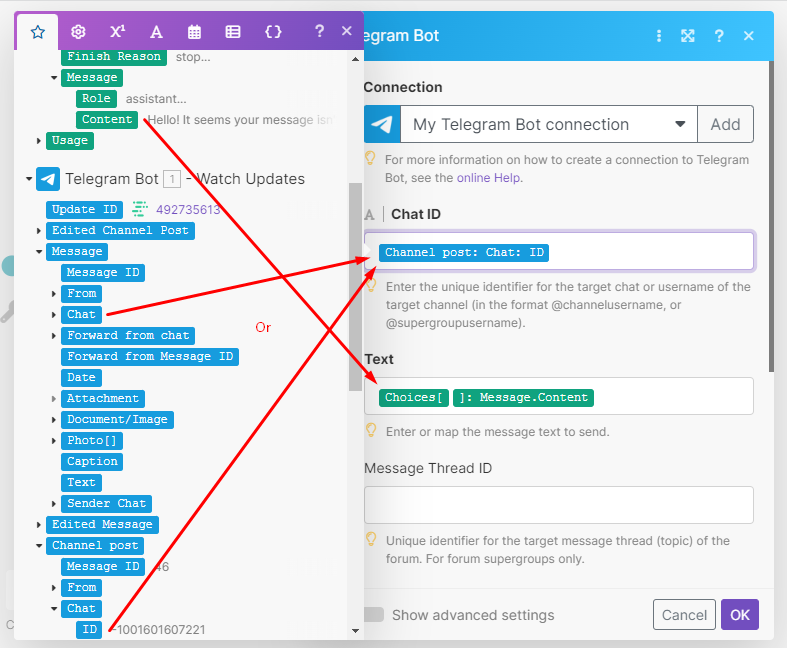
- Map the Message: Chat: ID data item (for direct Bot messages) or the Channel post: Chat: ID item (for channel messages) from the Telegram > Watch Updates module to the Chat ID field.
- Map the Choices []: Message.Content item from the OpenAI module to the Text field.
Now that your scenario is fully configured, click Save and switch the scenario on.
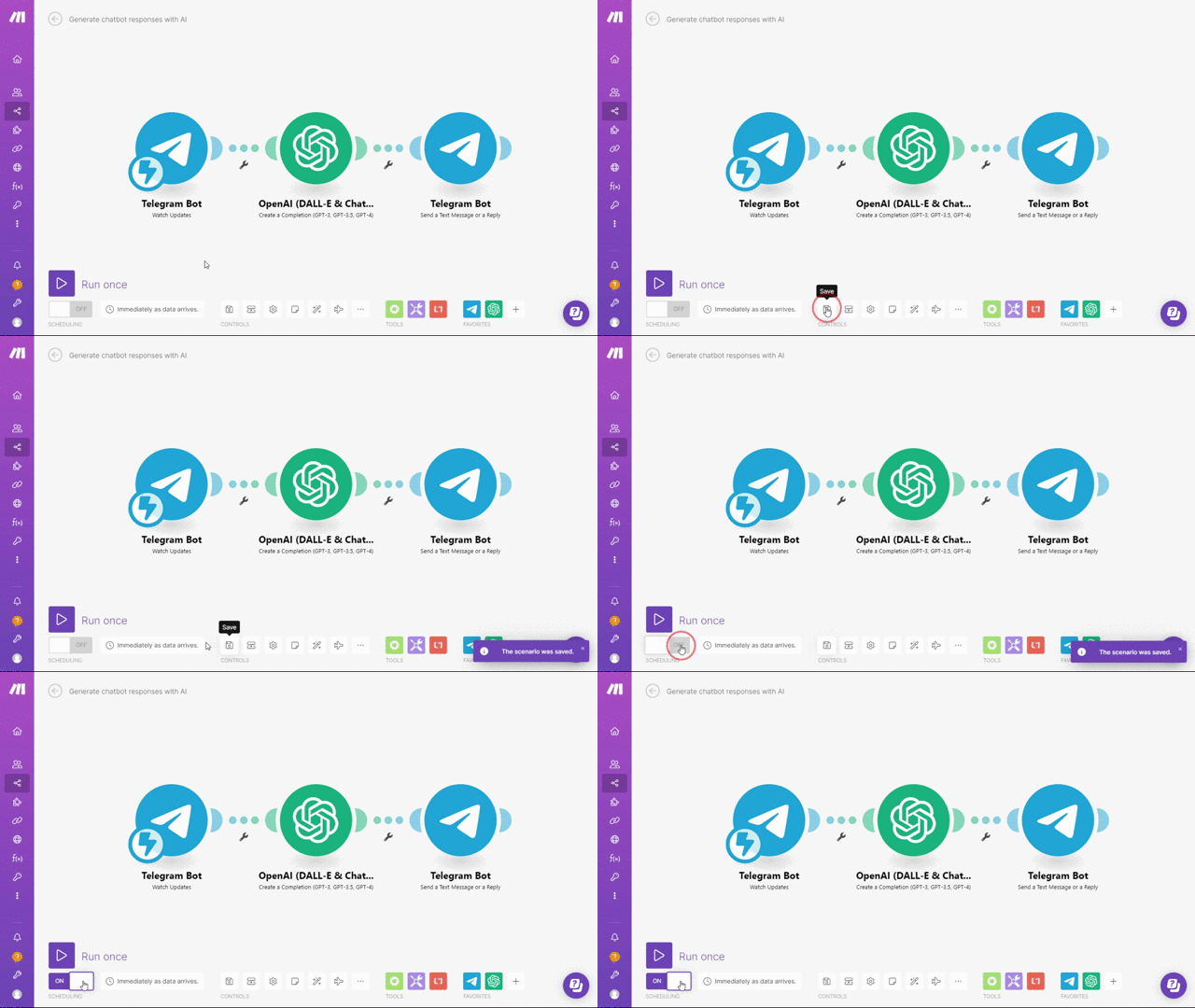
That’s it - your Telegram Bot that auto-replies is now fully operational!
Want to automate further? Check our Use Cases section for inspiration, sign up for a Make account, and start today!