Google Docs - Create a Contract Dynamically for a New Deal in Pipedrive
Use Pipedrive and Google Docs to safely automate contract creation, email the contract to the client and update the stage in Pipedrive.


What this scenario does: Retrieves a deal in Pipedrive, creates a Google Doc contract dynamically, emails the contract to the client and updates the stage in Pipedrive.
Level Of Difficulty: Intermediate
Implementation Time: Approximately 30 mins
Assumptions: You have a Pipedrive and Google account (for Google Drive, Google Docs and Gmail) with all connections added. Just closed a lucrative deal but before celebrating by chugging down a few beers, you still need to create the contract and get the client’s John Hancock. Prefer to save some time and create the contract automatically? We thought so. Let us show you exactly how to do this.
Configuring the Scenario
The scenario consists of the following modules:
- Pipedrive CRM > List deals
- Pipedrive CRM > Update a deal
- Google Drive > Create a folder
- Google Drive > Search for files/ folders
- Gmail > Send an email
- Google Docs > Create a document from a template
- Google Docs > Download a document
Here’s the scenario:

Let’s click on the Pipedrive CRM > List deals module that returns all deals based on the configuration.
First, select Issue contract from the Stage menu to only return deals in this stage.
Second, select All open deals in the Filter menu to return all open deals in the selected stage:
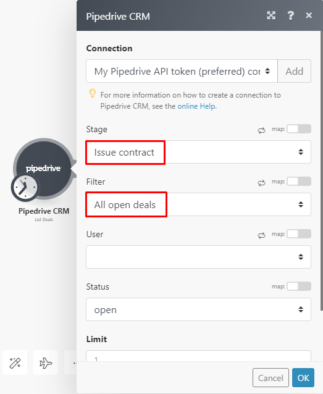
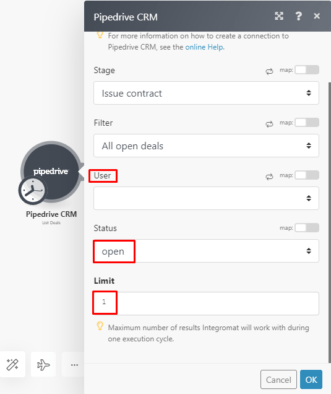
If you select a User, only deals from that specific user will be returned. If left blank, it will return deals from all users. There is only 1 user in this tutorial therefore left blank.
Now select Open in the Status menu to return the deals with an open status. The maximum number of results is set to 1 by default and you can increase this according to individual needs.
Let’s leave it as 1:
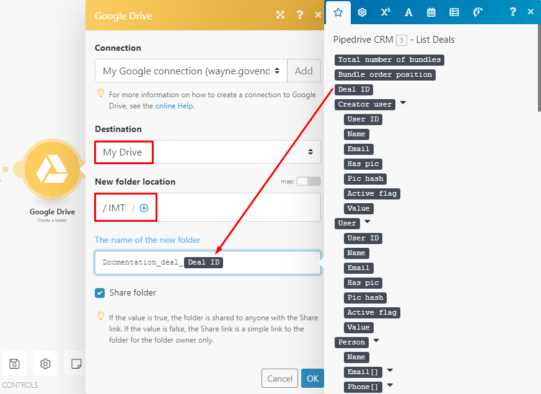
Next, create a folder to store the new document using the Google Drive > Create a folder module.
To do this, select the Destination and the New folder location. Then, in The name of the new folder field, type in the name and map the Deal ID element outputted by the preceding module:
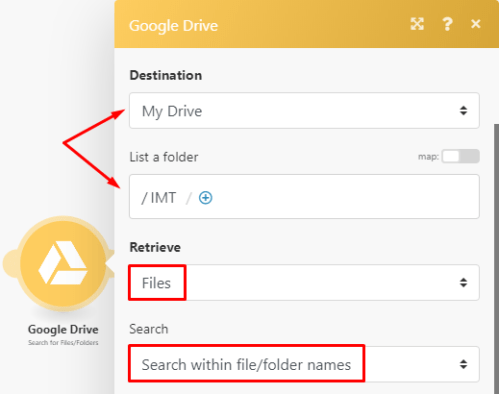
Now search for the contract template that you stored in a specific folder using the Google Drive > Search for files/folders module.
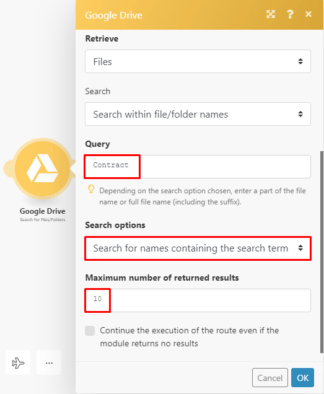
Again, select the Destination and then the folder that contains the file. Under Retrieve, select Files and under Search, select Search within files/folders:
In the Query field, type in the name of the document. In this example, it is simply titled Contract.
Under Search options, select Search for names containing the search term and leave the Maximum number of returned results as 10:
Next, open the Google Docs > Create a document from a template module and as the name states, here you’ll use the contract template retrieved from the preceding module to create the new contract populated with the specific client’s details and deal info.
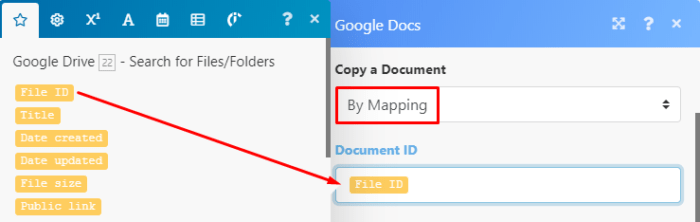
Under the Copy a document menu, select By Mapping and then simply map the File ID outputted by the Google Drive > Search for files/folders module:
Now you need to create tags and add it to the template. When a new contract is created, the tags are replaced with the information associated with it (client’s details/deal info).
To do this, click on Add item in the Values field.
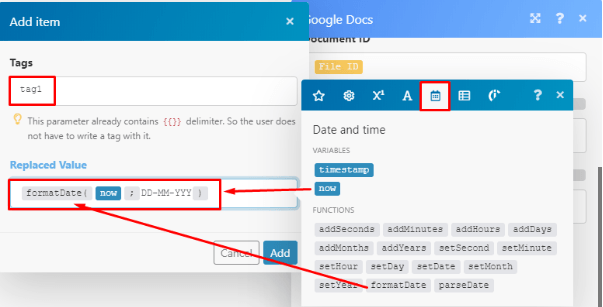
For the first tag, add the current date as the Replaced Value. In the Tags field, type in tag1 and in the Replaced Value field, add the formatDate function found under the Date and Time tab to display the date in a specific format.
Then, map the Now variable and enter the format of the date.
In this demonstration, use the following format DD-MM-YYYY**:**
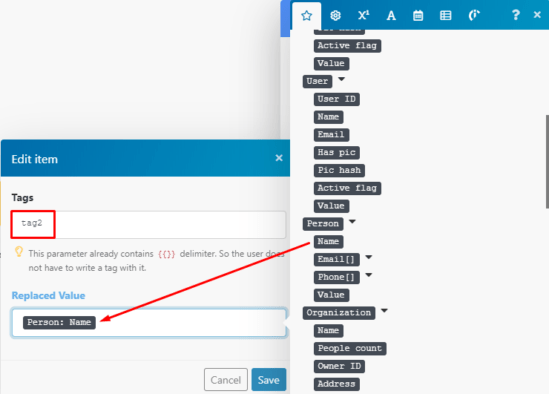
Click on Add item again to create the second tag and use the client’s name as the Replaced Value. Then, map the Person:Name element from the PipeDrive CRM > List deals module to the Replaced Value field:
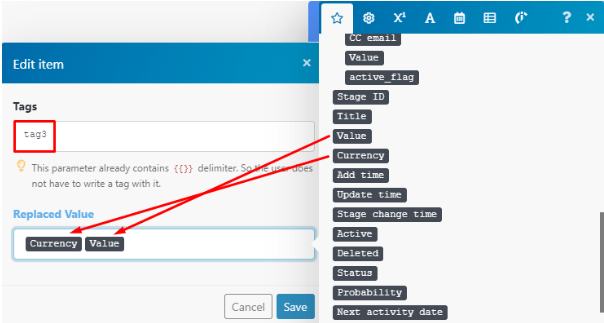
Next, create the third tag and map the currency and value elements outputted by the PipeDrive CRM > List deals module to the Replaced Value field to display the $ value of the deal:
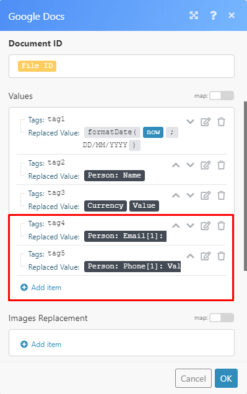
Now create tags 4 and 5 and use the client’s email address and phone number respectively as the Replaced value:
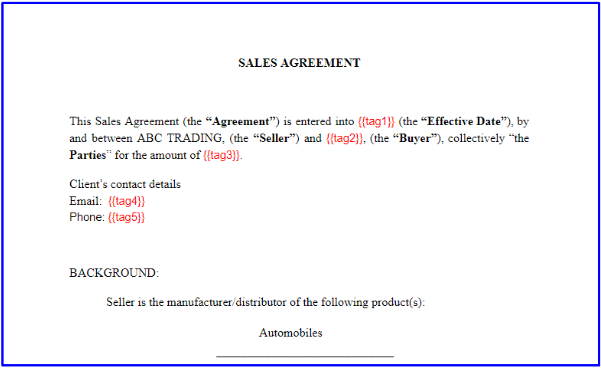
Go over to your Google Drive and open the contract template. You need to manually add the tags in the relevant places (include {{}}). Here is a snippet of a simple contract template with the tags added:
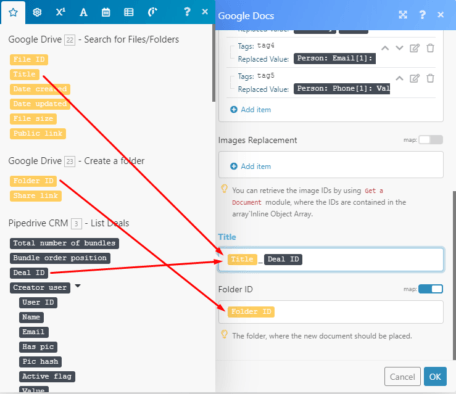
After you add all the tags, scroll down to the Title field. Here, map the Title element outputted by the Google Drive > Search for files/folders module and then map the Deal ID element outputted by the Pipedrive CRM > List deals module.
Lastly, map the Folder ID element outputted by the Google Drive > Create a folder module to the Folder ID field:
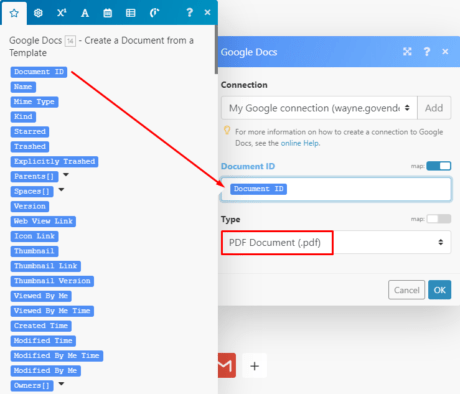
All done with that module’s configuration! Now let’s move on to the Google Docs > Download a document module which has a much quicker configuration. This module downloads the contract as a PDF file.
All you need to do is map the Document ID element outputted by the preceding module to the Document ID field and select the PDF Document option under Type:
The second last module in the scenario is the Gmail > Send an email module which you are probably very familiar with already.
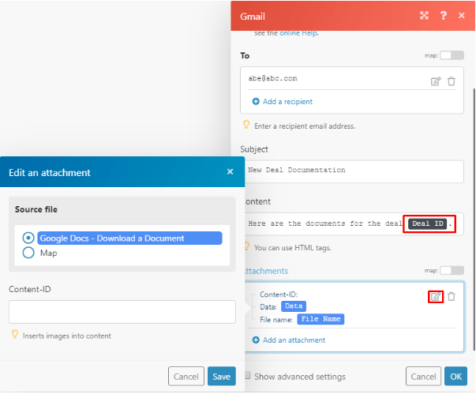
Add a recipient and the subject line.
Enter the content and map the Deal ID element outputted by the Pipedrive CRM > List deals module.
Lastly, under attachments, click the edit icon and select the Google Docs > Download a document as the Source file in order to attach the new contract:
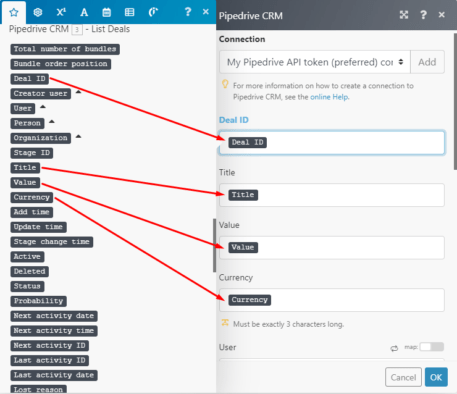
Finally, you need to update the deal in Pipedrive using the Pipedrive CRM > Update a deal module.
Map the elements outputted by the Pipedrive CRM > List deals module to the corresponding fields:
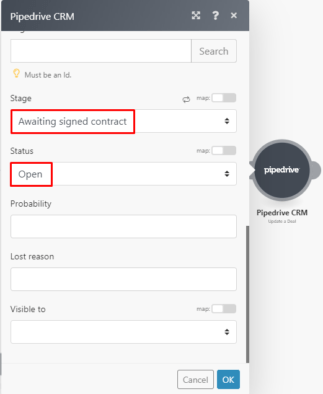
Scroll down and select the next stage in the process which is Awaiting signed contract and leave the status as Open:
You are good to go! Now let’s take a look at the result of the execution.
Scenario execution
Here you see that the trigger module fetches the deal and the bundle passes through all the modules successfully:

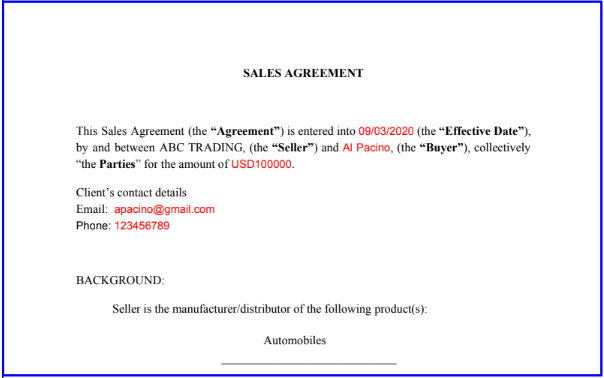
Here is the contract that is emailed to the client:
In Pipedrive, the deal moves automatically to the next stage as intended:

Pretty cool right? Hope you found this tutorial helpful!
Happy Automating!