How to repurpose your content across every social platform with Make, OpenAI, and Blotato
A step-by-step guide to building a 14-module scenario in Make that transcribes one uploaded video with OpenAI and automatically publishes native posts to TikTok, YouTube Shorts, Facebook, X, Threads, and Instagram.

Drop one finished video into Google Drive. This Make scenario turns it into native posts for TikTok, YouTube Shorts, Facebook, X threads, Threads, and an Instagram carousel.
Without automation, you’d have to manually repurpose your post for each social platform.
This workflow handles everything as soon as you upload your content into a Google Drive folder. OpenAI transcribes your video and writes content optimized for each platform. Blotato publishes the posts and even creates an Instagram carousel.
The result is one upload, six published social media posts, and no copying captions between tabs.
In this guide, you will build the full 14-module scenario. One upload will create:
- The original video with an optimized TikTok caption.
- The original video with a YouTube Shorts title and description.
- The original video with a Facebook caption.
- An X thread.
- A Threads thread.
- An Instagram carousel and caption.
Here is how to build it.
What you will need
- A Make account.
- A Google Drive folder for finished short-form videos.
- An OpenAI API connection in Make.
- A paid Blotato account, a Blotato API key, and connected social accounts.
- One vertical test video with clear speech.
Blotato has an official, verified Make integration. Its modules accept public media URLs and create visuals.
First, connect your social accounts in Blotato “Settings”. Connect TikTok, YouTube, Facebook, Instagram, X, and Threads. Then create a Blotato API key and use it to connect Blotato to Make.
Tip: Test with only one publishing route enabled. After it works, enable the other routes one at a time. This keeps a test from publishing six unfinished posts.
The system at a glance
Difficulty: Intermediate
Build time: 30 minutes
Best for: Creators, agencies, and marketing teams that already produce content
Problem it solves: Reformatting and publishing the same content manually across multiple platforms
The finished scenario contains fourteen modules across four stage
- Ingest: Watch a Google Drive folder and download the new video.
- Understand: Transcribe the video with OpenAI.
- Adapt: Ask OpenAI to write captions, threads, and a carousel brief.
- Distribute: Give Blotato the public Google Drive URL. Then publish the videos, threads, and Instagram carousel.
Google Drive: Watch files in a folder
↓
Google Drive: Download a file
↓
OpenAI: Generate a transcription
↓
OpenAI: Generate platform content as JSON
↓
Router
┌─────────┼──────────┬─────────┬─────────┬──────────────┐
↓ ↓ ↓ ↓ ↓ ↓
TikTok YouTube Facebook X thread Threads Create Visual
↓
Sleep 120 seconds
↓
Get Visual
↓
Instagram carousel
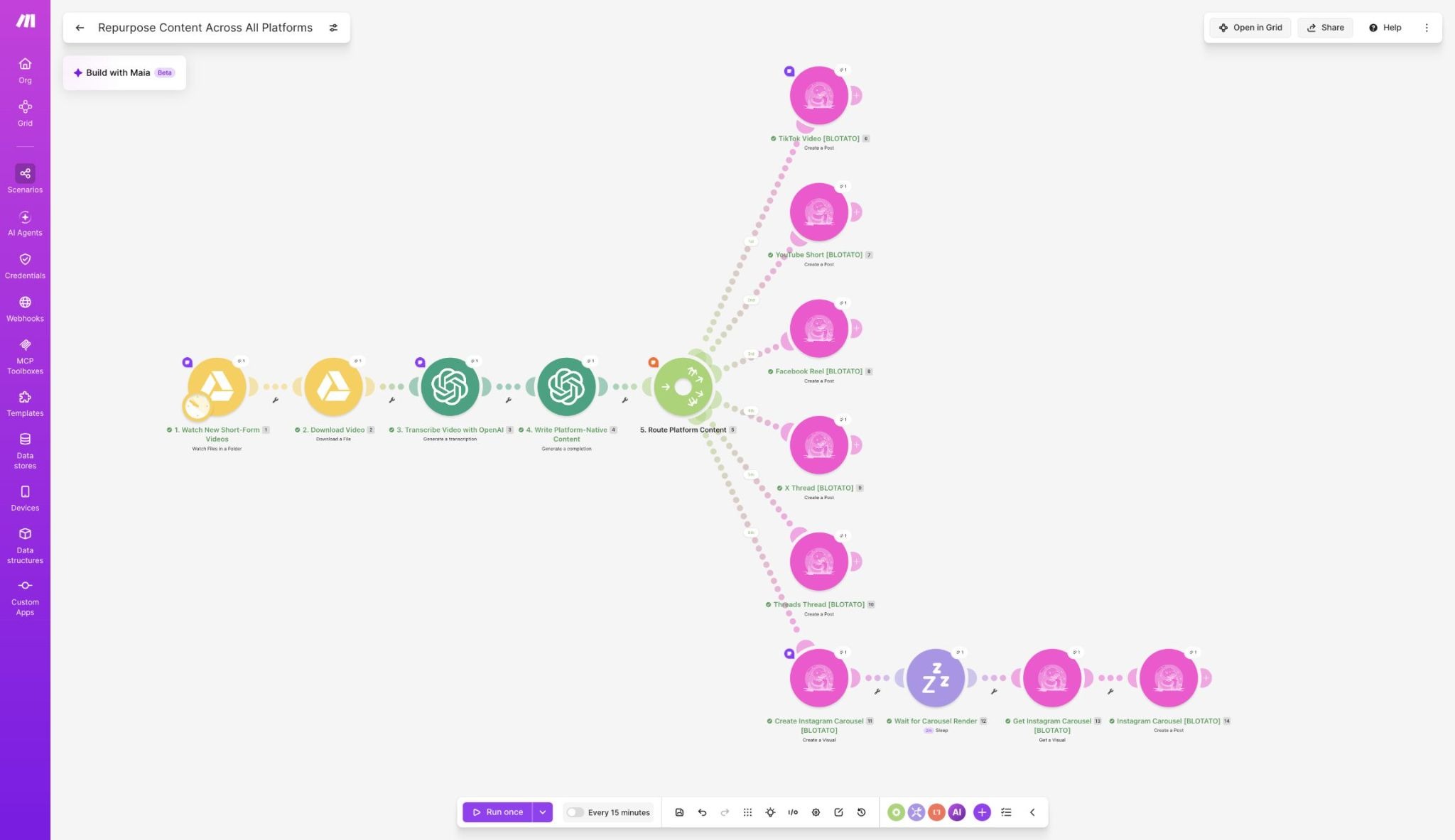
Step-by-step: Build the content repurposing scenario
Step 1: Watch the Google Drive folder
Create a new scenario in Make and add Google Drive > Watch Files in a Folder as the trigger.
Use these settings:
- Watch files by created time.
- Choose the folder where you upload finished videos.
- Use My Drive as the destination.
- Leave the file type set to All.
- Return 1 file per run while testing.
The blueprint leaves the file type set to All. This works because it watches a folder used only for finished videos. If you use a mixed folder, add a MIME-type filter. The blueprint does not include this filter.
This trigger checks the folder on a schedule. The schedule does not transfer when you import a blueprint. Choose a schedule that fits your needs. Every fifteen minutes works well for most teams.
Right-click the trigger and choose its starting point. Select From now on to ignore older videos in the folder.
Tip: Use a folder such as Ready to Repurpose. Do not use a production folder that also contains drafts or alternate edits.
Step 2: Download the video
Add Google Drive > Download a File.
Set Enter a File ID to Map. Then map the trigger's ID into File ID. Download a File returns Data and Original filename. The transcription module needs both. The blueprint has no filter between the two Google Drive modules.
OpenAI accepts MP4 files and several common audio formats. Each uploaded file must be 25 MB or smaller. For a larger file, compress it or extract its audio before transcription. You can also change your export settings to create a smaller file.
Step 3: Transcribe the video with OpenAI
Add OpenAI > Generate a Transcription. Depending on the current Make interface, the action may appear as Create a Transcription.
Use these settings:
- File name: Map Original filename from Download a File.
- File data: Map Data from Download a File.
- Model: whisper-1.
- Response format: JSON.
- Temperature: 0.
- Prompt: Transcribe accurately. Preserve product names, proper nouns, numbers, and calls to action.
Use the transcript as the source for every post. The writing step should reshape the transcript without adding new claims.
Step 4: Generate every platform package in one OpenAI call
Add OpenAI > Generate a Completion and choose the chat-completion method.
Use the same settings as the blueprint:
- Model: gpt-5.6-luna.
- Max output tokens: 2500.
- Temperature: 0.7.
- Top P: 1.
- Number of completions: 1.
- Response format: JSON object.
- Parse JSON response: Yes.
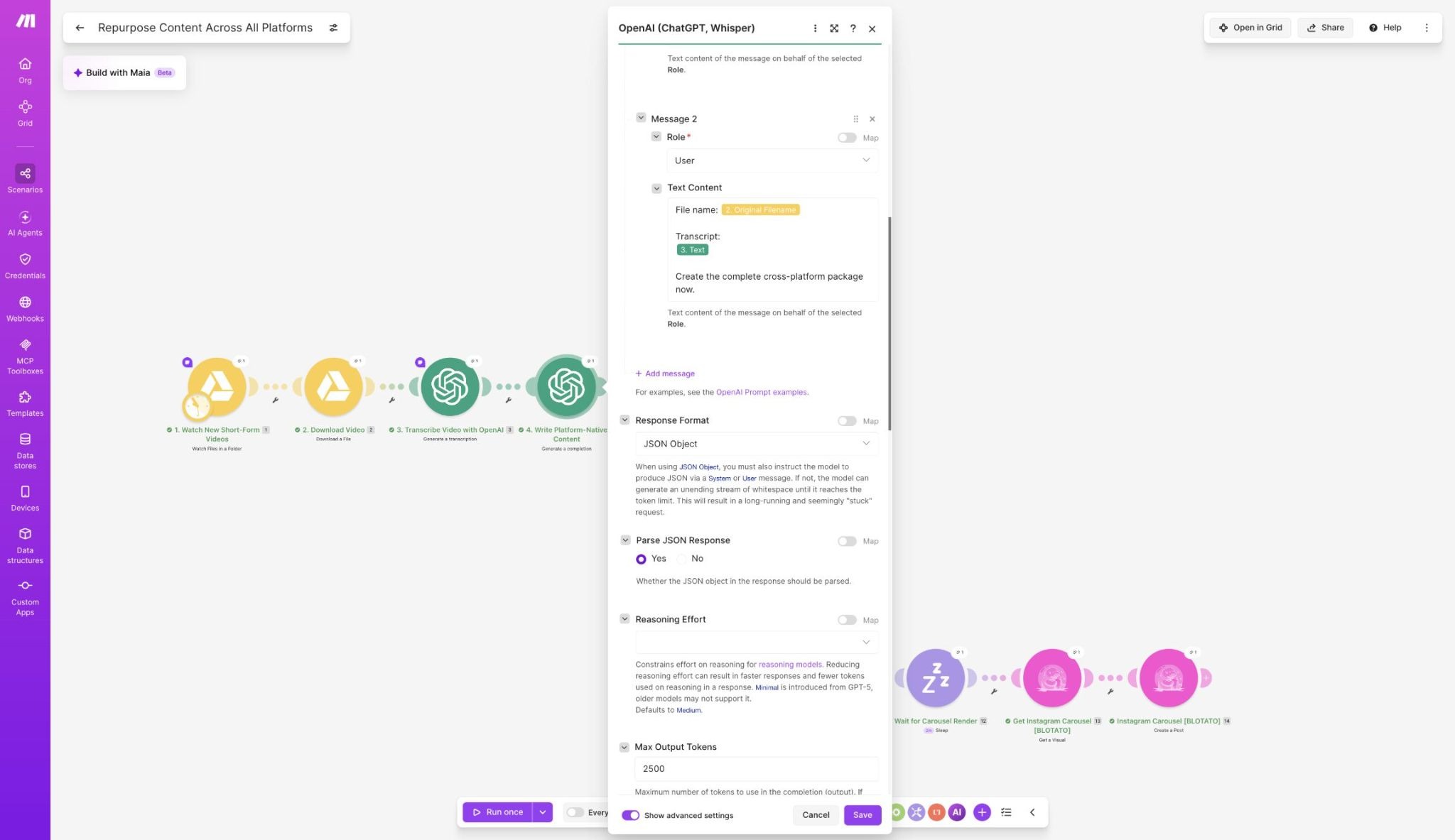
Parsing makes each result available to later modules. For example, Make can map Result: twitter_hook into the X module. Add this system prompt:
You are a senior social media editor. Repurpose a short-form video transcript
into platform-native content without changing the meaning.
Rules:
1. Use only facts and claims stated in the transcript.
2. Preserve the creator's point of view and plain-language tone.
3. Do not paste the same caption across platforms.
4. Do not invent statistics, examples, quotations, or results.
5. Each X post must be 280 characters or fewer.
6. Make the X and Threads sequences useful even when read without the video.
7. The Instagram carousel must contain 7 slides: 1 hook, 5 teaching
slides, and 1 closing takeaway or CTA.
8. Return valid JSON only. Do not wrap it in markdown.
9. Make the TikTok caption hook-first and concise, with 3 relevant hashtags.
10. Keep the YouTube title under 100 characters and make the description
searchable without keyword stuffing.
11. Give the Facebook caption enough context to work without sound.
12. Keep each Threads post under 500 characters and conversational.
Return exactly these string fields:
tiktok_caption
youtube_title
youtube_description
facebook_caption
twitter_hook
twitter_post_2
twitter_post_3
twitter_post_4
twitter_post_5
threads_hook
threads_post_2
threads_post_3
threads_post_4
threads_post_5
carousel_prompt
instagram_caption
Use this user message:
File name: {{2. Original filename}}
Transcript:
{{3. Text}}
Create the complete cross-platform package now.
One structured response is simpler than one OpenAI call for each platform. Map each result directly into its Blotato field. For example, map Result: tiktok_caption into TikTok's Text field. Map Result: twitter_hook into the first X post. Do not use a parseJSON() mapping expression. It is not available here and will cause a DataError.
Checkpoint: Run this module once. Its output should show each named result as a separate field.
Tip: Keep the first version of this prompt generic. Once the full scenario runs successfully, add brand voice, audience, CTA, banned phrases, and formatting rules.
Step 5: Create a public Google Drive media URL
Add that URL to the Media URLs field of each publishing module.
Build the direct-download URL with module one's ID (https://drive.usercontent.google.com/download?id={{1.id}}&export=download&confirm=t). Do not use the binary output from Download a File.
The confirm=t part helps avoid Google's virus-scan page for larger files. Blotato still needs public access to the file. Set sharing to Anyone with the link and choose Viewer. Test the URL in an incognito window. It should download the file without asking you to sign in.
If you cannot share the file publicly, use another storage service with public URLs.
Checkpoint: Paste the direct URL into an incognito window. Continue only if the video downloads without a Google sign-in page.
Step 6: Add a router with 6 branches
Add a Make router after the OpenAI content-generation module.
Create these routes:
- TikTok video.
- YouTube Short.
- Facebook Reel.
- X thread.
- Threads thread.
- Instagram carousel.
Each route can use the same transcript, AI response, and Google Drive URL. The route then applies the settings for its platform.
The tested export has a Scheduled time in every publishing module. It also sets Schedule next free slot to No. Replace the test dates with your own date and time. Clear Scheduled time if you want to publish at once. To use Schedule next free slot, set it to Yes and leave Scheduled time empty.
Step 7: Publish the video to TikTok, YouTube Shorts, and Facebook
Add Blotato > Create a Post to each of the first three routes.
TikTok
- Set Platform to TikTok.
- Select the connected TikTok account.
- Map Result: tiktok_caption into Text.
- Map the public Google Drive URL into Media URLs.
- Set Privacy level to Public to everyone for a public post.
- Review every disclosure and content setting. Choose No only when it describes the post correctly.
YouTube
- Set Platform to YouTube.
- Select the channel.
- Map Result: youtube_title into Video Title.
- Map Result: youtube_description into Text.
- Map the same Google Drive URL into Media URLs.
- Keep Privacy status set to Private while testing.
- Review Made for kids, Contains synthetic media, and Notify subscribers. The test blueprint sets all 3 to No.
YouTube uses the video's format and length to decide if it is a Short. You do not need a separate Short module.
- Set Platform to Facebook.
- Select the Facebook account and Page.
- Map Result: facebook_caption into Text.
- Map the same Google Drive URL into Media URLs.
- Set the video type to Reel.
Step 8: Turn the transcript into an X thread
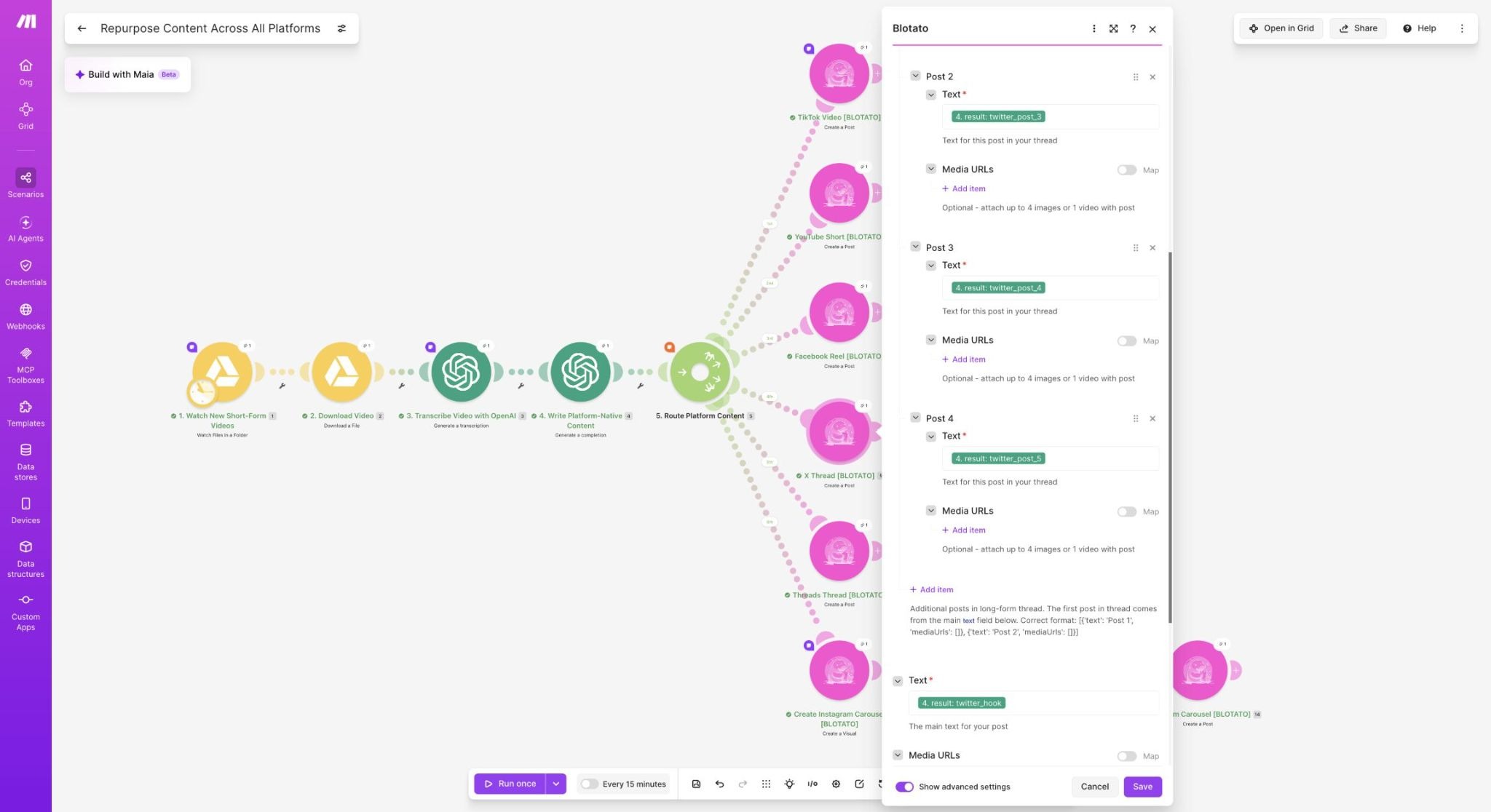
On the X route, add Blotato > Create a Post. Set the platform to Twitter and select the X account. Open Show advanced settings to find Thread Posts.
Map:
- Map Result: twitter_hook to the main Text field.
- Map Result: twitter_post_2 through Result: twitter_post_5 to four Thread Posts items.
- Leave the optional media fields empty. This route publishes a text-only thread with five posts.
The main text becomes the first post. Blotato sends the 4 Thread Posts items as additionalPosts[]. It then publishes them as connected replies in order.
This format is easier to read than one large block. The hook states the problem. Each middle post explains one idea. The final post gives the takeaway.
Checkpoint: The module should contain one main text field and four items under Thread Posts.
Step 9: Build a native Threads thread
Repeat the pattern with another Blotato > Create a Post module, but set the platform to Threads.
Map Result: threads_hook into the main text field. Map the four follow-up fields into Thread Posts. Select the Threads account and set Reply control. The blueprint uses Everyone. This route publishes a text-only thread with 5 posts.
Do not copy the X text into Threads. The prompt uses separate fields so Threads can sound more conversational.
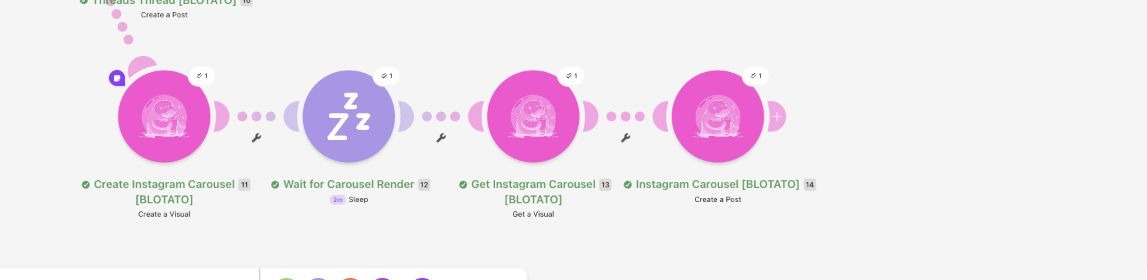
Step 10: Generate and publish the Instagram carousel
The final route turns the spoken idea into a visual asset.
Add Blotato > Create a Visual and configure it exactly like the fixed scenario:
- Template: Instagram Carousel Slideshow.
- Prompt: Map Result: carousel_prompt.
- Image model: Nano-banana-2.
Blotato creates the visual in the background. Add Tools > Sleep after Create a Visual. Set the delay to 120 seconds. Then add Blotato > Get a Visual. Map Create a Visual's Video ID into Video ID. This ID points to the carousel job, despite its name.
The blueprint waits two minutes because the template must create several images. Check that Get a Visual returns the full Image URLs array. For a live workflow, add retries in case the visual needs more time.
Finally, add Blotato > Create a Post:
- Set Platform to Instagram.
- Select the Instagram account.
- Map Result: instagram_caption into Text.
- Turn on mapping for Media URLs.
- Map the full Image URLs[] array from Get a Visual.
- Leave Post Type empty. The images will publish as a feed carousel, not a Reel or Story.
The official Blotato Make documentation uses the same pattern: Create Visual, wait, Get Visual, and publish.
Checkpoint: Get a Visual should return several image URLs. Map the full array, not one image, into the Instagram post.
Where this automation can fail and how to fix it
The video is too large for transcription
OpenAI's file limit for transcription is 25 MB. Compress the video, extract its audio, or split a longer recording.
Blotato cannot fetch the Google Drive file
Opening a Drive file in your browser does not prove that Blotato can reach it. Set sharing to Anyone with the link. Then test https://drive.usercontent.google.com/download?id=FILE_ID&export=download&confirm=t in an incognito window. Blotato cannot fetch the video if Google asks you to sign in or opens a preview page.
The carousel is still processing
Create Visual returns before the images are ready. Increase the delay or repeat Get a Visual until the status is done. For a creation-from-template-failed status, check the template inputs and the Blotato API Dashboard.
The AI response cannot be mapped
Set the OpenAI response format to JSON object. Turn on Parse JSON response and keep the field names fixed. Map each Result property directly. If you rename a field, update every module that uses it.
Posts do not publish immediately
Check Scheduled time in each Create a Post module. The blueprint contains test dates and sets Schedule next free slot to No. Replace or clear those dates before running the scenario. Blotato publishes at once when both scheduling fields are empty.
A test publishes everywhere
Disable five routes and test one platform first. You can also keep the YouTube video private while you check the workflow.
Ways to extend the workflow in Make
Once the basic scenario works, add the controls that fit your publishing process:
- More social platforms: Connect each account in Blotato first. In the OpenAI Writer prompt, add a JSON field for each new platform. In Make, add a route to the router, copy an existing Blotato Create a Post module, select the new platform and account, and map that field. Refresh the account list if a new connection does not appear. Map a public Media URL when the post needs an image or video.
- Bluesky: Map a short text post and an optional public image or video URL.
- Pinterest: Select Pinterest, choose the required Board ID, and map a title, description, and public image or video URL. Alt Text and Link are optional.
- LinkedIn personal profile: Select LinkedIn and your personal account. Leave the LinkedIn Page option empty.
- LinkedIn page: Select LinkedIn, click Add option, choose LinkedIn Page, and select the company page.
- Instagram Story: Select Instagram, click Add option, choose Media Type, and set it to Story. Map exactly one public image or video URL and leave Text empty because Meta does not publish Story captions. Add any words to the image or video before Blotato receives it.
- Human approval: Save the copy and carousel URLs before the publishing router. You can use Airtable, Google Sheets, or Slack.
- Scheduling: Turn on Blotato's Schedule Next Free Slot option. Each platform will use the content calendar you set up.
- Duplicate checks: Save the Google Drive file ID after a successful run. Stop any file ID that was already processed.
- Status tracking: Save each Blotato post ID, platform, source file, and result in a table.
- Error alerts: Add error routes that notify the content owner when a platform fails.
- Brand options: Add fields for brand voice, audience, CTA, and carousel template. Then one scenario can support several accounts.
- Better carousel checks: Replace the fixed Sleep module with a loop that checks the visual status.
4 things to remember from the get-go
- Adapt the idea instead of copying it. Reuse the video, but give each platform the right text.
- Use the transcript as the source. Tell the model not to invent claims, numbers, or examples.
- Expect some steps to take time. Save post IDs and status results so you can track each job.
- Test safely. Start with 1 file, 1 platform, and a private destination. Then enable the other routes.
Getting started
With Make, you can create a scenario that turns content into published social media posts of varying formats. Your team only needs to drop a finished video into Google Drive.
Google Drive supplies the video. OpenAI transcribes it and writes the new content. Make controls the workflow. Blotato creates the carousel and publishes each post to social media.
Start with the YouTube path and keep the test video private. Confirm that Blotato can fetch the Google Drive URL. Then enable the other five routes one at a time.
Once all six paths work, your Make scenario will repurpose a single video into six social media posts.