How to Retrieve RSS Feed Items and Post to WordPress
Use Integromat to watch for RSS feed items and auto post them to a Wordpress site. No more consuming time manually publishing content to multiple sites!


What this scenario does: Watches for RSS feed items and posts them to a Wordpress site.
Level of difficulty: Beginner
Implementation Time: Approximately 20 mins
Prerequisites: The following is needed to setup the scenario:
- Your Wordpress site
- Your second website /channel which will serve as the source of information (Wordpress optional)
- RSS feed reader installed
RSS or Really Simple Syndication is a free web-based content distribution method that helps you retrieve updates of your favorite content automatically from various sites using a RSS reader.
In Make, you can retrieve RSS feed items from one of your websites and automatically distribute them to your other sites, social media channels etc. This tutorial shows you exactly how to do that however to keep it simple, the feeds are posted to just 1 Wordpress site. Let’s begin.
Step 1: Add the RSS app and configure
Go over to your Make dashboard. To create the scenario, click on the Create a new scenario button on the top right corner:

- You may select the apps you wish to integrate on this screen or simply skip this step as you will be able to do that directly when building your scenario:

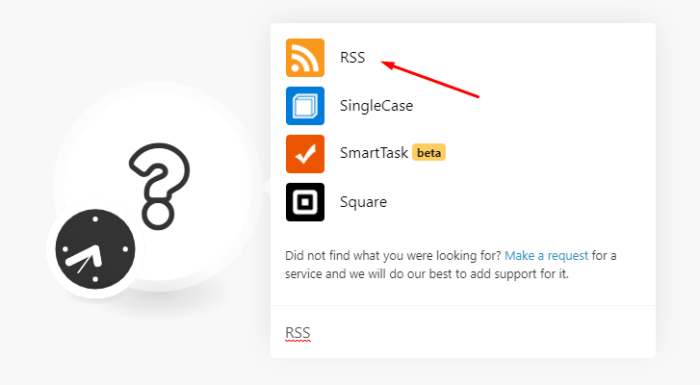
- You will see an empty module with a question mark. Click on the question mark, search for RSS and select it:
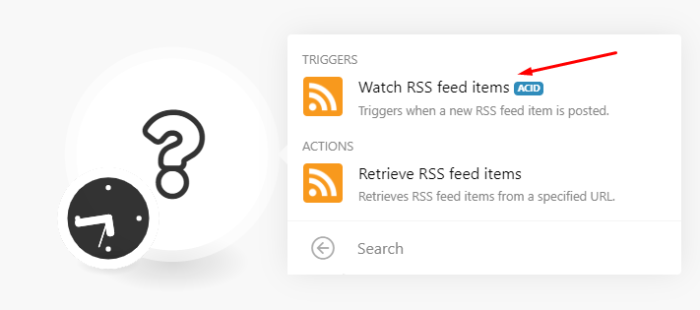
- Now click on the Watch RSS feed items trigger module since you want to watch for the latest feeds:
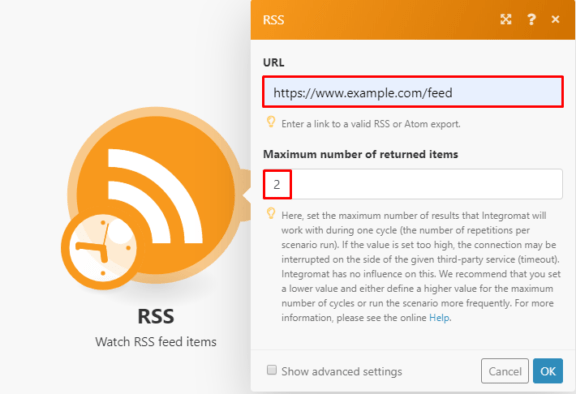
- Next, copy the RSS URL from your Website that you want to receive feed items from and paste it to the URL field in the RSS > Watch RSS feed items module. You can set the Maximum number of returned items (feeds in this case) that Make will return during a single execution. If the number is set too high, it can result in timeout errors. Let’s set this to 2:
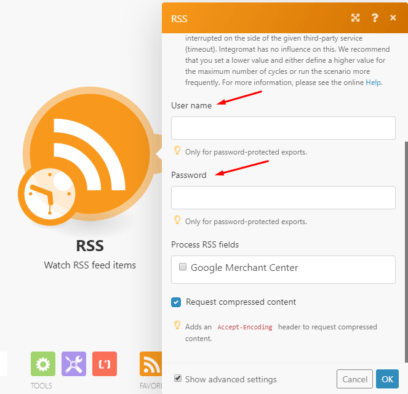
- If you click the advanced settings, there are fields for Username and Password should this be required to receive feeds from the site:
Step 2: Add the Wordpress app and configure
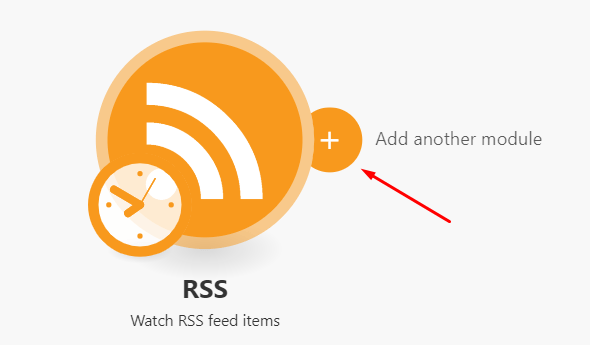
The RSS module is now configured. Next, you need to add the Wordpress app. Click on the small circle on the right of the RSS module to add the next module:
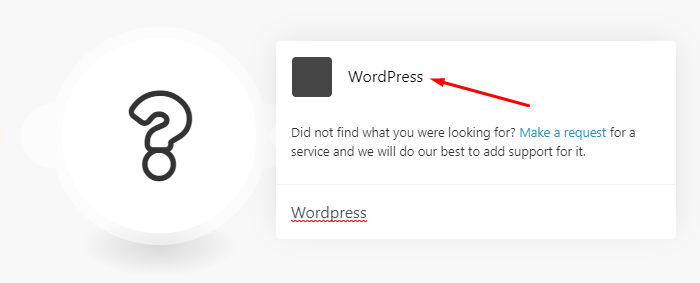
- Search for Wordpress in the search box and select it:
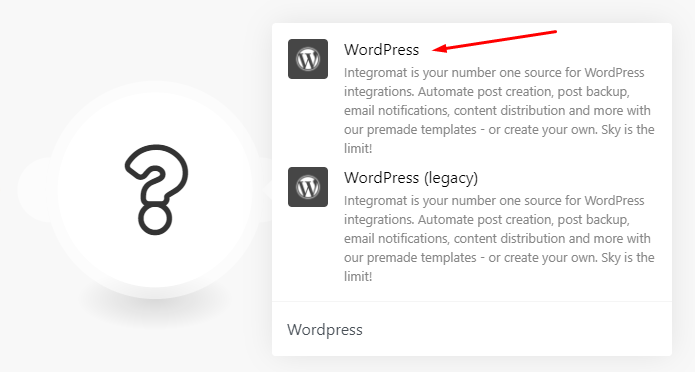
- A box with 2 more options will appear, select the first Wordpress app. The legacy app is no longer in use and will be discontinued once Wordpress deprecates the old API:
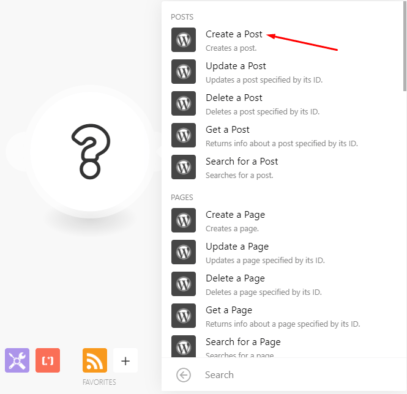
- Next, select the Create a Post module since this is the intention:
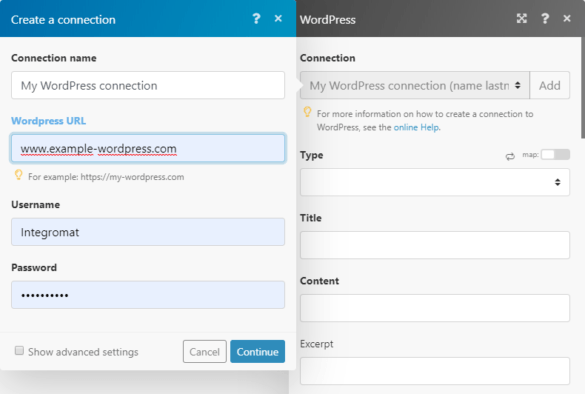
- Now you need to create a connection to your account. Click on Add, enter your Wordpress credentials and click Continue:
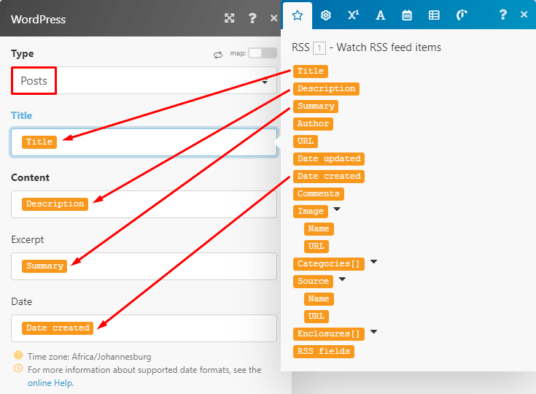
- In the Type field, select Posts from the menu. Now you need to map the elements outputted by the RSS module to the relevant fields in the Wordpress module. Map the Title element to the Title field, the Description element to the Content field and the Summary element to the Excerpt field. Lastly, map the Date**created element to the Date** field:
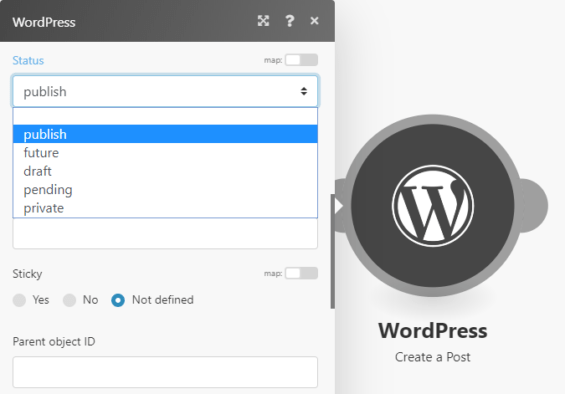
- Scroll down to the Status field. Here you have the option of selecting one of the various statuses. To publish the article immediately once received, select Publish from the menu:
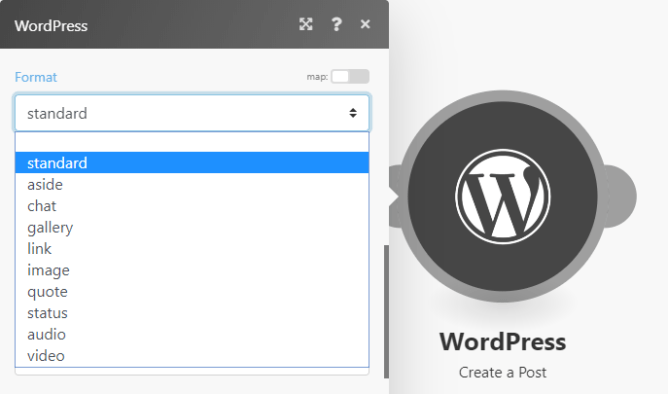
- Next is the Format field. Here you have a list of format options to choose from depending on the type of post. For this demo, choose the standard option:
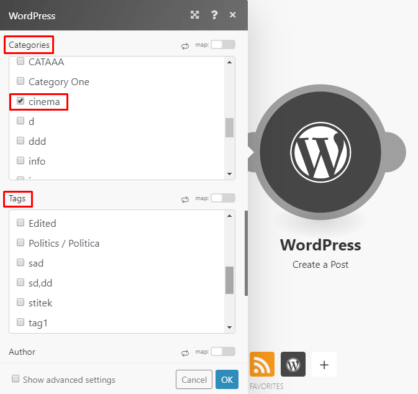
- In the Categories field, select the category that you want the post to be added to. You can also select tags in the field below:
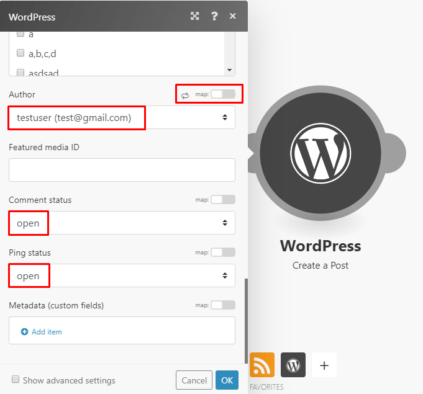
- Next, you can select the Author from the menu in the Author field or toggle the Map switch and map the relevant element. To retrieve the Featured media ID, the relevant Wordpress module will need to be added prior to the Wordpress > Create a post module. For the sake of simplicity, let’s leave this field blank. Lastly, under the Comments and Ping status fields, select Open:
Step 3: Test the scenario
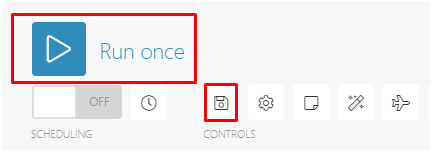
Your scenario is configured and good to go but you still need to do a quick test. Click on the Save button at the bottom of the screen. Next, upload new content to your website that you are watching for feeds and then click on the Run once button to execute the scenario once:
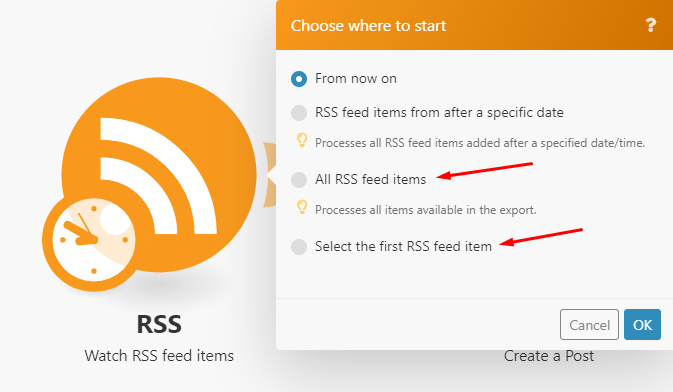
- As a side note, if you would like to retrieve older content from the website, right click on the RSS module and select Choose where to start. Here, select All RSS feed items or manually select the ones you want:
- If the execution was successful, you will see 2 numbered circles above each module that you can click to view the module’s output. The number in the circle signifies the number of operations consumed by each module in a single execution. Here is what the scenario looks like after the execution:
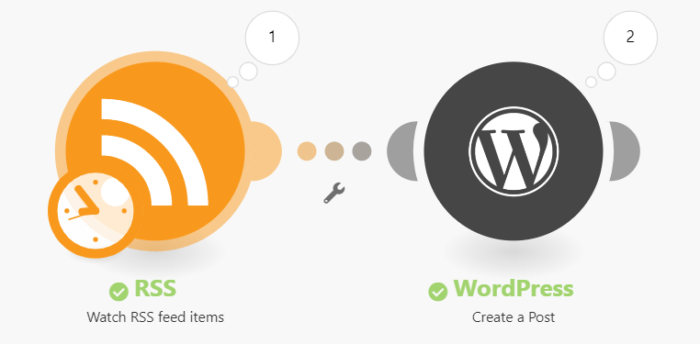
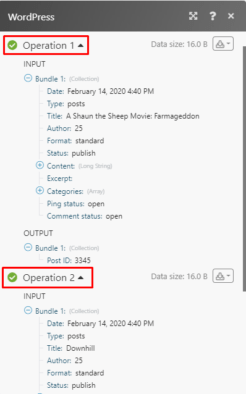
- Click on the output of the Wordpress module. You can see that 2 items were received from the RSS module corresponding to the 2 operations and posted to the Wordpress site:
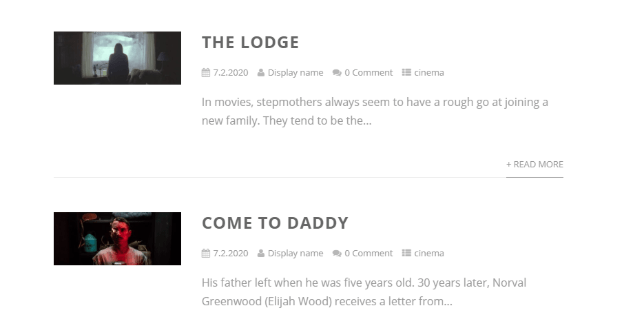
- Here’s a look at the posts on the website:
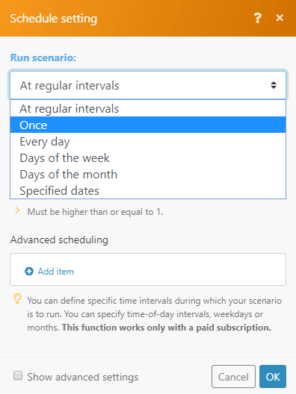
- Now go back to the scenario and click on the clock icon. Here you can set your preferred schedule:
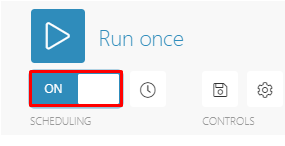
- Finally, set the scenario to on by clicking the switch at the bottom left corner:
There you have it! No more consuming time manually publishing content to multiple sites!
Happy Automating!