HubSpot Salesforce integration: step-by-step guide (2026)
Stop losing leads to misaligned CRM data. Here's how to build a reliable, bi-directional sync between HubSpot and Salesforce.


Your CRM and marketing platform are only as useful as the data flowing between them.
When a HubSpot Salesforce integration is poorly configured, sales reps follow up on leads marketing already disqualified, contacts get duplicated, and attribution data falls apart.
According to HubSpot's 2026 State of Marketing Report, over 27% of marketers cite sales-marketing alignment as a top challenge.
This guide covers how to build a reliable, configurable integration using Make.
What is a HubSpot Salesforce integration?
A HubSpot Salesforce integration is a bidirectional sync between the two platforms that keeps contacts, companies, deals, and activity data consistent across both systems.
When a contact is created or updated in either platform, those changes propagate to the other, so sales and marketing always work from the same records.
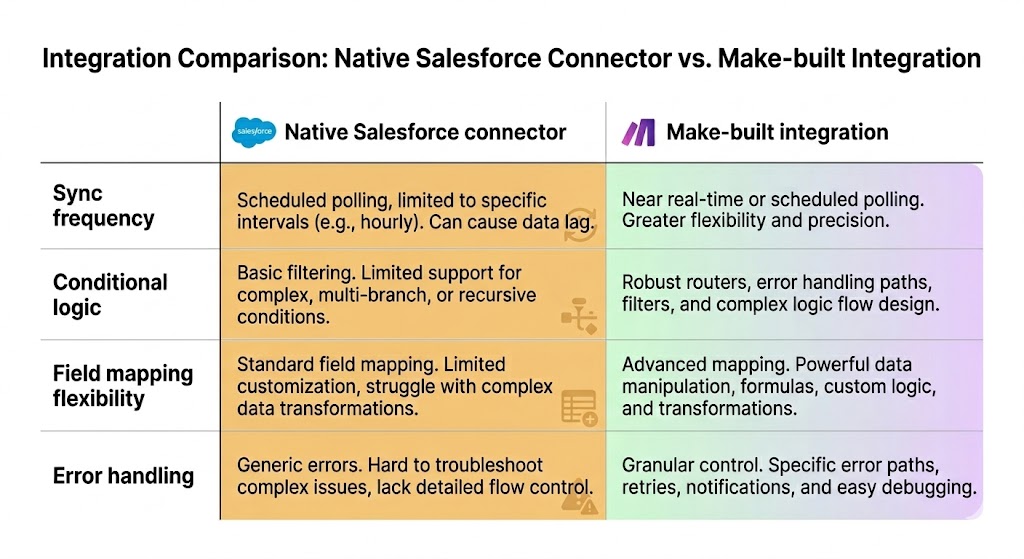
There are two main approaches to building this HubSpot Salesforce sync. The first is HubSpot's native Salesforce connector, which handles standard object syncing with a point-and-click setup.
It works well for teams with straightforward field mappings and standard sync rules.
The second is a custom automation-layer approach using a platform like Make, which gives you full control over sync conditions, field transformations, routing logic, and error handling.
For ops leaders and RevOps teams at companies with 50 to 500 employees, the native connector frequently hits its limits.
Make addresses this through its visual Scenario Builder, where each step in your CRM integration automation is a configurable module.
How to connect HubSpot and Salesforce using Make
Before you build, confirm you have the following in place:
- An active HubSpot account with API access enabled (Professional or Enterprise tier)
- A Salesforce account with admin credentials or a connected app already configured, with OAuth 2.0 enabled
- An active Make account
You'll build a Scenario that watches for new or updated contacts in HubSpot, then creates or updates the corresponding lead record in Salesforce.
A deduplication check sits between the two modules to prevent duplicate records from appearing in either system.
If this is your first time building in Make, the create your first scenario guide covers everything you need before continuing.
For Salesforce, review the connected app setup documentation on help.salesforce.com before starting Step 2, as you'll need your Consumer Key and Consumer Secret ready.
Step 1: Set up your HubSpot connection in Make
Open Make and create a new Scenario.
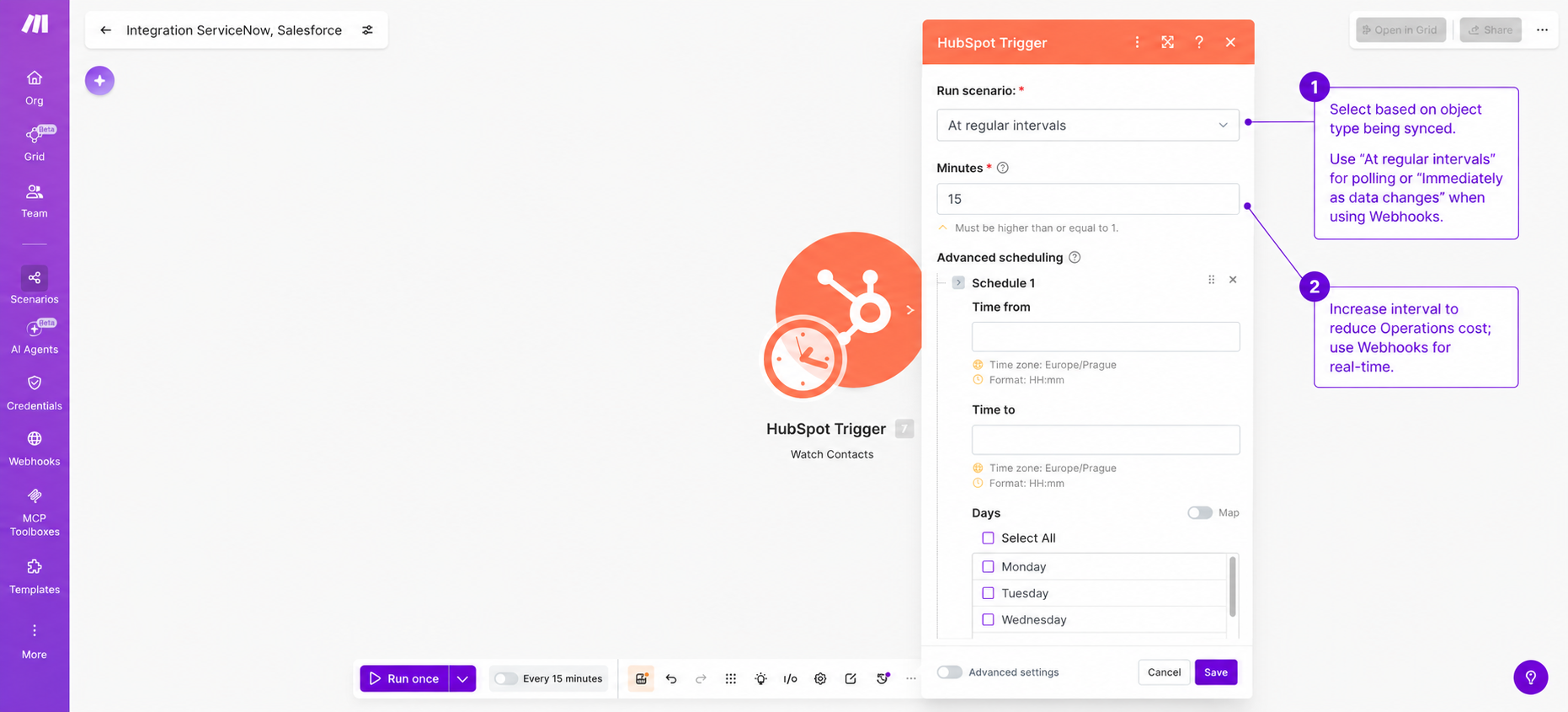
Add a HubSpot trigger module as your first step using the HubSpot CRM app on Make, then select the trigger type based on what you're syncing:
- Use Watch Contacts to trigger the Scenario when a contact is created or updated in HubSpot
- Use Watch CRM Objects if you need to track changes across other object types, such as companies or deals
To authenticate, select 'Add a connection' and choose OAuth 2.0. Make opens the HubSpot authorization screen, where you grant the scopes the Scenario requires: at minimum, contacts read/write and CRM objects.
OAuth 2.0 is the right choice for production use because it gives you granular scope control and lets you revoke access without rotating API keys across every integration.
Once connected, set the polling interval. The default checks HubSpot at fixed intervals, which introduces latency proportional to that interval.
If your use case requires real-time sync, this module configuration won't support it: real-time sync requires a webhook-based trigger and a different HubSpot module setup entirely.
Step 2: Configure the Salesforce connection
Add a Salesforce module to your Scenario using the Salesforce app on Make.
For the action type, choose between two options:
- Create a Record: creates a new Salesforce lead every time the module runs
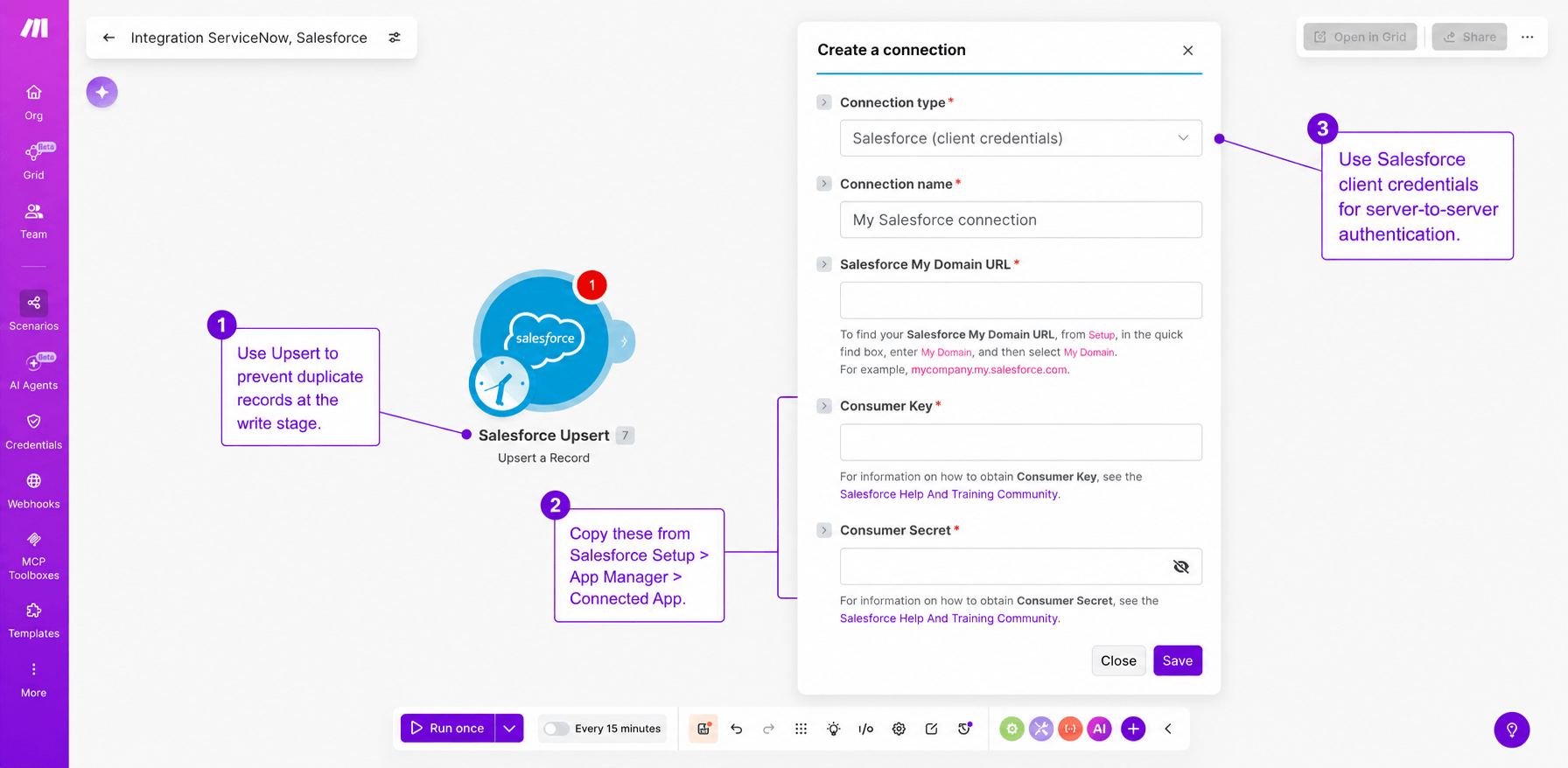
- Upsert a Record: checks for an existing record first using an external ID field, then creates or updates accordingly — this is the option that prevents duplicates at the write stage
To establish the connection, you'll need your Salesforce connected app credentials. In Salesforce, navigate to Setup, then App Manager, open your connected app, and copy the Consumer Key and Consumer Secret.
Paste both into Make's Salesforce connection panel when prompted.
One configuration error appears consistently at this stage: the environment selector. Make's Salesforce connection panel includes a toggle between sandbox and production.
If you build and test against your sandbox but leave the toggle set to production, or vice versa, the connection will authenticate but write to the wrong org. Confirm the environment before running any test records.
Your Salesforce API user account also needs the correct profile permissions: at minimum, API access enabled, and read/write permissions on the Lead or Contact object you're targeting.
Step 3: Map fields between HubSpot and Salesforce
Field mapping is where most HubSpot Salesforce data mapping problems originate.
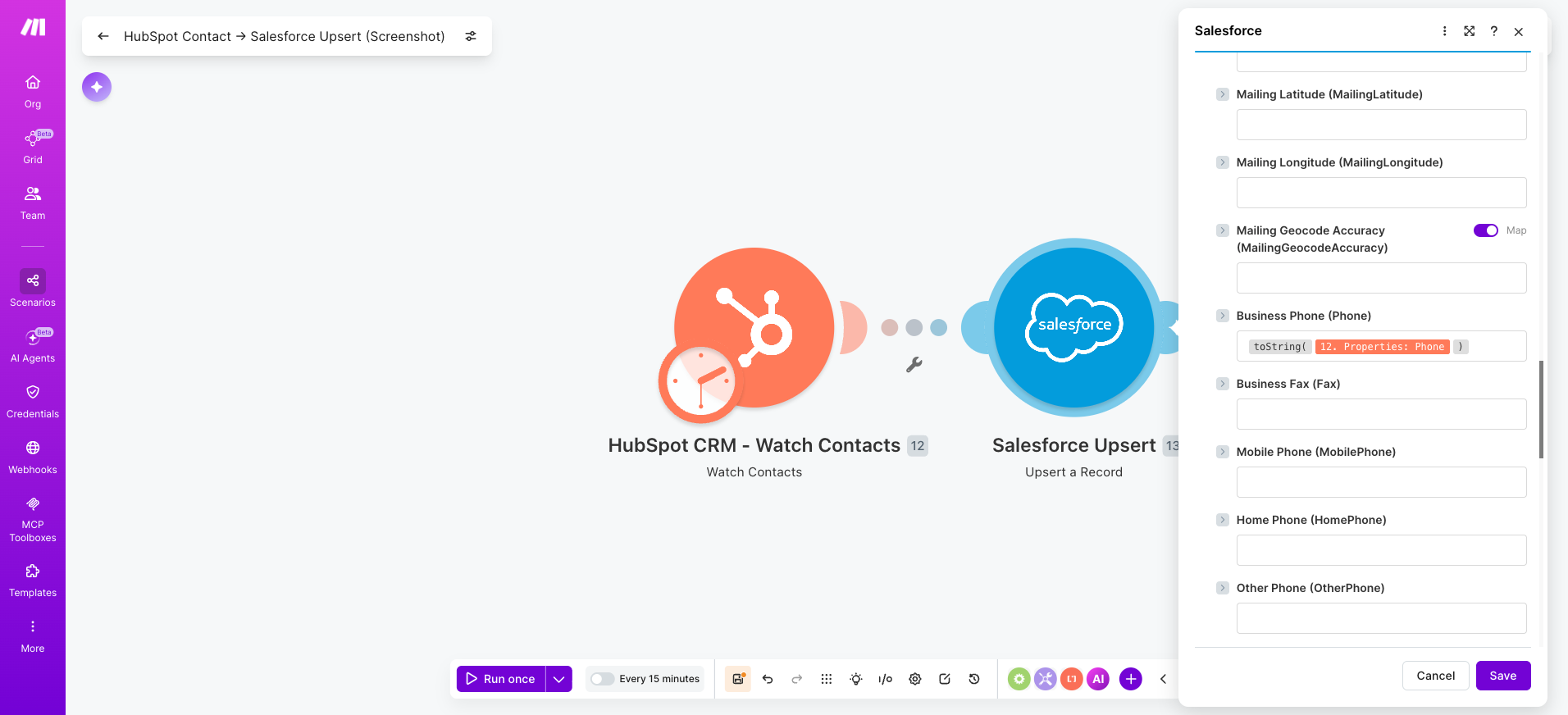
In the Salesforce module panel, use the bundle variable picker to select the HubSpot output property for each Salesforce destination field.
The table below covers the most common mappings and where transformations are required:
HubSpot bundle variable | Salesforce lead field | Transformation needed |
{{1.firstname}} | FirstName | None |
{{1.lastname}} | LastName | None |
{{1.email}} | None | |
{{1.phone}} | Phone | toString({{1.phone}}) |
{{1.company}} | Company | None |
{{1.hs_lead_status}} | LeadSource | Picklist values must match Salesforce exactly |
{{1.createdate}} | CreatedDate | formatDate({{1.createdate}}; "YYYY-MM-DD") |
{{1.hubspot_owner_id}} | OwnerId | Requires separate user ID lookup |
Three fields cause sync errors most often: date fields, where HubSpot outputs a Unix timestamp and Salesforce expects ISO 8601, requiring formatDate; picklist fields, where values must match a valid Salesforce option exactly.
Required Salesforce fields with no HubSpot equivalent, which need a default value set in the module or the record will fail on every run.
Step 4: Add a deduplication filter
Before the Salesforce write module, add a Salesforce Search Records module to query by email address.
If a matching record is found, the bundle returns a Salesforce lead ID. If not, it returns empty.
Use that result to drive a Router with two branches:
- New lead: search returns empty, route runs Salesforce Create a Record
- Existing lead: search returns a matching ID, route runs Salesforce Upsert a Record
Without this logic, every HubSpot contact update triggers a new Salesforce lead record, polluting your CRM with duplicates that are difficult to reconcile after the fact.
One tradeoff to account for: the Salesforce Search Records module consumes an Operation on every Scenario run.
Mitigate it by tightening your trigger conditions in Step 1, so the Scenario only fires on contacts that are genuinely new or meaningfully updated, rather than on every minor property change.
Step 5: Handle errors and set up notifications
In a CRM sync context, silent failures are dangerous. A contact that fails to create in Salesforce simply disappears from the sales pipeline, with no visibility for anyone.
Right-click the Salesforce Create a Record or Salesforce Upsert a Record module and select "Add error handler" to open the error handler options.
Choose the right directive for your use case:
Directive | When to use it |
Break | Stores the failed bundle in Incomplete Executions for manual or automatic retry — the right default for a CRM write |
Resume | Continues the Scenario with a fallback value — use only if the failed record is non-critical |
Rollback | Stops execution and attempts to revert prior actions — use for multi-system writes where partial records cause bigger problems |
After the error handler, add a notification module: a Slack message or email that fires on failure, with {{error.message}} and the contact ID mapped into the message body.
This gives your team immediate visibility when a sync fails.
Finally, enable email alerts for incomplete runs in your Scenario settings.
This adds a second layer of monitoring that catches failures the error handler route itself may not surface.
Step 6: Test the Scenario and validate data
Click Run once in the Scenario Builder toolbar to trigger a single test execution. Use a real HubSpot contact with a known email address so you can cross-reference the output directly in Salesforce.
After the run, check each module's output bubble to confirm data passed through correctly.
Then validate the resulting Salesforce record against the following checklist:
- Record was created or updated, not duplicated
- All mapped field values match the HubSpot source contact exactly
- Data types are correct: dates in ISO 8601 format, phone numbers as strings
- Record ownership transferred to the expected Salesforce user
- The error handler route was not triggered
If any item fails, open the bundle output for the failing module in the Scenario Builder to identify where the data broke down. Fix the mapping or transformation, then rerun.
Run five to ten test records before activating the Scenario for production use.
A single passing test rarely surfaces edge cases around picklist values, missing required fields, or contacts with incomplete data.
What are common use cases for a HubSpot Salesforce integration?
Most ops and RevOps teams build a HubSpot Salesforce integration for one of two reasons:
- Automating the marketing lead handoff to sales
- Keeping deal stage data consistent across both platforms for revenue reporting
Both follow the same Scenario architecture covered in this guide, with different trigger conditions and field mappings.
Start from Make's create a Salesforce lead from a HubSpot CRM contact template to accelerate either build.
Use case | Trigger | Outcome |
Marketing lead handoff | Contact reaches MQL status in HubSpot | Salesforce lead created and assigned to the correct rep within minutes |
Deal stage sync | Deal stage changes in Salesforce | HubSpot deal record updated to match, keeping attribution intact |
Marketing lead handoff to sales
When a contact reaches MQL status, the HubSpot Watch CRM Objects module triggers the Scenario and creates a Salesforce lead assigned to the correct sales rep based on territory mapping.
The rep receives a fully populated lead record with HubSpot activity history attached, with no manual handoff required.
Deal stage synchronization for revenue reporting
When a deal stage changes in Salesforce, a Salesforce Watch Records module triggers a second Scenario that updates the corresponding HubSpot deal record.
Attribution and forecasting data stays consistent across both platforms without manual reconciliation.
Best practices for a reliable HubSpot Salesforce integration
A HubSpot Salesforce integration handles live pipeline data. Configuration errors don't just create noise: they lose leads and corrupt revenue reporting.
These three practices reduce that risk significantly.
Practice | What to do | What goes wrong if skipped |
Define your field mapping schema first | Document every HubSpot property, its Salesforce equivalent, data type, and transformation needed before opening Make. Flag required Salesforce fields with no HubSpot source: these need default values or the record hard-fails on every run. | Required fields with no source value cause failures on every run |
Use sandbox environments | Build and test in HubSpot's sandbox (Professional and Enterprise) and Salesforce's sandbox org before connecting production credentials. Test with 50 to 100 records, not just one. | Errors corrupt live CRM data with no clean rollback |
Version and document your Scenarios | Use Make's scenario notes to annotate router logic and field mapping decisions. When updating mappings or adding routes, test in isolation before activating. | Logic becomes impossible to debug or hand off when it changes |
Where to go from here
You can now build a HubSpot Salesforce integration that handles deduplication, field transformation, error alerting, and sync validation: the full stack of what a production-grade CRM sync requires.
The result is sales and marketing teams working from the same contact and pipeline data, without manual exports or reconciliation between platforms.
The fastest way to start is from a pre-built Scenario rather than from scratch.
Browse Make's HubSpot CRM and Salesforce integration page for ready-to-use templates covering the most common sync patterns, then adapt the field mappings and routing logic to fit your specific setup.
Create a free Make account and build your first Scenario today.
FAQs
1. What's the difference between HubSpot's native Salesforce connector and building the integration in Make?
HubSpot's native connector handles standard object syncing with a point-and-click setup and works well for teams with straightforward field mappings. It doesn't support conditional logic, custom routing, or error alerting. A Make-built integration gives you full control over sync conditions, field transformations, deduplication logic, and error handling, making it the better fit for RevOps teams with more complex data requirements.
2. Can Salesforce be integrated with HubSpot?
Yes. You can connect the two platforms using HubSpot's native Salesforce connector or by building a custom integration in Make. The native connector suits teams with standard sync requirements. Make suits teams that need conditional logic, field transformation, deduplication, and error handling across the integration layer.
3. How do I prevent duplicate records when syncing HubSpot contacts to Salesforce?
Add a Salesforce Search Records module before the write module to query by email address. Feed the result into a Router: if the search returns empty, route to Salesforce Create a Record; if it returns a match, route to Salesforce Upsert a Record. Without this logic, every HubSpot contact update creates a new Salesforce lead record regardless of whether one already exists.
4. How long does it take to set up this integration, and how many Operations will it use?
A basic six-module Scenario following this guide takes two to four hours to build and test. Each run consumes one Operation per module that executes, so a full run uses six Operations. Review Make's credits and operations guide to calculate your monthly usage based on contact volume and polling frequency.
5. Can I do this in Zapier instead of Make?
Zapier supports basic HubSpot to Salesforce syncs but uses a linear, single-path structure. It doesn't support routers with multiple branches, meaning you can't handle new and existing records differently in the same automation. Make's Scenario Builder handles conditional routing, data transformation functions, and error handlers that Zapier's architecture doesn't support natively.
6. How do I scale this integration as data volume grows?
Tighten your trigger conditions so the Scenario only fires on meaningful contact changes rather than every property update. Use webhook-based triggers instead of polling for real-time sync at volume. Split high-traffic object types into separate Scenarios to isolate failures and monitor performance independently. Upgrade your Make plan as Operation usage increases rather than letting your Scenario queue back up.