ServiceNow Salesforce integration: step-by-step guide
Build a live ServiceNow Salesforce integration in Make. Sync incidents to cases, map accounts, and automate notifications without custom code or middleware.

Every time a critical incident hits ServiceNow and your account team in Salesforce has no idea, you're flying blind. Customer escalations get missed.
Sales reps walk into renewal calls without knowing their account has open P1 tickets. IT and revenue teams operate on separate data; someone manually reconciles the gap.
This guide shows you how to build a ServiceNow Salesforce integration using Make: a Scenario that automates your ServiceNow Salesforce sync end-to-end.
Incidents trigger Salesforce Case creation, account owners get notified, and data writes back to ServiceNow automatically. No custom code, no middleware.
What is a ServiceNow Salesforce integration?
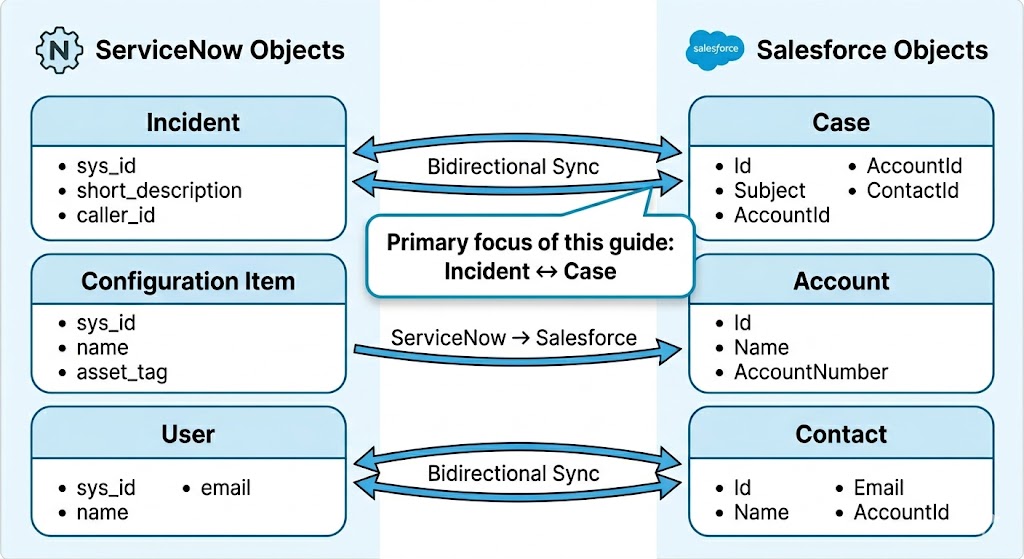
A ServiceNow Salesforce integration is a bidirectional data sync between your IT service management platform and your CRM.
When a record changes in one system, the corresponding record in the other updates automatically: no manual entry, no tab switching, no reconciliation at the end of the day.
The core problem it solves is organizational siloing. A P1 incident raised in ServiceNow against a customer account is invisible to the account executive in Salesforce.
They walk into a renewal call with no idea their customer has had three open tickets for two weeks. Support agents log the same data twice.
SLA response slows because the people who need to act are the last to know.
The three object pairs that matter most in practice are:
ServiceNow | Salesforce | Sync direction |
Incident | Case | Bidirectional |
Configuration Item | Account | ServiceNow → Salesforce |
User | Contact | Bidirectional |
Architecturally, there are two approaches worth understanding before you build:
- Event-driven sync: fires the moment a record changes in ServiceNow; requires webhook or Business Rule configuration but delivers real-time accuracy
- Scheduled sync: polls ServiceNow on a set interval; simpler to configure but introduces latency
Which you choose depends on your SLA requirements and your ServiceNow admin's access level. This guide covers both, using Make's Scenario Builder as the integration layer.
You can see the full list of available ServiceNow modules here.
For the full Salesforce REST API endpoint reference used throughout this guide, see the Salesforce REST API developer guide.
How to build a ServiceNow Salesforce integration in Make (step-by-step)
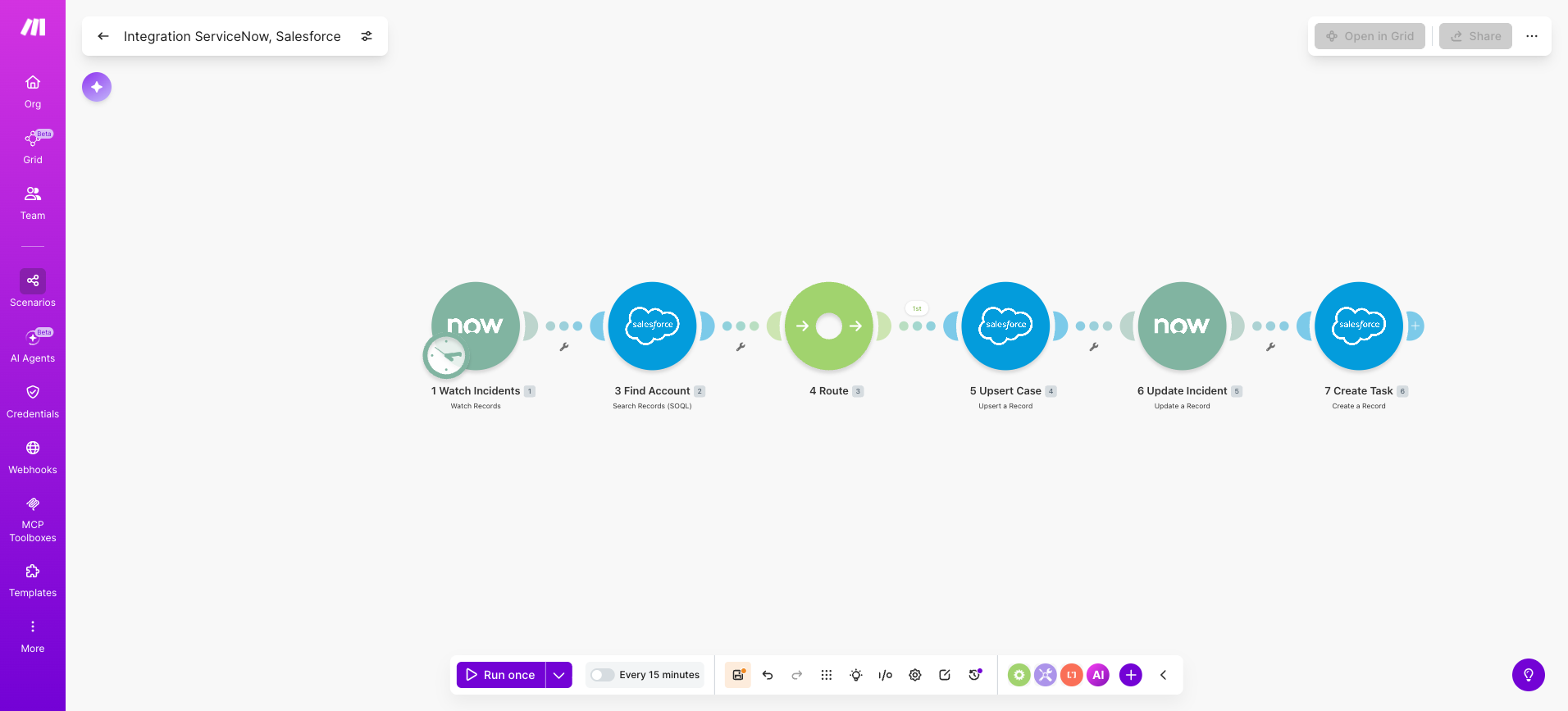
By the end of this section you will have a live Make Scenario that watches for new or updated Incidents in ServiceNow, creates or updates a corresponding Case in Salesforce.
This then writes the Salesforce Case ID back to the originating ServiceNow Incident, and notifies the Salesforce account owner automatically.
Before you start, confirm you have the following in place:
- Make account on the Enterprise plan (required for the ServiceNow app, per the latest documentation.
- ServiceNow instance with admin access, either a developer instance or a production instance where you can manage user roles and retrieve your instance URL, username, and password
- Salesforce account on an edition that includes REST API access; not all editions qualify, so verify yours before connecting
- Basic familiarity with ServiceNow's incident table structure and Salesforce's Case and Account objects
A note before you build: The ServiceNow app on Make is available on the Enterprise plan only. Confirm your Make plan before starting. On the Salesforce side, not all Salesforce editions include API access; verify yours supports REST API calls before attempting to connect.
Step 1: Connect your ServiceNow account in Make
The goal of this step is to authenticate Make against your ServiceNow instance so it can read and write incident data via the ServiceNow REST API.
In your Make Scenario Builder, add the ServiceNow > Watch Records module as your trigger.
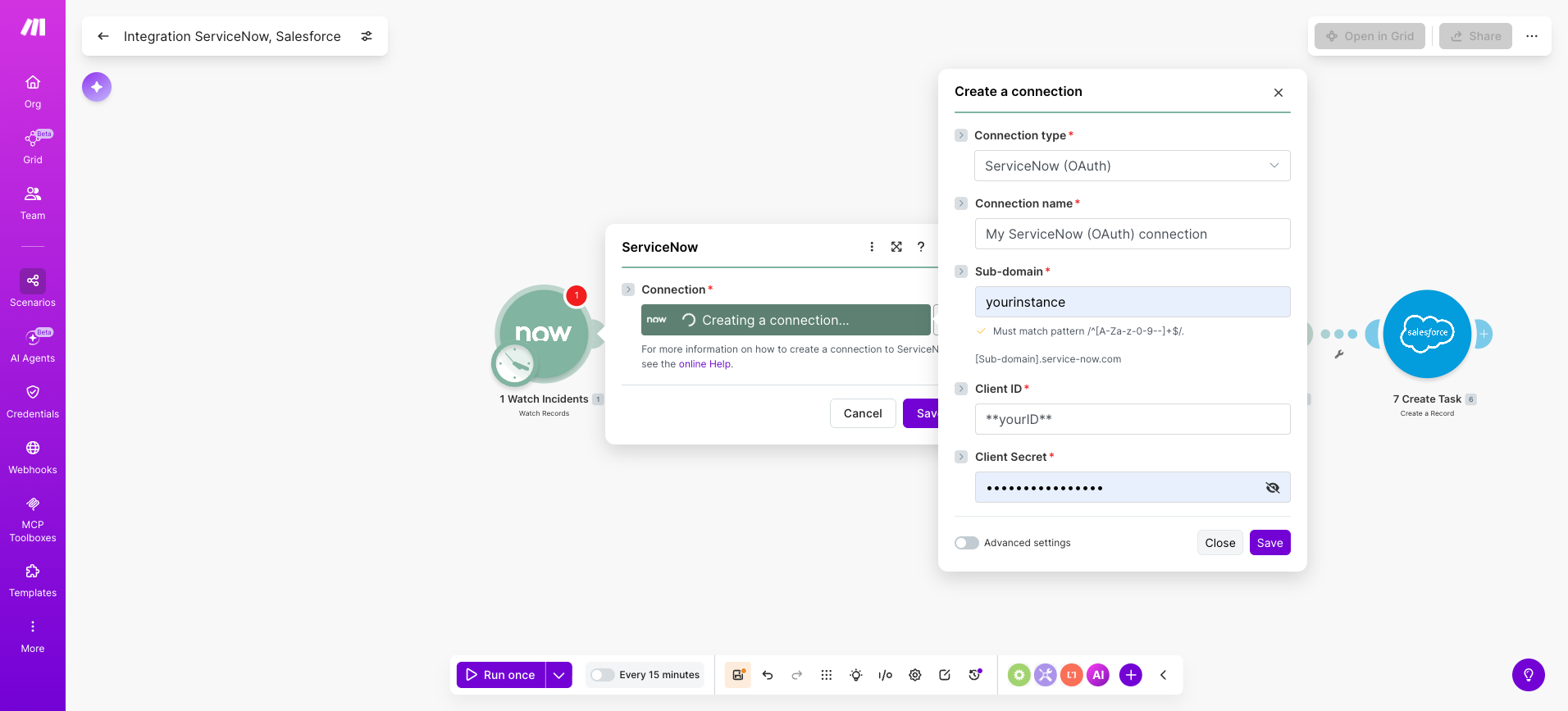
Click Add next to the Connection field. Make provides two connection methods:
Connection type | When to use |
Basic Auth (username + password) | Testing and developer instances only |
OAuth 2.0 (client credentials) | All production environments |
For OAuth 2.0, locate the Sub Domain field and enter only the subdomain portion of your ServiceNow URL.
For example, if your instance URL is ‘yourinstance.service-now.com’, enter ‘yourinstance’ only.
The ‘.service-now.com’ portion is added automatically by Make. Paste your Client ID and Client Secret into their respective fields, then click Save.
Once connected, set the Table field to ‘incident’. This tells the module which ServiceNow table to watch.
For the trigger type, you have two options: polling (Make checks ServiceNow on a scheduled interval) or webhooks (ServiceNow pushes changes to Make in real time).
Webhooks require a ServiceNow admin to configure an outbound Business Rule, and free developer instances typically do not support them.
Start with polling and migrate to webhooks once the Scenario is validated in production.
Step 2: Filter for relevant incident records
Without a filter, your Scenario processes every incident created or updated in ServiceNow, including internal IT tickets with no customer relevance.
This inflates your operation count and creates noise in Salesforce. The filter narrows scope to only the records that matter.
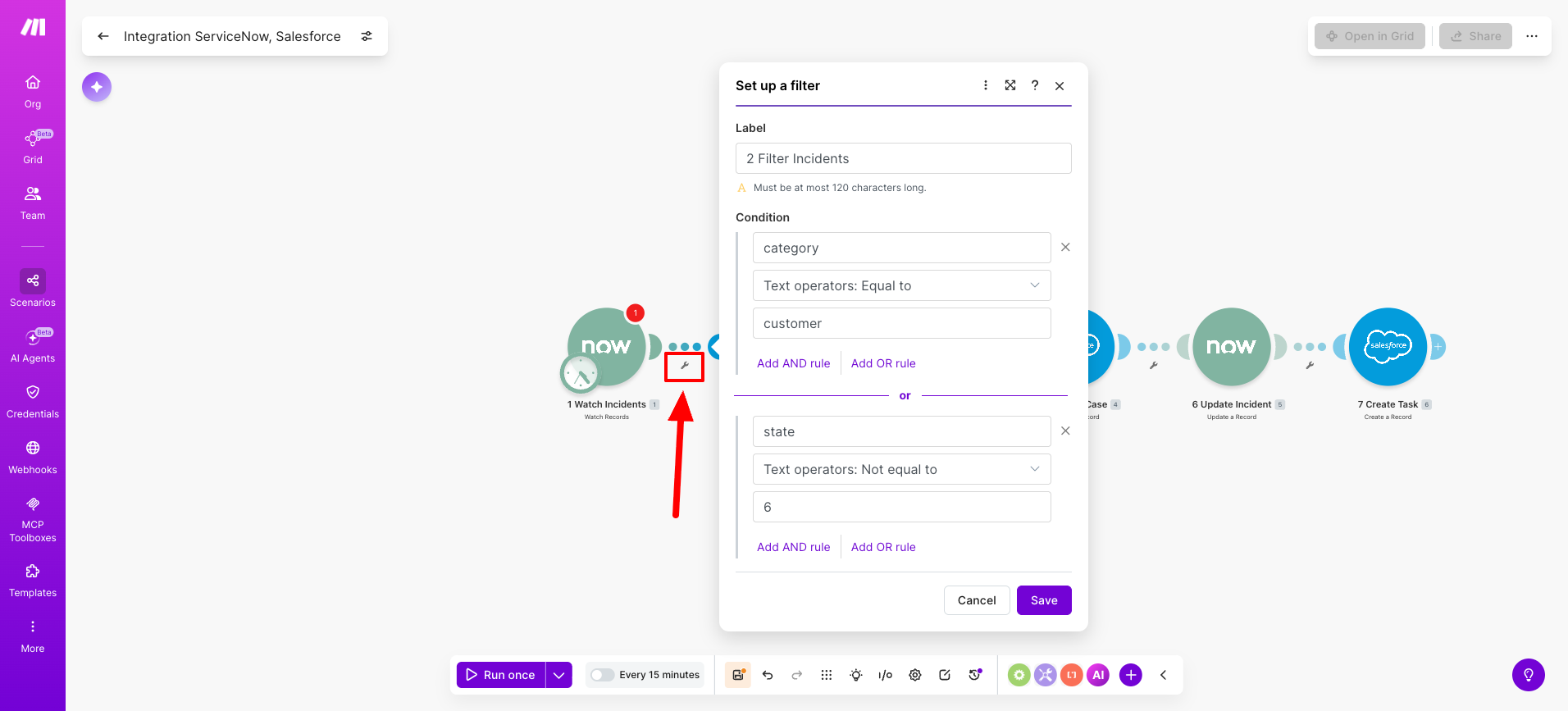
After the Watch Records module, add a Filter module. The recommended starting logic is:
Field | Operator | Value |
category | Equal to | customer |
state | Not equal to | 6' (Resolved) |
Both conditions should be set with AND logic so only customer-facing, open incidents pass through.
These field names are API names, not the display labels you see in the ServiceNow UI.
This is one of the most common sources of configuration errors: the field labelled "Caller" in ServiceNow is 'caller_id' in the API; "ID" is 'sys_id'.
Always use API names when mapping fields in Make.
The output bundle from Step 1 contains the following fields available to map in your filter and all subsequent modules:
- 'sys_id', 'number', 'short_description', 'description'
- 'caller_id', 'account', 'priority', 'state', 'category'
Step 3: Look up the matching Salesforce account
Before creating a case in Salesforce, you need to identify which account the incident belongs to.
Creating a case without a parent account breaks the data model and makes the record effectively invisible to account teams.
Add the Salesforce > Search Records (SOQL) module after the filter.
Set the object to 'Account' and query by either company name or a custom external ID field.
The two approaches are:
Lookup method | Best for |
Company name match | Getting started quickly; less precise |
Custom external ID (e.g. 'ServiceNow_Account_ID__c') | Production environments; reliable and exact |
If your Salesforce org already stores a ServiceNow account reference as a custom field, use that.
Name matching introduces risk if company names are formatted differently across the two systems.
After this module, add a Router to handle both outcomes:
- Path 1: Account found — proceed to case creation in Step 4
- Path 2: No account found — log the incident details to a Slack channel or a Google Sheet for manual review; do not proceed to case creation
Skipping the no-match path is a common mistake. Without it, your Scenario will error out silently when an unrecognised account comes through.
The full list of available Salesforce modules, including Search Records, is documented in the Salesforce app documentation on Make.
Step 4: Create or update the Salesforce case
The goal of this step is to write the ServiceNow incident data into a Salesforce case record.
On the "Account found" path from your router, add the Salesforce > Create a Record module and set the object to 'Case'.
Map the following fields from the ServiceNow bundle:
Salesforce field | Source | Notes |
Subject' | short_description' | Direct mapping |
Description' | description' | Direct mapping |
Priority' | priority' | Requires transformation (see below) |
AccountId' | Account 'Id' from step 3 | Critical: case will be orphaned without this |
Origin' | Hardcoded: 'ServiceNow' | Enables filtering in Salesforce by source |
ServiceNow's priority scale runs from '1' (Critical) to '4' (Low); Salesforce expects 'High', 'Medium', or 'Low'.
Use a Make text function or a lookup table module between the two to transform the value before it reaches the case record.
Without this step, the priority field will either error or populate incorrectly.
For re-trigger scenarios, where the same incident fires the Scenario more than once, swap the Create a Record module for Upsert a Record instead.
Set a custom external ID field (e.g. 'ServiceNow_Incident_ID__c') as the match key. This prevents duplicate cases being created on subsequent triggers for the same incident.
Step 5: Write the Salesforce case ID back to ServiceNow
This step closes the bidirectional sync. Once a case exists in Salesforce, its ID needs to be stored on the originating ServiceNow incident.
This allows support agents to see at a glance whether a case exists, without needing Salesforce access.
Add the ServiceNow > Update a Record module and configure it as follows:
Field | Value |
Table | incident' |
Record 'sys_id' | Mapped from the step 1 bundle |
Custom field | u_salesforce_case_id' |
Custom field value | Salesforce case 'Id' from step 4 |
The field 'u_salesforce_case_id' must be created in ServiceNow before this step will work.
A ServiceNow admin can add it via Studio or System Dictionary. The 'u_' prefix is ServiceNow's naming convention for custom fields; any field your org creates will carry this prefix automatically.
Once this is in place, every incident that passes through the Scenario carries a direct reference to its Salesforce counterpart.
Support agents see the case ID on the incident record; no cross-platform searching, no back-and-forth between teams asking whether a case has been raised.
Step 6: Notify the Salesforce account owner
Once the case exists in Salesforce, the account owner needs to know. There are three ways to handle this notification:
Method | Best for |
Salesforce task (recommended) | Teams that live in Salesforce; keeps the action logged against the account |
Slack message | Orgs where account teams are more responsive in Slack than in Salesforce |
Gmail or Outlook email | Teams without Slack or where email is the preferred escalation channel |
The recommended approach is a Salesforce > Create a Record module set to the 'Task' object.
Map the fields as follows:
Task field | Value |
Subject' | New ServiceNow Incident: ' + 'number' from step 1 bundle |
WhatId' | Account 'Id' from step 3 bundle |
OwnerId' | Account 'OwnerId' from step 3 bundle |
ActivityDate' | Today + 1 business day |
One thing to confirm before testing: the 'OwnerId' field must be explicitly returned in your step 3 Search Records query.
If it is not included in the fields your SOQL query returns, it will not be available in the bundle and the mapping will fail silently.
Step 7: Activate, test, and schedule the scenario
Before enabling the Scenario in production, validate it end-to-end against a known incident.
In Make's Scenario Builder, click ‘Run Once’ and trigger the Scenario using a real incident from a staging ServiceNow instance pointed at a Salesforce sandbox.
This lets you trace each bundle through every module without writing data to production systems.
After the run completes, open the ‘Execution History’ panel and check each module for:
- Green status indicators confirming successful execution
- Bundle output at each stage to verify field mappings are populated correctly
- Any filter drops in step 2 that may be excluding records unexpectedly
Once validated, set your polling schedule.
Every 15 minutes is a reasonable starting cadence for most teams; tighten this if your SLA requirements demand faster response, or loosen it if incident volume is low and Operation costs are a concern.
To activate, toggle the Scenario to On and configure Make's built-in error notification emails under the Scenario settings.
These alert you when a run fails, so issues do not go undetected between polling cycles. Full guidance on scheduling and error handling is in the Make help centre.
Common use cases for ServiceNow Salesforce integration
The incident-to-case Scenario you built in the steps above is the foundation.
The same architecture, watch a ServiceNow record, look up a Salesforce account, create or update a record, notify a team member, applies across a wide range of business models and team structures.
The two use cases below show how small changes to the trigger conditions and output modules produce meaningfully different outcomes.
Use case 1: SLA escalation alerting for enterprise accounts
A large SaaS company manages dozens of strategic accounts, each with a dedicated CSM.
When a priority 1 incident is raised against one of those accounts in ServiceNow, the CSM needs to know within minutes, not at the end of a stand-up.
The Scenario filters for 'priority' = '1' and an account tier custom field that identifies strategic accounts.
When both conditions are met, it creates a high-priority Salesforce task assigned to the CSM, sends a Slack direct message with the incident details, and logs a Chatter post on the account record.
The CSM gets full context in the tools they already use, with no ServiceNow access required.
Use case 2: IT asset-to-opportunity linking for renewals
An IT operations team tracks hardware and software configuration items (CIs) in ServiceNow, including end-of-life dates.
The sales team has no visibility into this data, so renewal outreach is reactive at best.
The Scenario watches for CI records where the end-of-life flag has been set, looks up the corresponding Salesforce account, and creates a renewal opportunity with the asset name, type, and projected expiry date pre-populated.
The account executive receives a task to initiate outreach before the customer starts evaluating alternatives.
Best practices for ServiceNow Salesforce integration
An integration running against two enterprise platforms carries real operational risk.
Data corruption, runaway operations, and missed incidents are predictable failure modes, not edge cases.
The two practices below are the highest-impact steps you can take to design for resilience from the start.
Tip 1: Use external IDs to prevent duplicate records
Polling-based scenarios can process the same incident more than once if a scheduled run overlaps with a slow execution.
To prevent this, follow these steps:
- Create a custom external ID field on the Salesforce case object, for example 'ServiceNow_Incident_ID__c'
- Populate it with the ServiceNow 'sys_id' each time a case is created or updated
- Use Salesforce > Upsert a Record instead of Create a Record
Upsert logic checks whether a record with that external ID already exists before writing: if it does, it updates it; if it does not, it creates it.
Running the same operation twice produces the same result as running it once, so duplicate cases are never created.
Tip 2: Scope API permissions to minimum required access
Create a dedicated integration user in both ServiceNow and Salesforce specifically for Make.
In Salesforce, assign a permission set scoped only to the objects the Scenario needs: cases, accounts, and tasks.
Do not use a system administrator profile.
In ServiceNow, restrict the integration user's access to read on the 'incident' table and write only on the specific fields being updated.
Audit credentials quarterly and revoke access immediately if the integration is decommissioned or the Make connection is retired.
Where to go from here
You now have a production-ready Scenario that connects ServiceNow incident management to Salesforce without custom code or middleware.
IT and revenue teams share a single, accurate view of customer health: no manual reconciliation, no missed escalations.
Test the Scenario against a real incident from a staging environment, then extend it using Make's ServiceNow and Salesforce templates to cover asset sync, change management, and opportunity automation.
If you have not yet set up your Make account,start your free trial and build your first Scenario today.
FAQs
Q1: Can Salesforce integrate with ServiceNow?
Yes. Salesforce and ServiceNow both expose REST APIs, which means they can exchange data directly or via an integration platform. The most common approach is connecting them through a middleware layer such as Make, which handles authentication, field mapping, error handling, and scheduling without custom code. The Scenario built in this guide is a working example: incidents in ServiceNow trigger case creation in Salesforce, with data writing back in both directions.
Q2: Is ServiceNow a CRM or ERP?
ServiceNow is neither a traditional CRM nor an ERP; it is primarily an IT service management and workflow automation platform. Salesforce is the CRM. The reason an integration between them is valuable is precisely because they serve different functions: ServiceNow manages incidents, assets, and IT operations, while Salesforce manages customer relationships, accounts, and revenue. Connecting them gives both IT and revenue teams a shared view of customer health.
Q3: What data can be synced between ServiceNow and Salesforce?
The most common objects synced in a ServiceNow Salesforce data sync are incidents to cases, configuration items to accounts, users to contacts, and change requests to opportunities. Which objects are available depends on which ServiceNow modules your org licenses and how your Salesforce instance is configured; not every org has the same tables or custom objects in play. Start with the incident-to-case sync covered in this guide and extend from there once the foundation is stable.
Q4: Why is my ServiceNow Watch Records module not triggering?
The most common causes of a ServiceNow Make trigger not working are: using a display label instead of the API table name (the table is 'incident', not "Incidents"); a polling interval set too long; filter conditions in step 2 that are excluding all records; or an expired OAuth token. Open Make's execution history first; it shows exactly which module stopped and what error was returned, which is faster than checking either platform in isolation.
Q5: How long does this integration take to build and what does it cost in Make Operations?
A competent ops professional can complete the initial Scenario build in 2 to 4 hours. Allow 1 to 2 days including end-to-end testing across staging environments. For Operation costs, the total depends on how many modules fire per incident and how many incidents your org processes daily; rather than estimate here, check Make's pricing page for current credit limits across plan tiers and calculate based on your expected volume.
Q6: Can I build this integration with Zapier or MuleSoft instead?
Yes; both support ServiceNow and Salesforce connections. Zapier suits linear, low-volume syncs but becomes difficult to manage when logic requires routers, conditional paths, and bidirectional writes across multiple objects. MuleSoft offers deeper API governance and is well suited to large enterprises with dedicated integration teams, but it requires developer resources and significantly longer implementation timelines. Make sits between the two: the visual Scenario Builder handles multi-branch logic without code, while remaining accessible to operations professionals who do not have engineering support.
Q7: How do I scale this to handle thousands of incidents per day?
To scale ServiceNow Salesforce automation beyond a basic polling setup: switch from polling to webhooks by configuring a Business Rule in ServiceNow to push changes to Make in real time; enable parallel processing in your Make Scenario settings to handle concurrent bundles; use a Make Datastore as a queue to absorb burst traffic without dropping records; and consider breaking the monolithic Scenario into modular child Scenarios called via Make's HTTP module, which makes individual steps easier to maintain and debug at scale.
Related guides
Tool and strategies modern teams need to help their companies grow.

How-to guides
How to Connect Monday.com to Make
With Make, you can heighten the functions of Monday.com to seamlessly accomplish individual and team goals like never before.

Jessica Herauf
February 14, 2018
How-to guides
Claude Code for business: Output to your tools (2026)
Route Claude Code's output into your CRM, Slack, and project tools. Step-by-step guide using Make MCP Toolboxes and the native Anthropic Claude module.

Raife Dowley
May 12, 2026

How-to guides
How to build an automation strategy that scales
A guide to planning, governing, and scaling automation — from first audit to full strategy.
Raife Dowley
March 12, 2026