Claude Code for business: Output to your tools (2026)
Route Claude Code's output into your CRM, Slack, and project tools. Step-by-step guide using Make MCP Toolboxes and the native Anthropic Claude module.
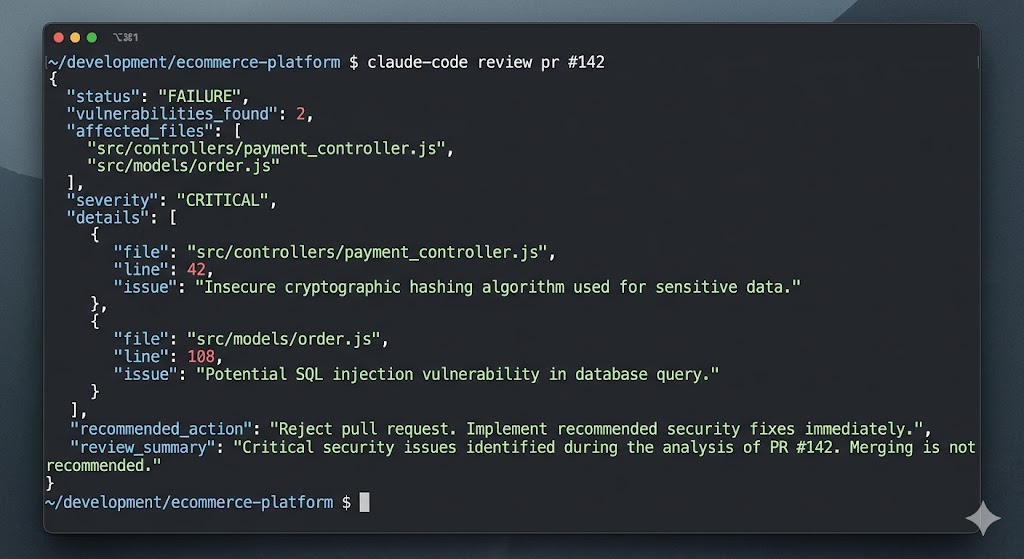
Claude Code finishes the task: a PR review, a codebase audit, a vulnerability scan. The output sits in your terminal. The Jira ticket it should create, the Slack channel it should notify, the CRM record it should update; all somewhere else entirely.
That gap between AI reasoning and business action is where most teams stall. Claude Code handles judgment. It doesn't route results, trigger downstream tools, or maintain an audit trail across systems.
This guide covers two paths. Connect Claude Code to your business tools using Make MCP Toolboxes, or build AI powered scenarios with the native Anthropic Claude module. By the end, you'll know which approach fits and how to build it.
What is Claude Code for business?
Claude Code is Anthropic's agentic coding tool. It runs in your terminal, IDE, desktop app, or browser at claude.ai/code. Give it a task and it works across files, tools, and systems to complete it without constant supervision.
In a business context, that means tasks like:
- Reviewing a pull request and flagging breaking changes
- Analyzing server logs to surface a root cause
- Scanning a codebase for security vulnerabilities
- Generating documentation from source files
- Classifying support tickets by urgency and product area
What makes Claude Code different from a standard AI completion is the agentic layer. It reads files, writes code, runs shell commands, creates commits, and connects to tools like GitHub, VS Code, and JetBrains. It decides what to do next, runs it, and continues until the job is done.
Operations leads, engineering teams, and automation specialists use Claude Code when a task needs more than a single prompt and response.
If you need AI that reads context, acts across systems, and delivers structured output, Claude Code is built for that.
The limitation is what happens after. Claude Code produces output where it runs: your terminal, your IDE, a local file. It doesn't route results to your CRM, project board, or Slack channel. For that, you need an automation layer that receives the output and delivers it where your team works.
Claude Code vs. the Anthropic Claude module: which do you need?
Get this distinction right before you build anything; confusing the two produces a scenario that won't work.
Claude Code is a CLI tool. Install it locally, run it in your terminal or IDE, and it operates as an agentic coding assistant: reading codebases, editing files, running shell commands, creating commits, and connecting to developer tools. There's no native Claude Code module in Make, and it doesn't expose a REST API endpoint you can call from a scenario.
Make's Anthropic Claude module is a native app in Make with 16 modules, including Create a Prompt, Simple Text Prompt, file management, and Skills. Connect it to Anthropic's API with your key from console.anthropic.com. No CLI, no local installation. It's the right choice for content generation, summarization, classification, and data analysis inside Make scenarios.
Pick based on what you're building:
Use case | Right tool |
Run a Claude prompt inside a Make scenario | Anthropic Claude module |
Generate content, summaries, or classifications | Anthropic Claude module |
Connect Claude Code's output to Make | MCP Toolboxes |
Use Claude Desktop to trigger Make scenarios | MCP Toolboxes |
Code review, PR generation, CI/CD automation | Claude Code CLI |
Both tools can work together, and that's exactly what MCP Toolboxes enable. But they're not interchangeable.
Why connect Claude Code and Make?
There’s three main reasons technical teams build this connection.
- Turn AI output into business action. When Claude Code reviews a PR and flags a critical bug, Make can create a Jira ticket, notify the team in Slack, and update the sprint board, without anyone copying output from a terminal. Claude produces the insight; Make delivers it.
- Keep every action governed and visible. MCP Toolboxes let you define exactly which scenarios an AI client can trigger, scope access per toolbox, and log every call. Every scenario run is visible. Every action is traceable. For teams managing AI at scale, that visibility isn't optional.
- Separate reasoning from routing. Business logic that lives in Make scenarios runs consistently. Claude handles judgment. Make handles execution. Neither layer does the other's job.
Explore Make's AI automation capabilities and the Make AI Agent library for what's possible when you add Claude to an existing automation stack.
What you need before you build
- A Make.com account with scenario building permissions
- An Anthropic API key from console.anthropic.com to connect the Anthropic Claude module
- Familiarity with Make scenario basics: adding modules, configuring triggers, and mapping data
- For Claude Code to Make connections: access to Make MCP Toolboxes (available on all Make plans) and comfort with MCP server URLs and token based authorization. The native Anthropic Claude module is available on all Make plans, including Free.
- The Anthropic Claude apps documentation and MCP Toolboxes guide open for reference
How do you connect Claude Code to Make?
Claude Code connects to Make through MCP Toolboxes. Here's how to build it.
Step 1: Create a Make MCP Toolbox
An MCP Toolbox is a dedicated MCP server you create at the team level in Make. It exposes selected Make scenarios as callable tools that Claude Desktop, Cursor, ChatGPT, or any MCP compatible client can trigger directly.
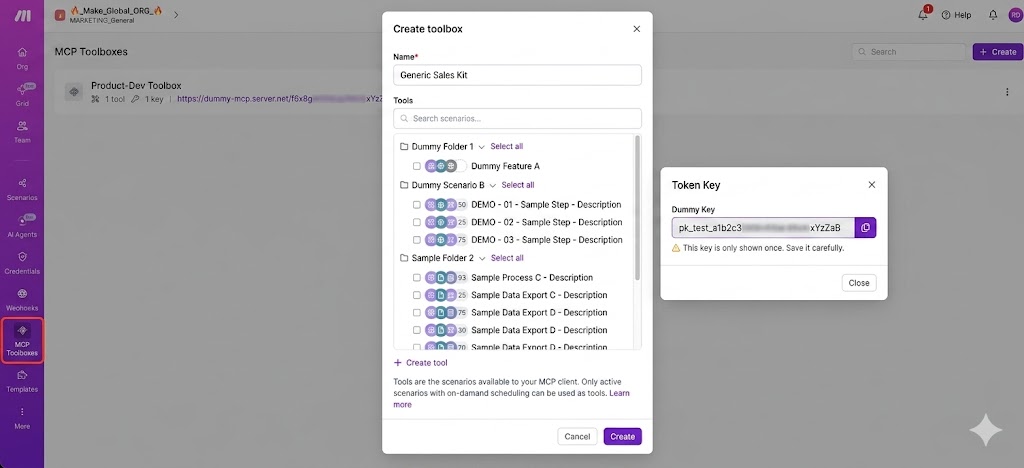
In Make, click MCP Toolboxes in the left sidebar, then "Create toolbox." Name
it to reflect its purpose; "Support automation" or "Developer ops" works well.
In the Tools section, select the scenarios you want to expose. Only active scenarios with on demand scheduling appear in this list. Each scenario becomes a named tool Claude can call.
Click Create. Copy your token key from the dialog and store it securely; you won't be able to view it again. Then copy the MCP Server URL from the toolbox page.
Step 2: Connect Claude Desktop to your Make MCP Toolbox
Open Claude Desktop settings and go to the MCP configuration. Click settings in your profile and then go to ‘Developer’ and edit your MCP configuration from there. Add your Make toolbox as an MCP server using the URL and token you copied.
Once connected, Claude sees the tools you've exposed and can trigger them by name. Claude reasons about which tool to call; Make runs the underlying scenario.
For full connection steps across Claude Desktop and other clients, see the Make MCP Toolboxes guide. For the technical reference, see the MCP server developer documentation.
Step 3: Configure the scenarios Claude will trigger
The scenarios powering your toolbox tools are standard Make scenarios and you build them in the Scenario Builder as normal, but set scheduling to “On demand” so they wait to be triggered by Claude rather than a timer.
Scope each tool tightly. Rather than a broad "process this data" scenario, build purpose-built scenarios with clear inputs and outputs: "Create support ticket," "Update CRM record," "Send Slack summary." The more specific the tool, the more reliably Claude calls the right one.
Map output fields to match the structured response Claude receives. Add error handling so failures surface clearly rather than silently.
How do you automate with Make's native Anthropic Claude module?
Not every task needs Claude Code. For content generation, summarization, classification, and document Q&A inside a Make scenario, the native Anthropic Claude module is the faster path; no CLI, no local installation.
Step 1: Add the module and configure your prompt
Open the Scenario Builder and create a new scenario.
Add the Anthropic Claude > Create a Prompt module, or use Simple Text Prompt to get started without a connection.
Link the module to your Anthropic account by entering your API key.
Choose your model based on the task:
Model | Best for |
Claude Opus 4.7 | Complex reasoning, deep research, agentic coding, long chain planning |
Claude Sonnet 4.6 | General purpose tasks, content generation, analysis, coding (recommended default) |
Claude Haiku 4.5 | High speed tasks, support replies, classification, high volume processing |
For the latest available models and credit rates, see the Anthropic Claude apps documentation.
Write a prompt with enough context for Claude to return a consistent, usable response. Map dynamic data from upstream modules using Make's mapping editor.
Step 2: Configure your trigger and route results
Add the right trigger module for your data source: Watch Files in Google Drive for new documents, Watch Rows in Airtable or Google Sheets for new or updated rows, or a Custom Webhook for external events.
Run a test event to confirm the payload matches what your prompt expects.
After the Claude module, add a Router module to branch output. Set up routes for success, error, and any custom states your process needs.
Use filters on each route to match specific field values, then connect the relevant app modules: create a record in Airtable, open a ticket in Jira, send an email via Gmail, or post a summary to Slack.
On error routes, add a notification module so failures surface immediately.
Step 3: Store and schedule
Close the loop by writing Claude's output to the systems where it belongs. Map output fields like "summary," "classification," or "markdown" directly to target fields in your destination modules.
For recurring tasks, schedule the scenario on a set interval.
For batch processing, use aggregator modules to collect bundles before passing them to Claude in a single run.
How do you test and troubleshoot Claude scenarios in Make?
Use “Run once” to test a live trigger and inspect the bundle before it reaches the Claude module. Check that data maps correctly and the prompt gets the context it needs.
Verify Claude's output in the next module. Confirm fields like "output," "error," and any custom response keys map as expected.
Error | Likely cause | Fix |
Authentication failed | Missing or incorrect API key | Re-enter your API key in the connection settings |
Payload malformed | Missing required fields in the prompt module | Review field mapping against the module documentation |
Timeout or empty response | Long-running prompt or rate limit hit | Increase the module timeout; check Anthropic's rate limit guidance |
Unexpected output format | Ambiguous prompt or missing output specification | Add explicit format instructions to your prompt |
Once the scenario runs cleanly, activate it and turn on error notification modules.
Review run history regularly and refine prompts based on real output, not assumptions.
Conclusion and next steps
Claude Code for business comes down to one architectural question: where does the output go after the reasoning is done?
You now know how to connect Claude Code to Make using MCP Toolboxes, and how to build AI powered scenarios with the native Anthropic Claude module.
Start with one scenario, validate it end to end, then expand: add routes, add tools, add teams. Get started with Make for free and see how far one well scoped scenario takes you.
FAQs
1. Can I use Claude Code for business?
Yes. Claude Code is available on paid plans: Pro, Max, Team, and Enterprise. It is not included with the Free plan.Pro and Max plan usage counts against your subscription's shared limits across Claude and Claude Code. Team plans include Claude Code on premium seats. To route Claude Code's output into business tools like your CRM, Slack, or project board, connect it to Make using MCP Toolboxes.
2. Can I use Claude Code for commercial use?
Yes. Claude Code is available on all paid Anthropic plans for commercial use. Enterprise customers can access Claude models through existing Amazon Bedrock or Google Cloud Vertex AI instances for API-based implementations.
3. Is there a Claude Code Enterprise?
Claude Code is included with Enterprise plans, with additional controls: centralized configuration, tool permissions, file access restrictions, and MCP server settings from one admin panel. Enterprise plans also include a Compliance API for programmatic access to usage data, SCIM provisioning, role based permissions, custom data retention, and dedicated support.
4. Can my company see my Claude Code history?
Your organization's designated Primary Owner manages your work account and all associated data, including the ability to request access to your user data through data exports. On Enterprise plans, the Compliance API provides programmatic access to usage logs including Claude Code sessions. Treat Claude Code sessions the same way you'd treat any company owned tool: assume your organization can review activity.
5. What Make plan do I need to use Claude with Make?
Make's native Anthropic Claude module is available on all plans, including Free; you only need an Anthropic API key from console.anthropic.com. MCP Toolboxes, which connect Claude Code to Make, are available on all plans.
6. Can Claude Code trigger Make scenarios automatically?
Not directly. Claude Code doesn't expose a REST API or native Make module. To connect them, use Make MCP Toolboxes: expose selected Make scenarios as callable tools, then connect Claude Desktop or another MCP compatible client. Claude can then trigger those scenarios by name. The scenarios run on demand in Make, with full visibility in the run history.
Related guides
Tool and strategies modern teams need to help their companies grow.
How-to guides
How to build AI agents with Make
A simple guide to building Make AI Agents from scratch. We’ll walk through setting up an agent, giving it tools, connecting it to inputs, and returning structured responses.

Vlad Galanov
April 14, 2025
How-to guides
How to build a Sales outreach AI agent with Make
A simple guide to building a Sales Outreach AI Agent that can help you handle inbound leads more efficiently and effectively.
Vlad Galanov
April 17, 2025

How-to guides
How to build an automation strategy that scales
A guide to planning, governing, and scaling automation — from first audit to full strategy.

Raife Dowley
March 12, 2026