How to automatically turn product updates into social media posts with Make's AI
Discover how to automatically monitor product releases, let AI decide which updates are worth sharing, generate on-brand social posts with custom images, and publish them across platforms without manual copywriting or design work.
When you work in marketing at a fast-growing software, SaaS, or tech company, it can feel like there’s a new release every five minutes.
Keeping customers (and prospects) informed about what’s new on social media is an essential part of your comms strategy, but writing timely, on-brand updates takes time.
So does reviewing each update, from minor bug fixes to major feature launches, and deciding which ones are actually worth sharing.
That’s where automation and AI can help.
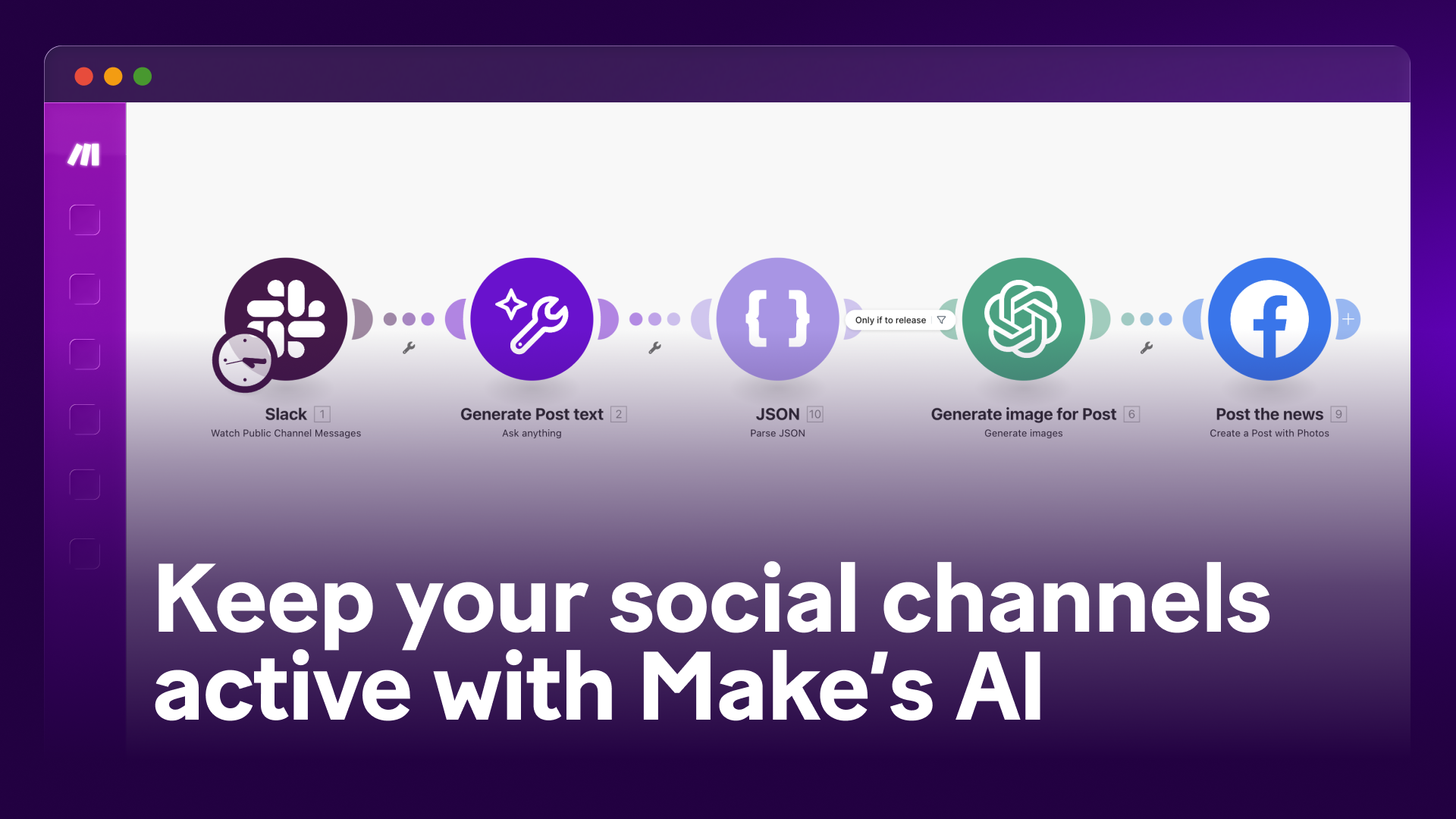
With Make, you can build a scenario that scans internal release announcements, uses AI to decide which ones are post-worthy, generates an on-brand copy and image, and publishes the result to the social platform of your choice automatically.
It means the right updates reach your audience, and you get to skip the manual work.
Why automate your social posts about product releases?
Automatically sharing social updates on product releases is obviously a significant time saver, but there are also other reasons to consider it:
- It can reinforce product momentum, showing your product is actively maintained and keeps improving
- It frees up creative time, so your team can focus on bigger campaigns, not just reactive updates
- It can reduce the risk of missing key announcements, especially during busy launch cycles
How does it work?
This scenario turns internal release messages into social media posts, using Make’s AI to handle the copy and image generation.
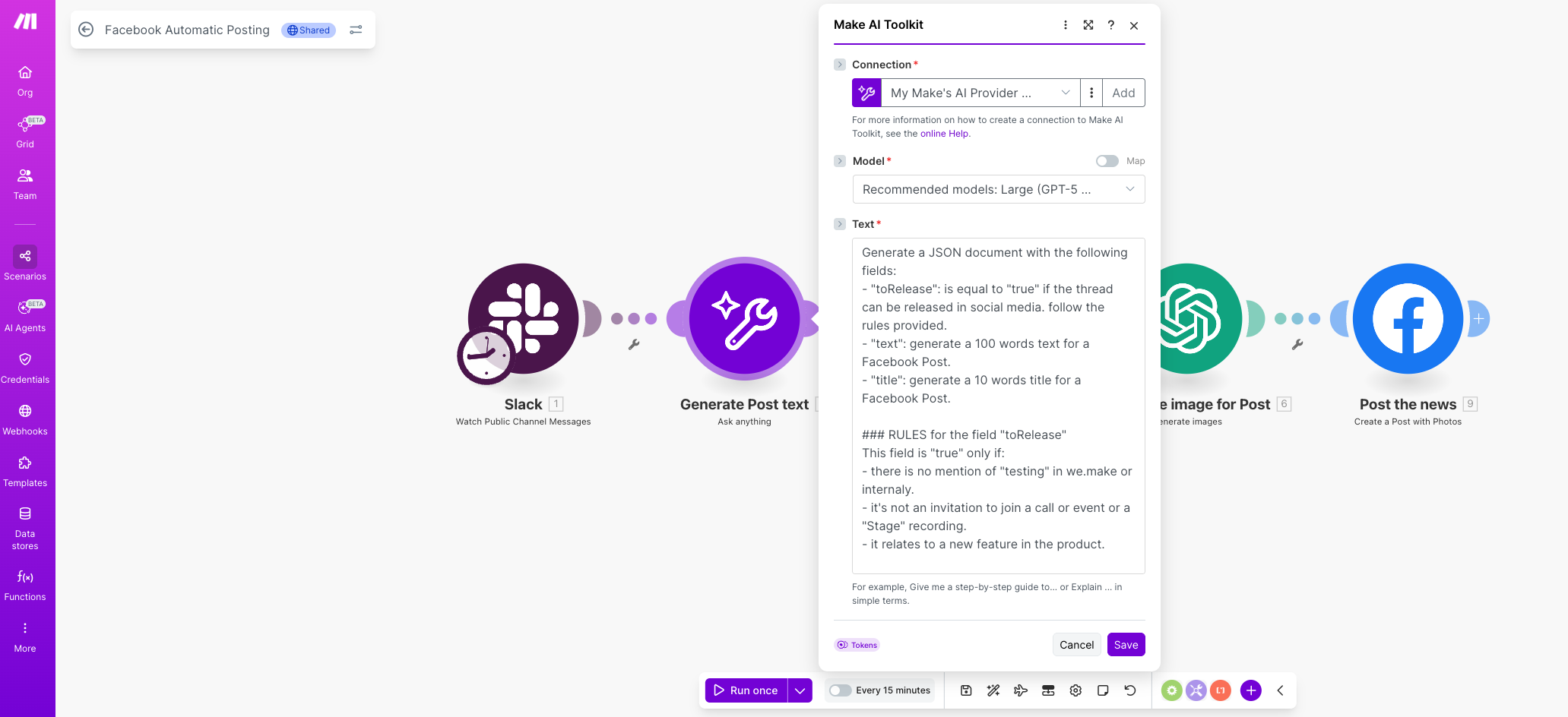
Here’s how to set it up:
1. Watch for new release messages in Slack
Start by using the Slack → Watch Public Channel Messages module.
This listens to a specific channel (for example, #product-updates) where your team posts new releases.
Each time a message is posted, the scenario is triggered.
2. Use AI to decide what should be published
Next, the message goes to the Make AI Toolkit module, where AI evaluates the update and, if appropriate, generates a post.
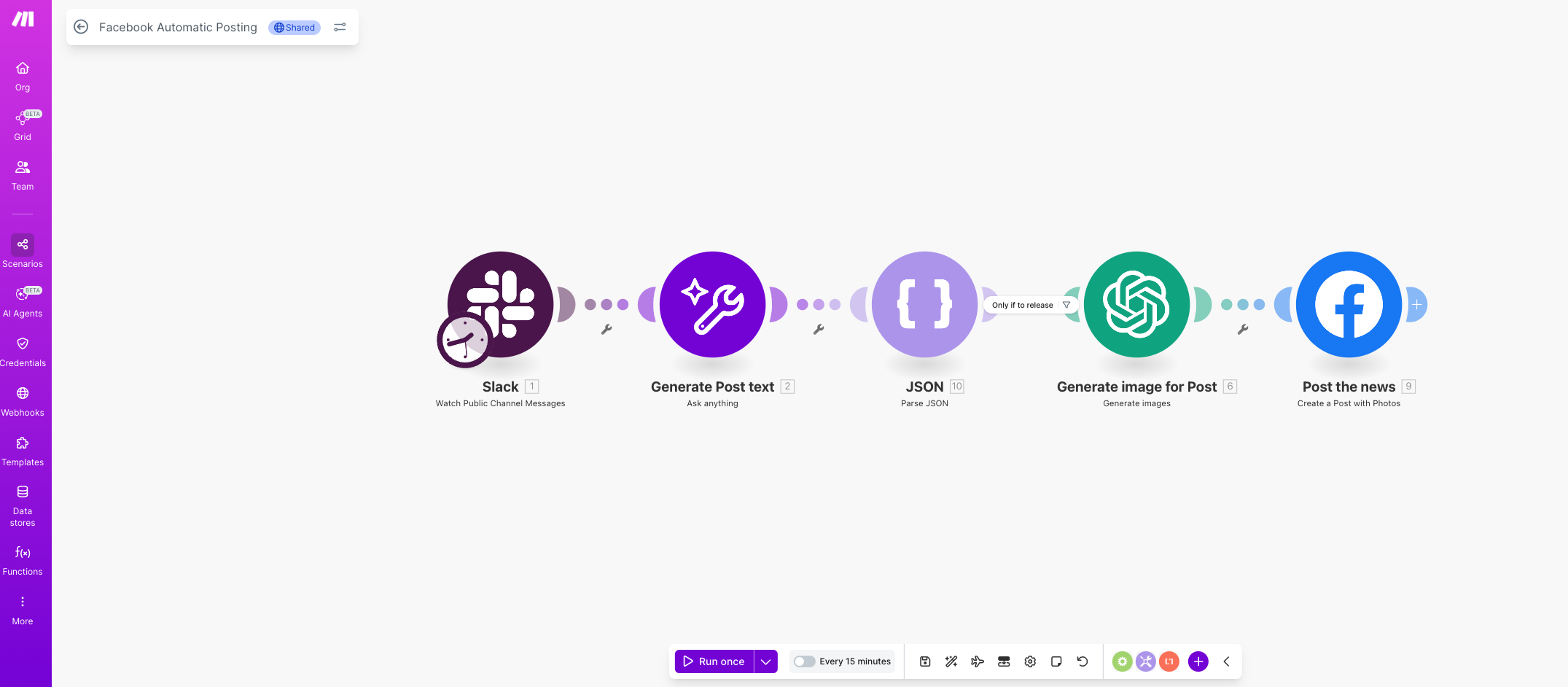
This step does two things:
- It checks whether the release is suitable for public sharing
- If it qualifies, it writes a social media caption and an optional title
You control the rules here. For example, you can tell the AI to ignore anything that mentions “beta,” “internal,” or “test,” and only continue if the release is marked as generally available (GA) or customer-facing. You can also easily add a human-in-the-loop approval step and double-check each post before it’s published.
If the post is cleared for publishing, you can also define how it should be written. For instance, you might ask it to:
- Use a familiar, appealing tone
- Keep the language clear for non-native English speakers
- Structure the copy in short, easy-to-read sections
- Avoid naming individuals or teams
The AI replies with a structured JSON response that includes:
- Whether the post should be published (true or false)
- A suggested caption for Facebook (around 100 words)
- An optional short title or headline
3. Key details extraction with JSON
Next, use the JSON → Parse JSON module to extract key details from the AI’s reply.
This provides clean fields for the following steps, containing the data they need. For example, the generated post and publishing approval/disapproval.
To keep things tidy, add a filter so the scenario only continues when the AI says the post is ready to go live.
4. Generate a branded image
Now it’s time to add a visual. The automation sends the caption or title into the OpenAI → Create an image module (powered by DALL·E).
You can customize the image style by adjusting the prompt, for example: “Flat illustration showing a new software feature launching, minimal style, bright background.”
This adds a custom visual to your post without needing to open Canva or brief a designer.
5. Publish the post to Facebook
To publish the post, use the Facebook Pages → Create a post with photos module.
In this step, the automation connects two pieces of content that were created earlier:
- The image from step 4
- The caption from step 2
Once they’re linked up, your post is ready to go live. You can either let Make automatically publish or add a final approval step.
Our setup is designed for Facebook, but you can easily adapt it for other platforms too, including LinkedIn and X. Simply swap in the relevant platform or connect to a scheduling tool. There are ready-made apps for both options in the Make app library.
Optional: How to add a quick approval step
Want to double-check posts before they go live? You can easily add a human-in-the-loop review.
There are a few ways to do this.
For example:
- Send the post draft to a Slack channel with an “Approve” button
- Store drafted posts in Airtable or Google Sheets for manual review
- Pause the scenario (set “on demand” scheduling option) until someone gives the go-ahead manually
Make it your own
One of the best things about using Make is that you’re never locked into a single way of doing things. This scenario works out of the box, but it can also be a springboard for your own variation. Here are a few simple ways you could take it further:
- Post to multiple platforms. Use the same AI-generated text and image to post on LinkedIn, X, or anywhere else. Just drop in the relevant app or route it through a scheduler.
- Translate posts automatically. Add another AI module to translate your caption into one or more languages. Great if you’re managing regional pages or speaking to a global audience.
- Log every post internally. Send published posts to Airtable, Notion, or Google Sheets, so your team has a running history of what’s gone out.
- Trigger it from other tools. Don’t use Slack? No problem. You can kick off the same flow from Notion, ClickUp, Trello – anything with an API or webhook (chances are, there’s already an app in the Make library)
Get building your own AI-powered social posts
Get the template scenario now and start automating in no time!
Related guides
Tool and strategies modern teams need to help their companies grow.

AI
How to cut hours of manual work with an automated AI project intake workflow
Learn how to turn a manual project intake process into an intelligent, automated workflow. With Make AI, requests move from submission to review in seconds, ensuring your whole team is aligned.

Natalia Mrazova
December 3, 2025

How-to guides
How to create SEO-ready product copy with Make & AI e-commerce automation
Ready to streamline your product listings? Learn how to automatically generate SEO-optimized titles, descriptions, and tags for your Shopify store using Make and AI, saving hours of copywriting work.
Natalia Mrazova
October 23, 2025

Information Technology
How to build an AI agent to qualify your affiliates (and save 70% of your time)
Learn how to use Make AI Agents to create your own affiliate qualifying assistant. Save time, focus on building relationships, and capitalize on more opportunities.
Natalia Mrazova
September 17, 2025