Automate your form data management: 6 ways to connect Jotform to your tech stack with Make
Learn how to automatically route Jotform submissions into your CRM, sync responses to spreadsheets in real-time, generate documents from templates, analyze feedback with AI, and create project tasks without manual data entry.

Your Jotform is doing a great job collecting data. But what happens after someone hits "Submit"? For most teams, the answer is: someone downloads a CSV, copies values into a spreadsheet, types the info into a CRM, and maybe, if they remember, sends a follow-up email.
That's a lot of busy work for data that already exists in a structured format.
What if every form submission could talk to the rest of your tech stack on its own? What if a new lead landed in your CRM instantly, a signed agreement turned into a PDF and filed itself, or an AI model analyzed a survey response before you even opened it?
That's where Make comes in. Make is a visual AI automation platform that lets you build automation workflows and AI Agents by dragging and dropping modules on a visual canvas. It connects Jotform to thousands of apps, so you can map your form fields and make them work with other tools.
In this post, we're walking through six practical ways to connect Jotform to the apps you already use, so your forms stop being a dead end and start being a launchpad.
1. The foundation: Sync Jotform submissions to Google Sheets in real time
What it's for: Automatic data logging for reporting, backup, and team visibility.
If you're still exporting CSVs from Jotform to keep your spreadsheets current, this is the first workflow to set up, and probably the one that will save you the most cumulative time.
How does it work in Make?
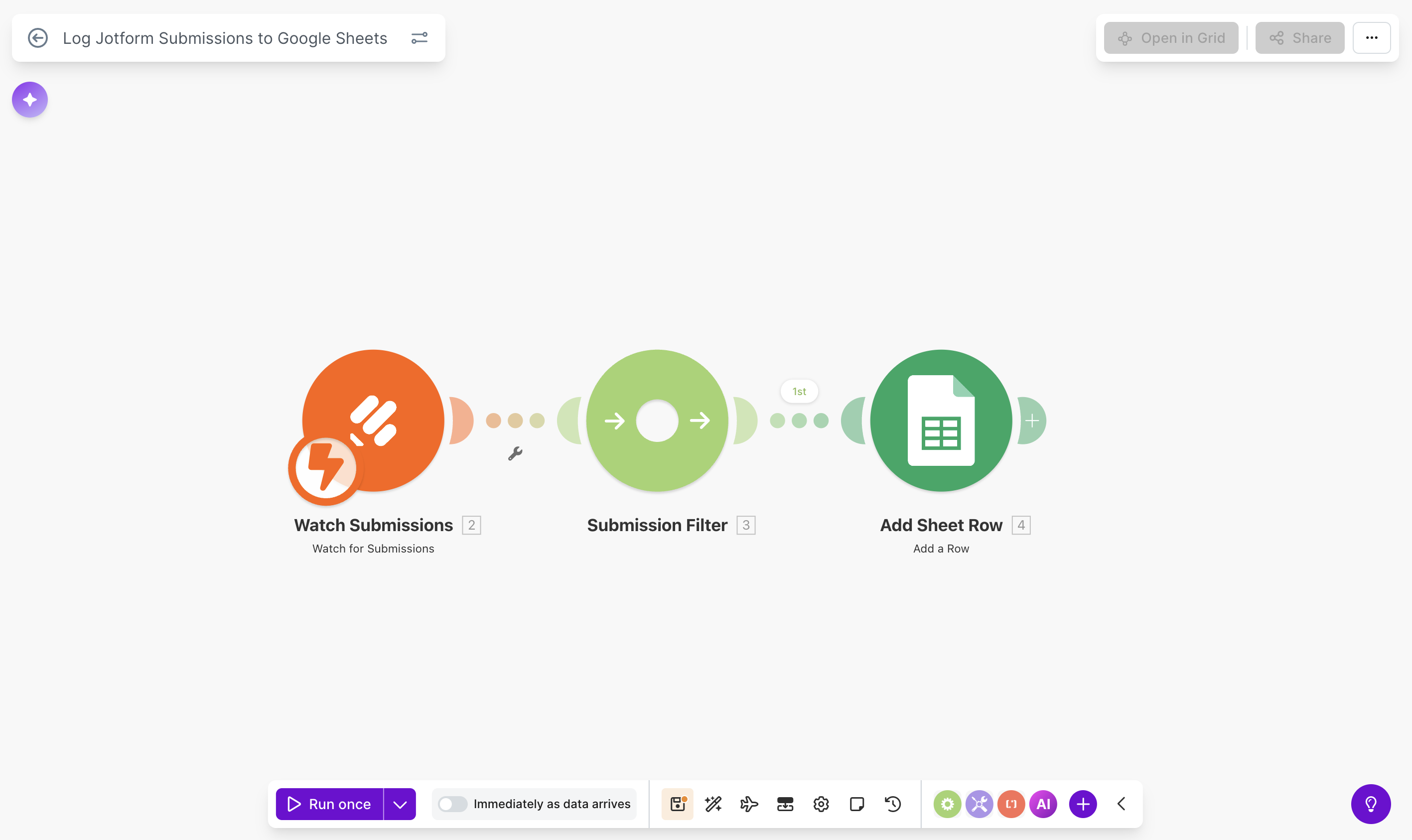
The scenario starts with a Jotform "Watch for Submissions" trigger. Every time someone fills out your form, Make picks up the new entry and passes the data to a Google Sheets "Add a Row" action. Your spreadsheet updates in real time.
Make also offers a strong added value that a simple direct integration can’t provide for you: filters. You can place a filter between the trigger and the action so that only certain submissions get logged.
For example, you might only want to track responses where the "Lead Status" field is "Qualified," or where the form type matches a specific campaign. This keeps your sheet clean and focused, rather than a collection of every test submission and half-completed entry.
How to connect it?
- In Make, create a new scenario and add the Jotform module. Select Watch for Submissions and connect your Jotform account using your API key.
- Choose the form you want to monitor.
- Add a Filter (optional but recommended) to define which submissions should pass through.
- Add the Google Sheets module, select Add a Row, and map your Jotform fields to the corresponding spreadsheet columns.
Pro tip: Add a Google Sheets "Search Rows" step before the "Add a Row" action. This lets you check whether a submission already exists (based on email address, for example) and avoid duplicate entries if someone submits a form twice.
2. Closing deals faster: Route Jotform leads straight to your CRM
What it's for: Instant lead capture and routing to HubSpot, Pipedrive, Salesforce, or any CRM you use, so the new lead is immediately visible for you to act upon.
Here's an obvious but business-defying fact worth remembering: the faster you respond to a new lead, the more likely you are to close the deal. If a potential customer fills out your contact form at 10 a.m. and your sales team doesn't see it until they check Jotform at 3 p.m., that's five hours of silence, and probably a lost opportunity.
How does it work in Make?
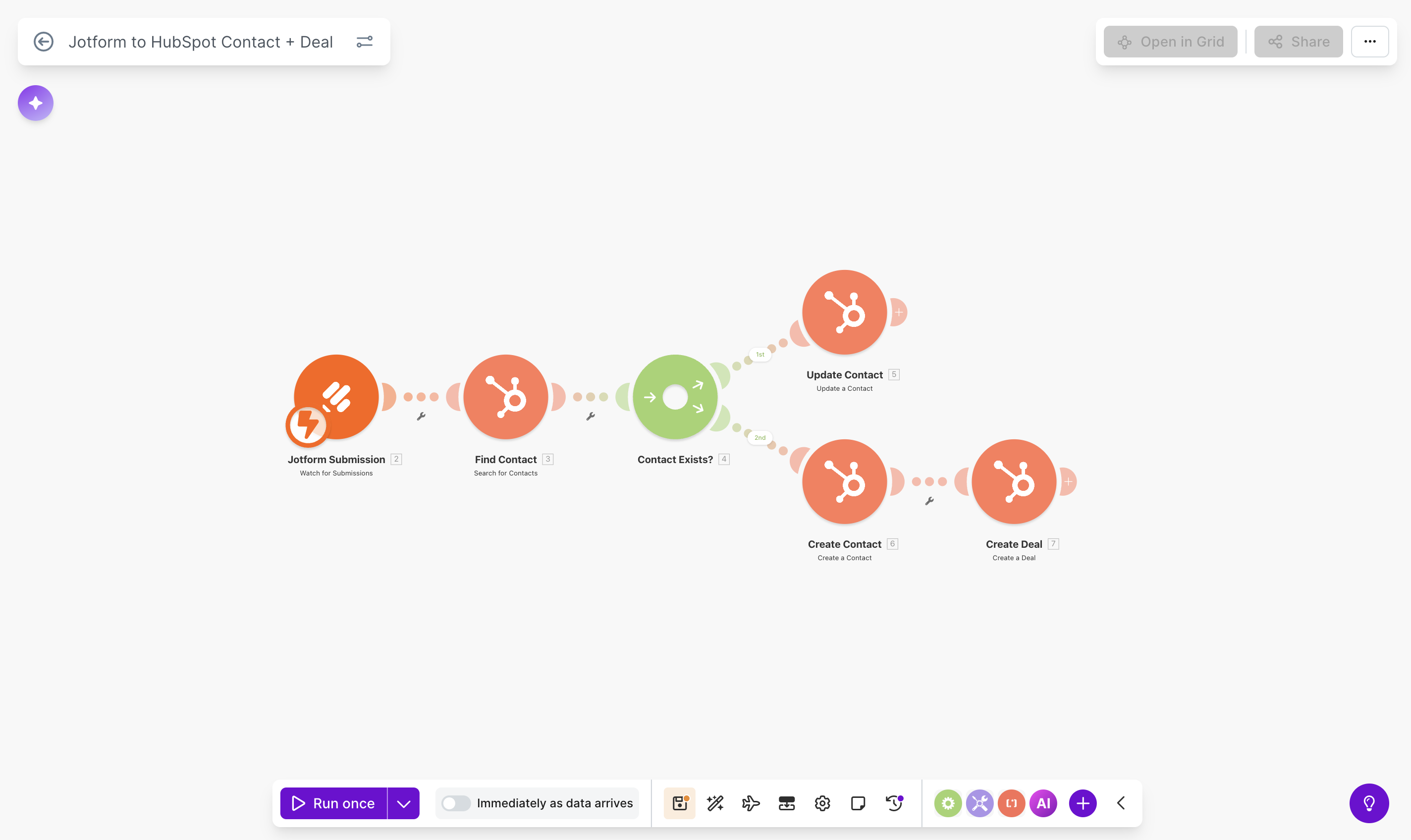
The scenario starts with a new Jotform submission. The first action is a CRM "Search for a Contact" step that checks whether this person already exists in your system. From there, a Router splits the workflow into two paths, each with a filter that determines when it runs:
- Path A → Existing contact: The filter checks whether the Search step returned a result (i.e., the number of results is greater than zero). If it did, this path fires and updates the existing record with the new form data.
- Path B → New contact: If the filter sees that the Search step found no match (i.e., the number of results is zero), this path fires and creates a new lead and optionally a deal or opportunity tied to that contact.
This means there are no duplicate contacts in your CRM, your sales team gets notified immediately when a new lead arrives, and every lead is accounted for, whether they're a first-time inquiry or a returning prospect.
How to connect it?
- Start with the Jotform "Watch for Submissions" trigger.
- Add your CRM module (HubSpot, Pipedrive, Zoho, HighLevel, or others) and use the Search action to look up the contact by email.
- Add a Router after the search step.
- Configure Path A to update the contact if a match is found.
- Configure Path B to create a new contact and deal if no match exists.
Pro tip: Use Make's built-in error handling to set up an alert (email or Slack notification) if a CRM action fails. That way, no lead ever disappears into the void.
3. Operational excellence: Turn form submissions into project tasks
What it's for: Converting requests, support tickets, or project briefs into actionable tasks in your project management tool.
When someone submits an internal request like a design brief, a support ticket, or an IT equipment order, that request shouldn't live in a form dashboard. It should become a task with an owner, a deadline, and all the relevant details attached.
How does it work in Make?
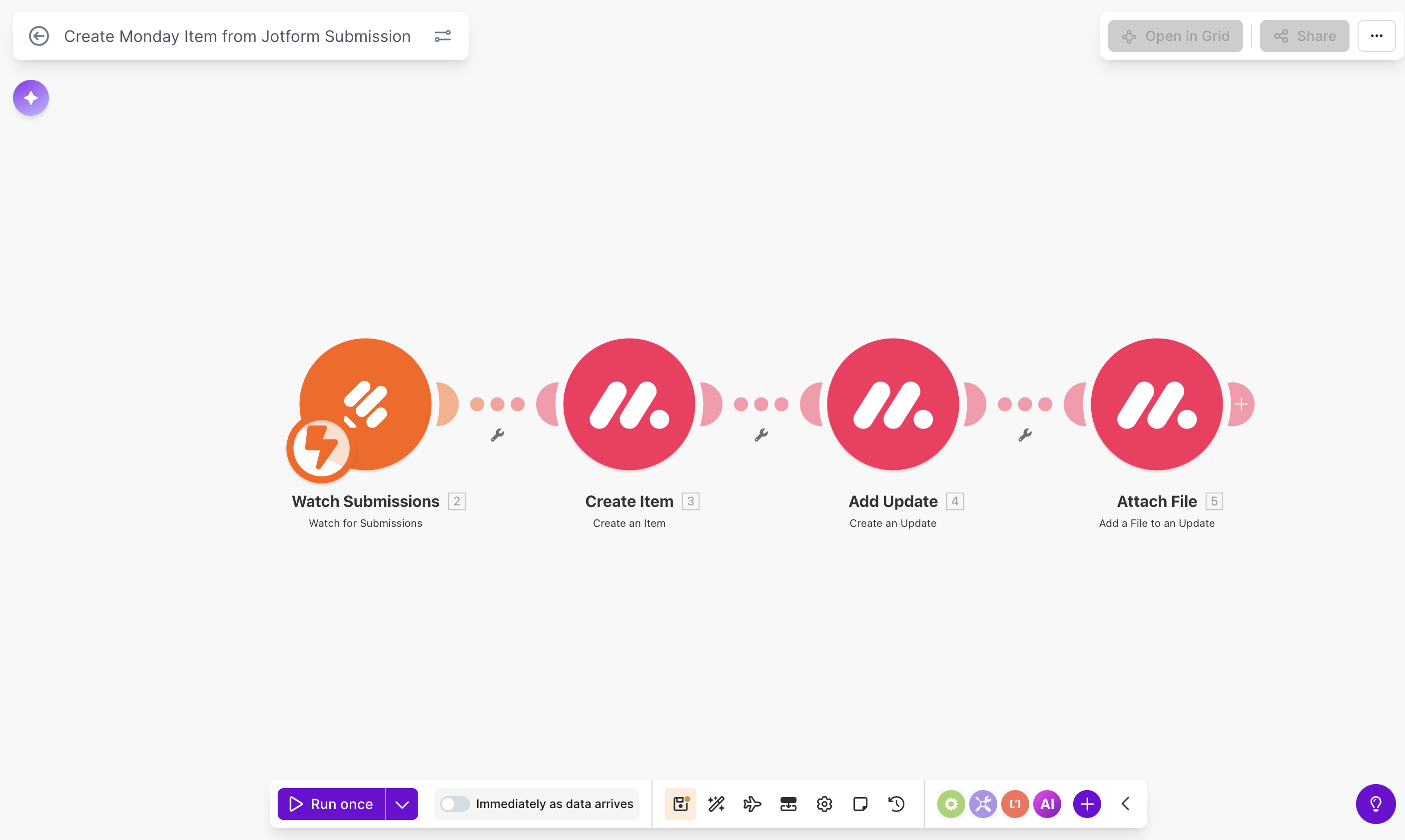
A new Jotform submission triggers the creation of a task (or item, or card, depending on your tool) in Monday.com, ClickUp, Asana, Trello, or other project management tools. Make maps the form fields to the task's title, description, assignee, due date, and any custom fields your team uses.
If your form includes file uploads (attachments, screenshots, reference documents), Make can map those directly to the task's attachment section. Your team gets everything they need without digging through emails or form dashboards.
How to connect it:
- Start with the Jotform "Watch for Submissions" trigger.
- Add the module for your project management tool (e.g., Monday.com, ClickUp, Asana, Trello).
- Select the Create a Task/Item/Card action.
- Map form fields to task fields: title, description, assignee, due date, and so on.
- Map any file: upload fields to the task's attachment section.
Pro tip: Use Jotform's dropdown or radio button fields for categories like "Priority" or "Department," and map these to your project management tool's labels or columns. This way, tasks arrive pre-sorted and ready for triage.
4. Paperwork on autopilot: Generate documents and store them automatically
What it's for: Turning form submissions into professional PDFs, contracts, or invoices, without touching a template.
Nobody wants to spend their afternoon copying names and addresses from a form into a Word document. Whether it's a service agreement, a client intake form, or an invoice, document generation is one of those tasks that feels small but eats up hours every week.
How does it work in Make?
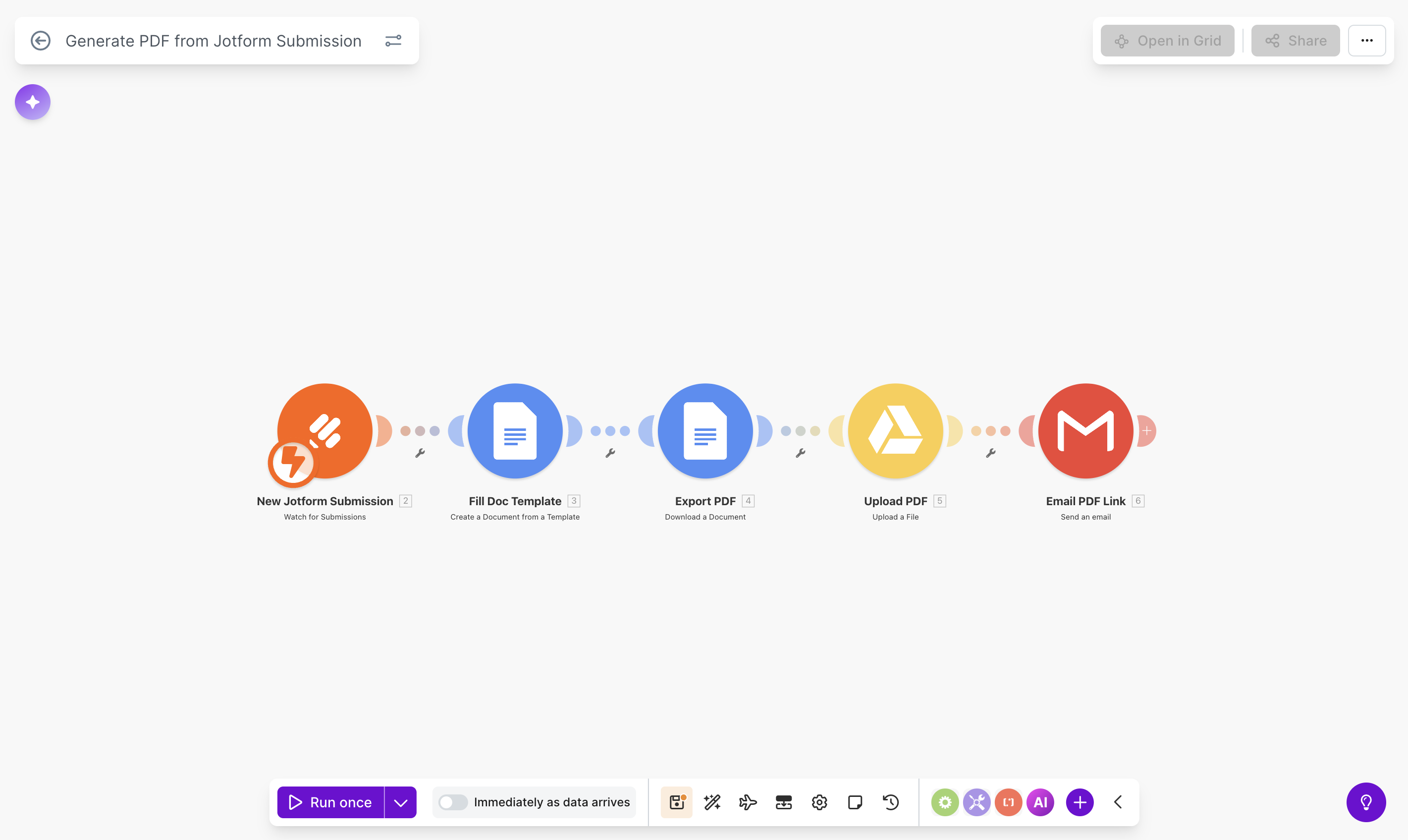
When a Jotform submission comes in (say, a signed service request or a completed order form), Make takes the form data and feeds it into a Google Docs "Create a Document from a Template" action. You set up your template once using {{placeholder}} tags, like {{client_name}}, {{address}}, {{service_type}}, and Make fills them in automatically with each submission.
Once the Google Doc is created via template, you can immediately download it as a PDF through this path: Google Drive → Download File → Advanced Settings → Google Docs as PDFs. You can also upload your Google Doc to Google Drive or Dropbox, and even email the download link back to the person who submitted the form.
How to connect it?
- Start with the Jotform "Watch for Submissions" trigger.
- Add the Google Docs module and select Create a Document from a Template. Map your Jotform fields to the template's placeholder tags.
- Add a PDF conversion step (Make's built-in tools or the PDF.co module).
- Add a Google Drive or Dropbox module to upload the finished file.
- (Optional) Add a Gmail or SMTP module to email the document link to the submitter.
Pro tip: Create a folder structure in Google Drive that auto-organizes documents by month or client name. You can use Make's text functions to dynamically set the folder path based on form data.
5. The modern edge: Let AI analyze your form responses
What it's for: Using large language models to process, classify, and summarize form data before it reaches your team.
Automation isn't just about moving data from point A to point B anymore. With AI modules in Make, you can have a language model read, interpret, and act on form submissions, adding a layer of intelligence to your workflows.
How does it work in Make?
There are three use cases worth highlighting:
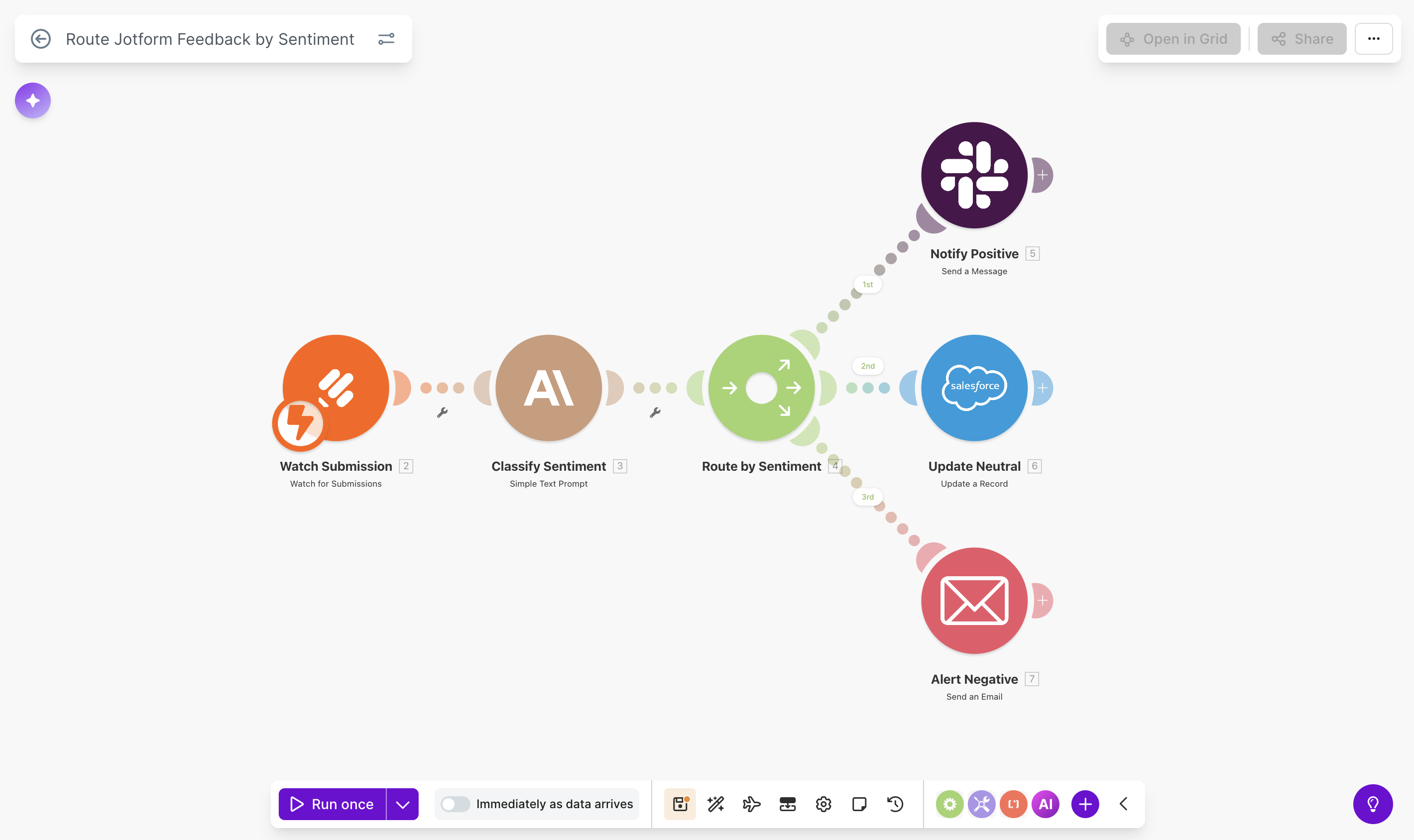
Sentiment analysis – A customer fills out a feedback form. Before it hits your support queue, an AI module reads the response and classifies the sentiment: positive, neutral, or negative. Angry feedback gets routed to a senior rep or flagged in Slack immediately. Positive feedback gets forwarded to your marketing team for a potential testimonial.
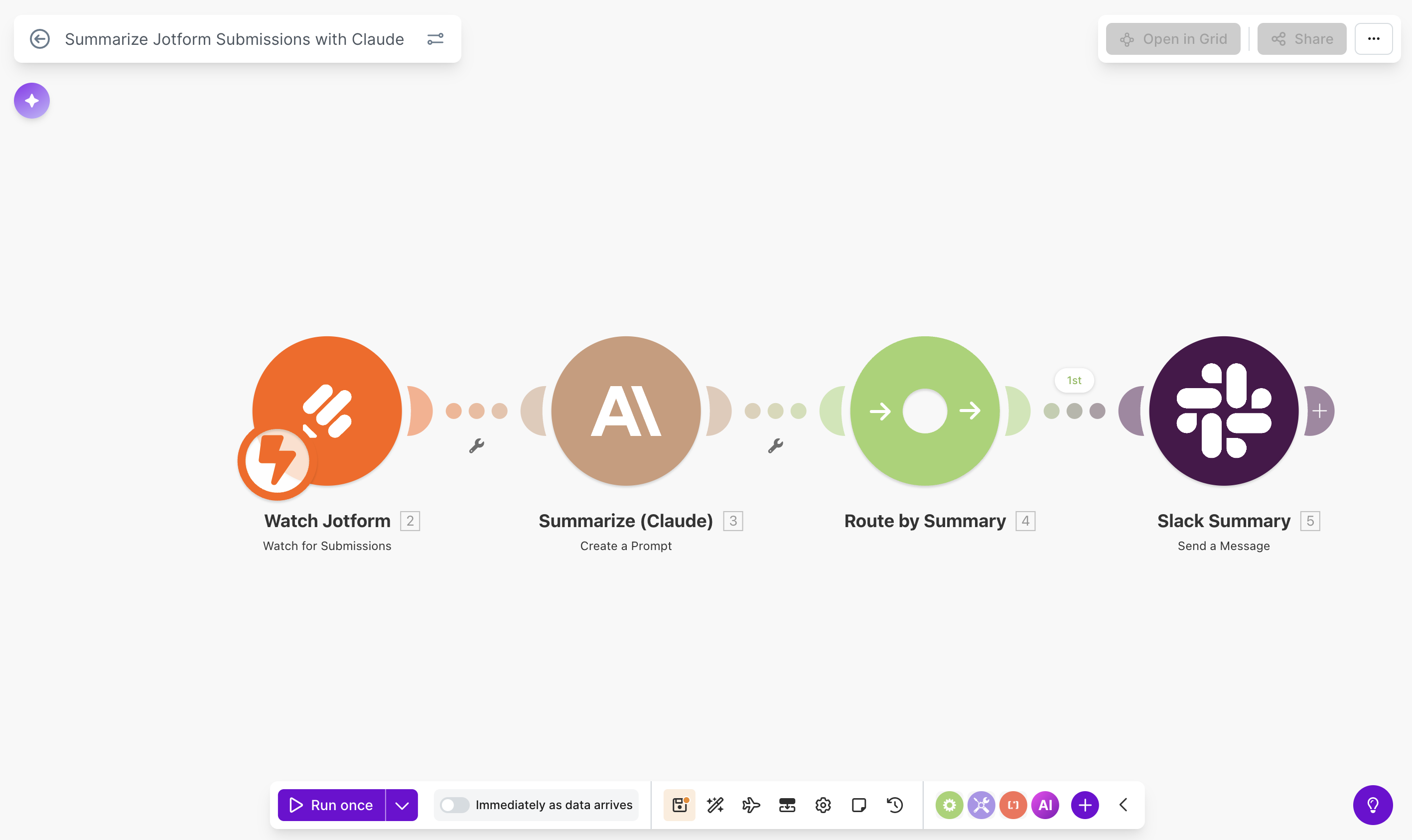
Summarization – Someone completes a long survey or detailed project brief. Instead of making your team read through every field, the AI module generates a concise three or four-sentence summary. That summary gets posted to a Slack channel or attached to a CRM record, giving the team what they need at a glance.
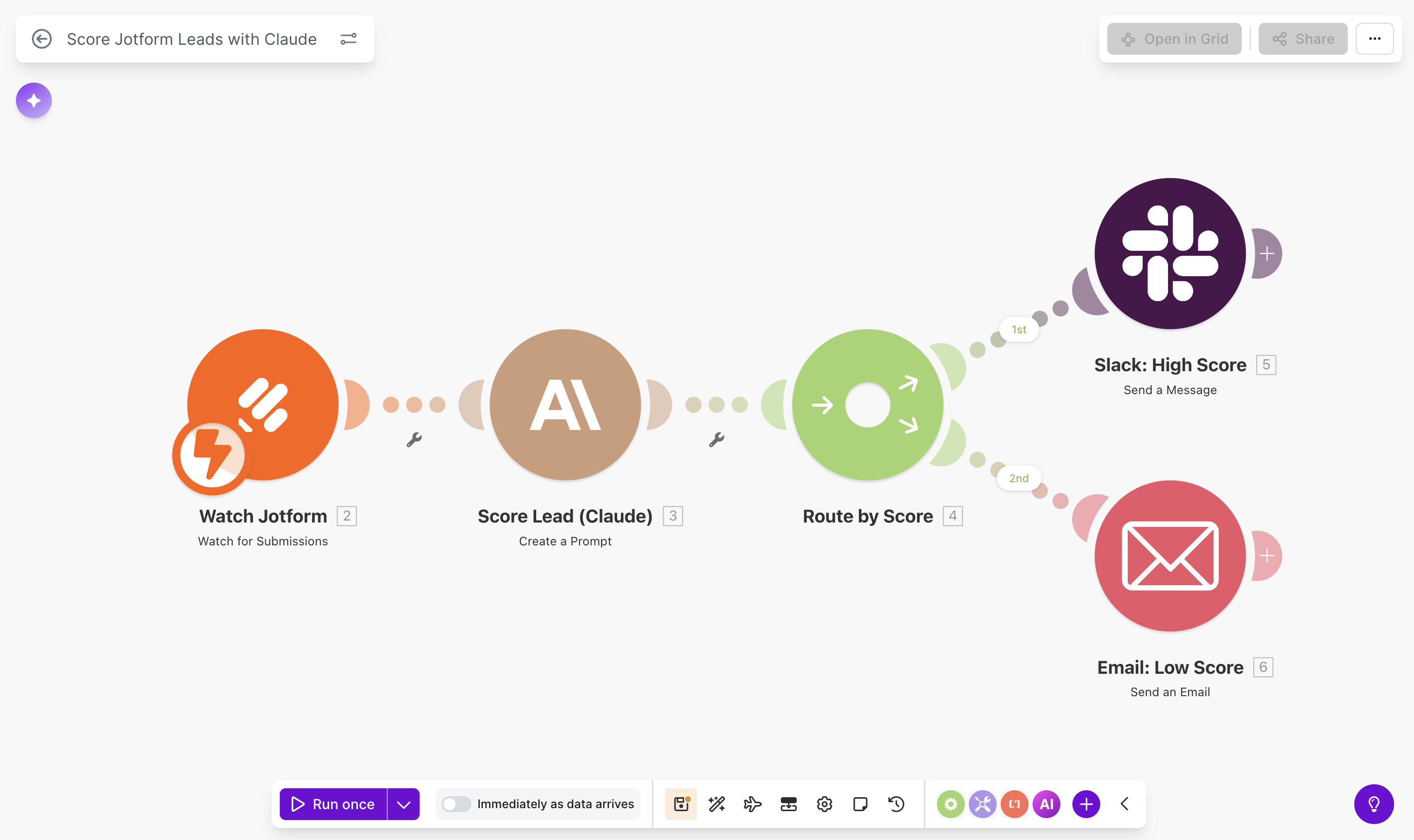
Lead scoring – An AI module evaluates a lead's form answers against criteria you define (company size, budget range, use case) and assigns a score. High-scoring leads get fast-tracked to sales; lower-scoring leads go into a nurture sequence.
Pro tip: In our examples, we used Claude. But you can achieve similar results using Make AI Toolkit, where you don’t need API keys. There is even a native module for Sentiment Analysis. You also shouldn’t miss the Make AI Content Extractor and Make AI Web Search apps.
How to connect it?
- Start with the Jotform "Watch for Submissions" trigger.
- Add an AI module: OpenAI (ChatGPT), Anthropic (Claude), Google Gemini, DeepSeek, or else, and configure the prompt.
Prompt examples:
A. For sentiment analysis: "Classify the following customer feedback as Positive, Neutral, or Negative, and explain your reasoning in one sentence: {{feedback_field}}"B. For summarization: “Summarize the following survey response in 3–4 sentences. Focus on the respondent's main goals, key concerns, and any specific requests: {{survey_fields}}"C. For lead scoring: "Based on the following form answers, score this lead from 1 to 10, where 10 is the highest fit. Consider company size, stated budget, and urgency of their use case. Return the score and a one-sentence justification: {{lead_fields}}"
- Add a Router to direct the output based on the AI's classification.
- Connect each path to the appropriate action: Slack notification, CRM update, email alert, and so on.
Pro tip: Include a "confidence score" in your AI prompt so you can set up a fallback path for ambiguous responses. Add a Human in the Loop module to forward these responses for a human review.
6. Bonus: Send Jotform notifications to Telegram
What it's for: Real-time form alerts delivered to Telegram chats, groups, or channels, ideal for teams that live in Telegram rather than email.
Jotform doesn't offer a native integration with Telegram, but Make bridges the gap with a full-featured Telegram Bot module. If your team coordinates through Telegram (common in remote teams, dev shops, and international organizations), this connection means form submissions show up exactly where your team is already paying attention.
How does it work in Make?
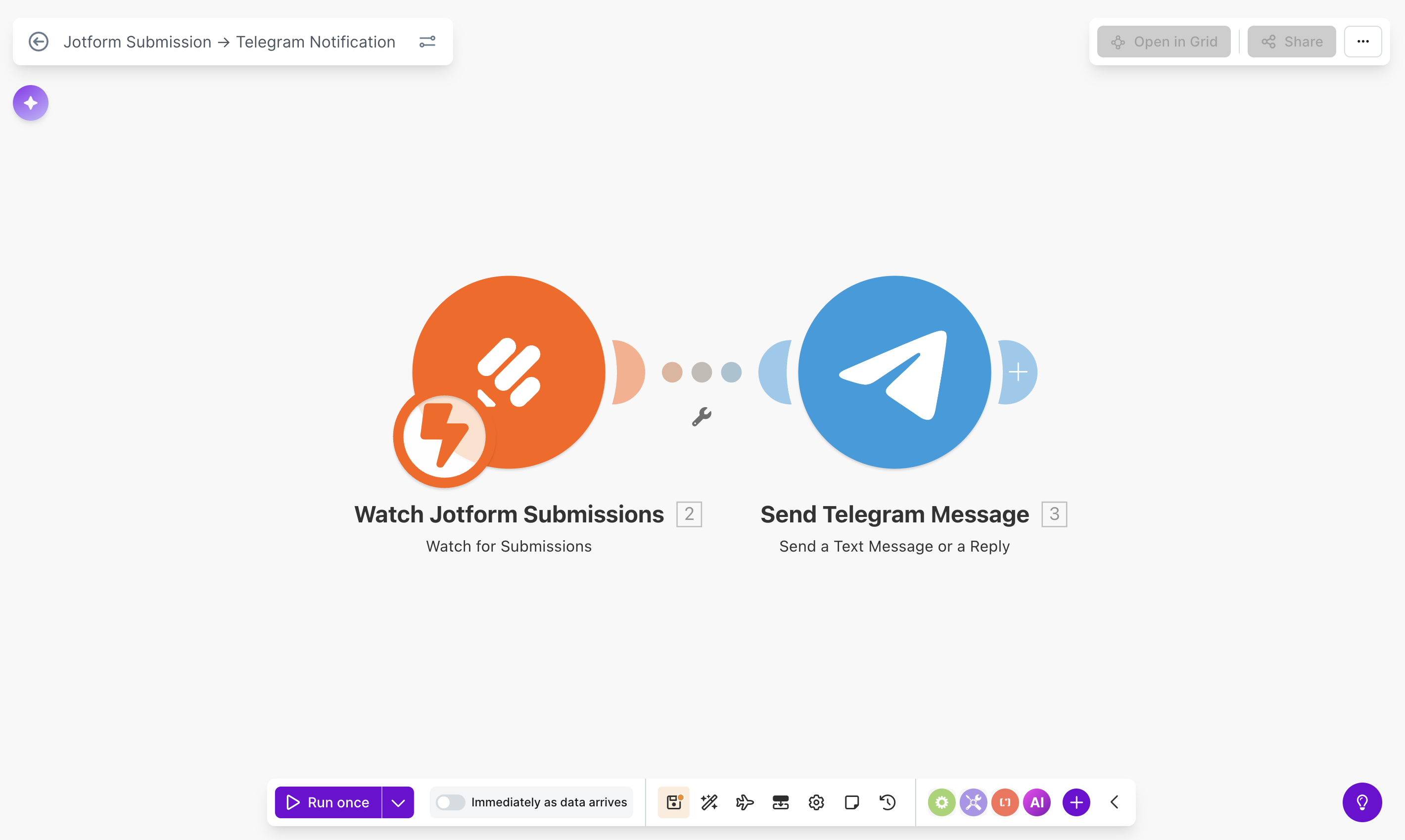
When a new Jotform submission arrives, Make formats the key fields into a clean message and sends it to a Telegram chat, group, or channel using the Telegram Bot "Send a Message" action. You can customize the message format with bold text, line breaks, and emojis to make it scannable.
But it goes beyond basic notifications. You can combine this with any of the previous use cases. For example, you can run a submission through an AI module first for sentiment analysis, then send the summary and sentiment classification to your Telegram support group. Or route different form types to different Telegram channels using Make's Router.
How to connect it?
- Start with the Jotform "Watch for Submissions" trigger.
- Add the Telegram Bot module and select Send a Message.
- To connect the module, you'll need a Telegram Bot Token (creating one via Telegram's BotFather takes about two minutes).
- Enter the Chat ID of the group or channel where you want notifications to arrive.
- Use Make's text formatting to compose the message body, mapping in the form fields you want to include.
Pro tip: Use Telegram's Markdown formatting in your Make message template. Bold the submitter's name and the form title so team members can scan notifications without opening each one.
Find more Jotform & Make automation in Make’s Template Library
There are many more processes you can automate by connecting Jotform with Make. If you need inspiration, Make offers a library of pre-built scenario templates. By clicking on “Get this template”, you will open them directly in Make’s visual builder. All you need to do next is configure the modules and accommodate the workflow to your needs.
Here are 3 automation examples you can start using straight away
- Jotform & Instagram smart lead enrichment
- Transferring Webinar registration via Jotform
- Creating tasks in ClickUp for new Jotform submissions
Getting started
All six of the workflows we presented in this blog start with the same first step: connecting Jotform to Make. If you haven't done this before, here's the short version:
- Create a free Make account at make.com.
- Generate a Jotform API key from your Jotform account under Settings > API. Set the permission to Full Access.
- Create a new scenario in Make, add the Jotform module, and paste in your API key.
- Choose your trigger ("Watch for Submissions" is the one you'll use most often), select your form, and start building.
From there, you can connect any of the 3,000+ apps available in Make, and combine multiple actions into a single scenario. The workflows in this post are starting points; once you see how the pieces fit together, you'll find yourself building automations you hadn't even planned for.
Your forms are already doing the hard work of collecting data. It's time to make that data work for you.
Starting with Make and Jotform? Register via the link below and get a 2-month Make Pro Plan for free with 20k monthly operations.
Starting with Make and Jotform?
Register via this link and get a 2-month Make Pro Plan for free with 20k monthly operations.
*If you already have a Make account, you can still use the offer – please contact Jotform to get a coupon.
Related guides
Tool and strategies modern teams need to help their companies grow.

How-to guides
How to automate lead data with Make and Lusha
Learn how to automatically enrich every new lead with verified contact details and firmographics, route high-fit prospects instantly, and track when past buyers change jobs. All that by using Lusha's 1.2B+ data points in Make.

Carolina Portela
May 21, 2026

How-to guides
Client portal: How no-code tools can help you build one
Build a client portal that connects data, automations, and clients in a collaborative space that enhances transparency.

Madhan Kanagavel
December 17, 2025

How-to guides
From disorganized survey submissions to actionable insight with Make and Rows
Discover how to automatically transform open-ended survey responses into categorized insights, enrich feedback with company data, and trigger real-time notifications without spending hours on manual analysis.

Alberto Manassero
December 4, 2025