How to use an AI agent to sort emails in 2026
Build a native Make AI Agents triage scenario that labels, prioritizes, and escalates incoming Gmail messages without manual review.


Rule-based filters break the moment an email does not match the pattern.
This guide on how to use an AI agent to sort emails walks ops and revenue ops leads through one scenario built with native Make AI Agents, Gmail, and Slack.
The agent watches your inbox, classifies each message, applies labels, drafts replies for routine asks, and escalates priority items to Slack.
Gartner forecasts 40% of enterprise apps will embed task-specific agents by the end of 2026.
What you need before you start
Three accounts, one provider decision, and one production constraint to settle before you place the first module on the canvas.
Which accounts and plans are required?
Make AI Agents are available on all paid plans, with Make's AI Provider built in or your own LLM key on top.
The November 2025 credit shift changed how AI module consumption is billed, so cost modeling matters before you scale the scenario beyond a single inbox.
- Make paid plan, Core or above. The Free plan caps you at two active scenarios and a 15-minute minimum interval, which is enough to test but tight for production
- Gmail account with API access enabled, or a Google Workspace equivalent
- Slack workspace for escalation, or substitute Microsoft Teams or Discord
- LLM provider connection: Make's AI Provider (built in) or your own OpenAI or Anthropic Claude API key. Custom provider connections went GA on all paid plans Nov 6, 2025
How does Make do this differently from a Gmail filter?
Rules match strings. Make AI Agents read intent. This section covers what that shift means in practice and what the next-gen agent adds on top of a static LLM call.
Where rules stop and reasoning starts
A native Gmail filter is a sorting machine: tell it to move anything with the word "invoice" and it will, including the email from your accountant asking whether you received the invoice they never actually sent.
Make AI Agents work more like a colleague who knows what matters.
The agent runs inside the Scenario Builder, every tool call and decision logged on the canvas through the Reasoning Panel released in February 2026.
For inboxes whose needs stop at separating promotions from primary, the native Gmail filter is a solid baseline.
For teams whose triage logic involves urgency scoring, sender context, and downstream routing to Slack or a CRM, the agent is the layer above.
What does the agent add that a static prompt does not?
A single OpenAI or Anthropic Claude module returns a text response; you still need to parse it and wire every downstream route manually.
Next-gen Make AI Agents collapse that into one module.
Capability | Static LLM module | Next-gen Make AI Agents |
Reasoning visibility | Hidden inside response | Reasoning Panel on canvas |
Tool calling | Single output, manual routing | Calls Gmail, Slack directly |
Multimodal input | Text only | Documents, images, audio |
See the full next generation of Make AI Agents announcement for a deeper breakdown of what changed in February 2026.
What skills should you have?
This guide is pitched at builders who already work in the Scenario Builder day to day. You'll get the most from it if you can comfortably handle the following.
- Wiring Watch emails triggers and reading bundle structure
- Writing a system prompt that defines categories, priority tiers, and refusal cases
- Configuring the Run an agent module
- Basic OAuth connection setup
Building the email triage scenario (step by step)
Six steps move from trigger to agent configuration to multi-tool action and Slack escalation routing.
Step 1: How do you connect Gmail to Make?
Gmail v4 is the default module set in the Scenario Builder. New scenarios should use v4; the legacy v2 module set is still available for existing scenarios but is no longer the default.
- Add Gmail > Watch emails as the trigger module
- Create a connection. Sign in with the Google account whose inbox the agent will manage
- Authorize the read and labels scopes. Make requests minimum required scopes only
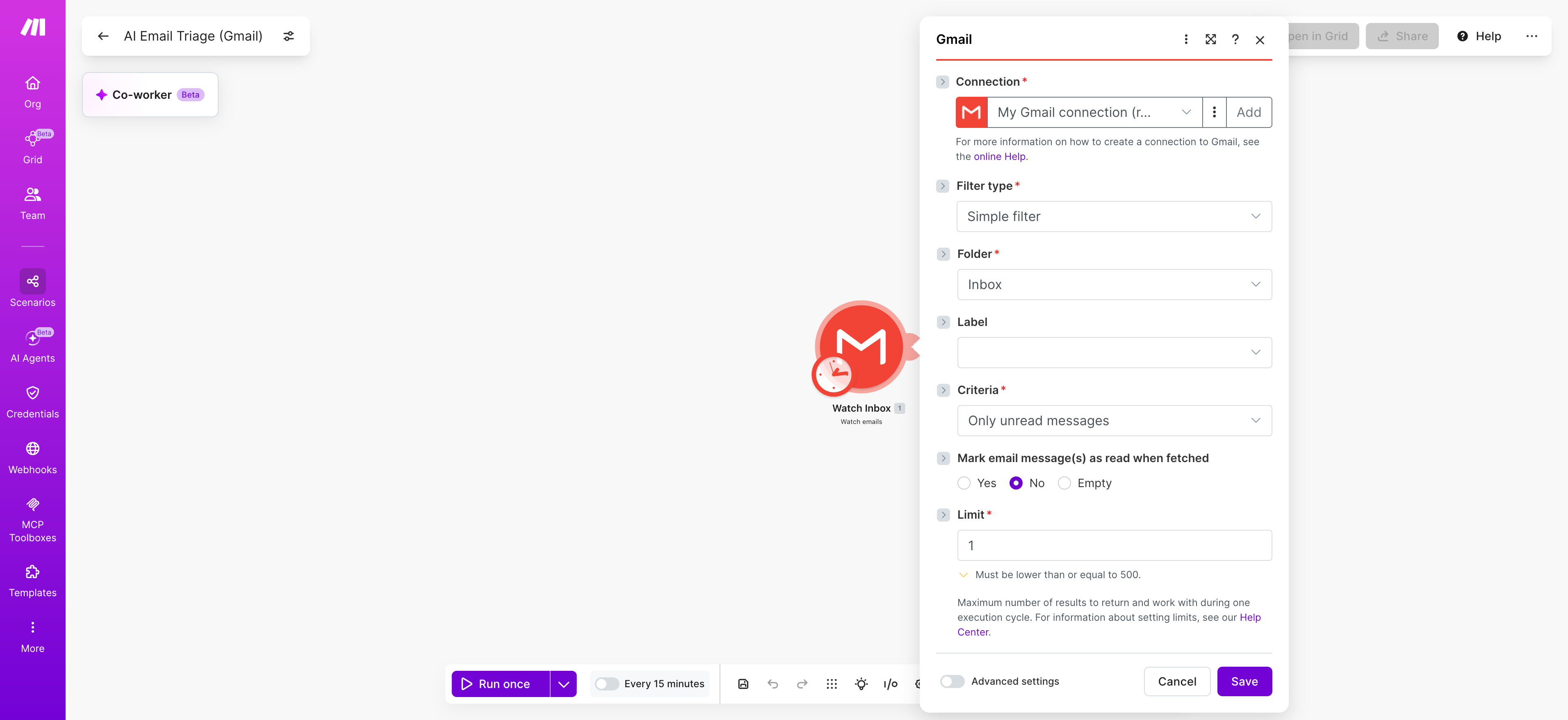
- Set 'Folder' to Inbox, 'Criteria' to "Only unread messages," and 'Mark as read' to No so the agent decides
- Set 'Limit' to 1 during build, raise to 10 once stable
💡PRO TIP: For personal Gmail accounts, create your own Google Cloud OAuth client and paste the Client ID and Client Secret into Make's connection setup. Google's unverified-app warning disappears, and your team sees a controlled consent screen instead. See Google's OAuth verification process for the full setup steps.
For full scope details, see the Gmail integration on Make.
Step 2: How do you filter the trigger before the agent runs?
Every email pulled by Watch emails consumes credits; every email the agent then processes consumes more.
Filtering at the trigger level is the single biggest cost lever in the scenario.
- Use the Gmail filter mode (not Simple filter) in the Watch emails module, with query syntax such as '-from:me -label:processed -category:promotions'
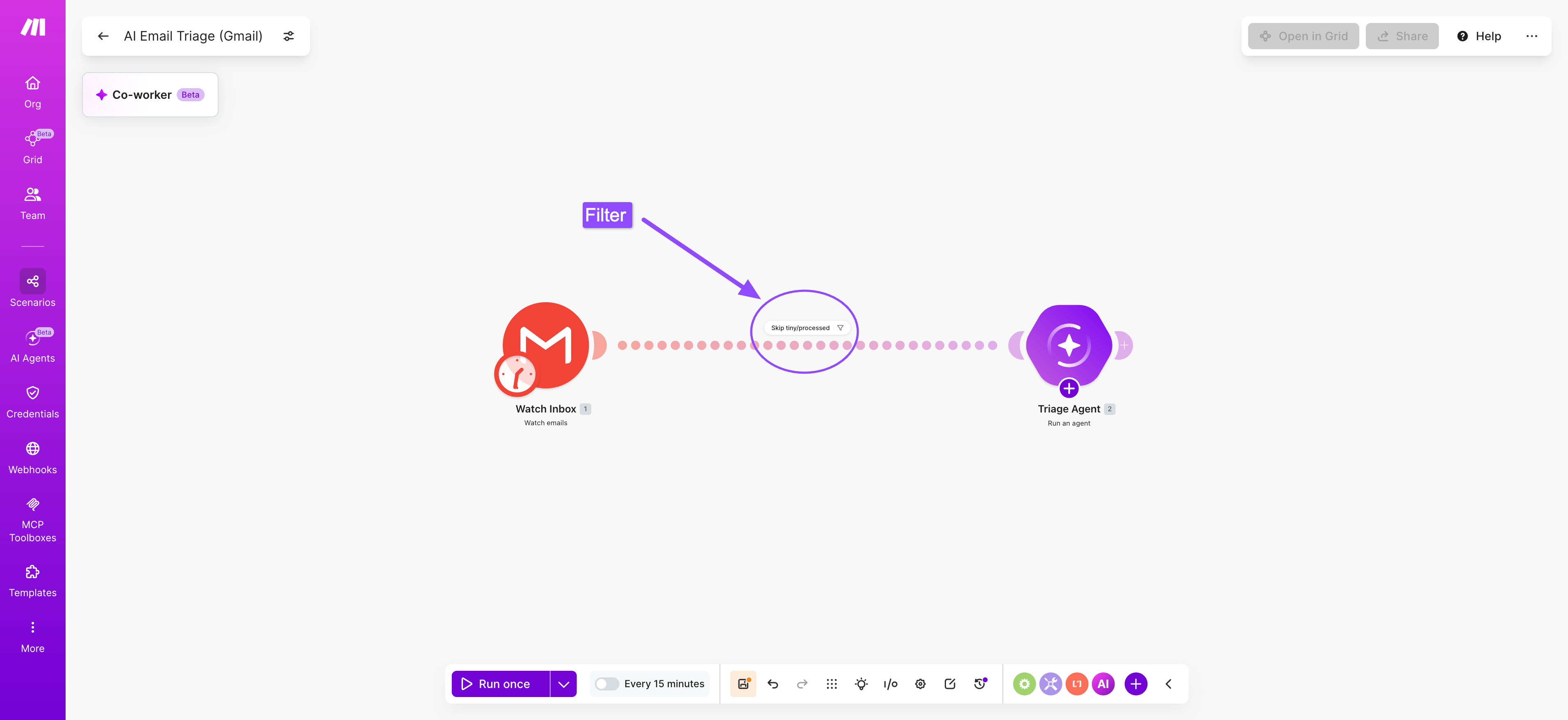
- Add a Filter between the Gmail trigger module and the agent to skip messages under a character threshold, catching auto-replies and one-line confirmations before they reach the agent
- Skip messages already labeled 'processed' to prevent loops when the agent's label actions change read state
Setting | Credit impact | Recommended |
Polling interval | 1-minute poll runs ~43,200 checks per month | 15 minutes |
Limit per cycle | Multiplies downstream agent calls | 10 |
Filter mode | None means processing everything | Gmail query |
See Make's current pricing and credit plans for a full breakdown of how credits are consumed across modules.
Step 3: How do you configure the Make AI Agent?
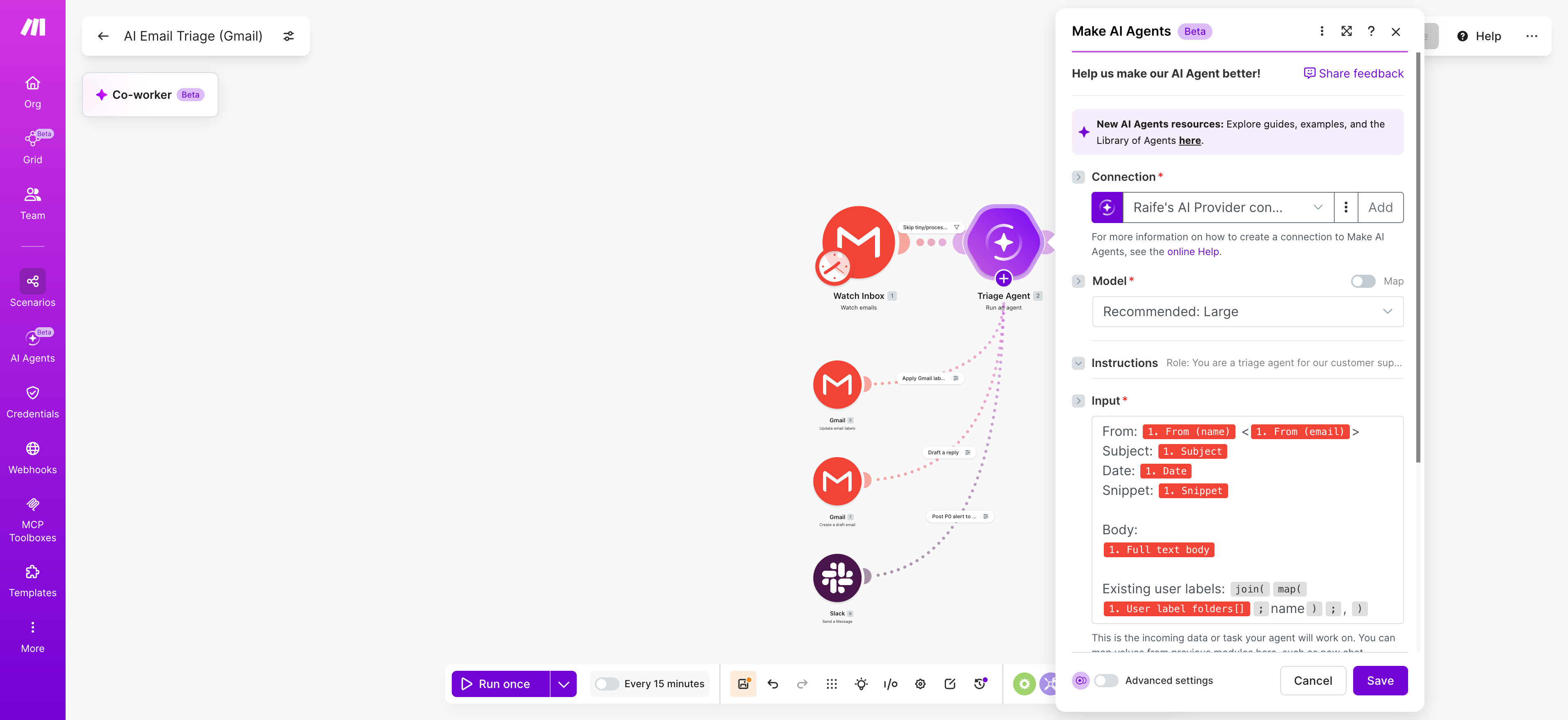
The agent module is Make AI Agents > Run an agent. Configure the agent once and reference it from any scenario.
The system prompt is where triage logic lives; write it in the voice of the person whose work the agent absorbs, whether that is a support lead, an ops lead, or a founder managing their own inbox.
System prompt structure:
- Role line: "You are a triage agent for our customer support queue, classifying incoming emails by SLA tier"
- Category definitions: urgent, billing, internal, customer question, newsletter, recruiter, vendor, spam
- Priority tiers 'P0' through 'P3' with explicit examples for each
- Hard refusals: never archive, never send a reply without applying a label first
Tool configuration:
- Gmail > Modify Labels as a tool: the agent decides which labels to apply
- Gmail > Create a Draft as a tool: the agent drafts replies for routine categories
- Slack > Create a Message as a tool: the agent posts 'P0' alerts to your triage channel
On any paid plan since Nov 6, 2025, you can swap Make's AI Provider for your own Anthropic Claude or OpenAI key, useful when prompt length or token cost becomes a factor at scale.
Step 4: How do you route the agent's output?
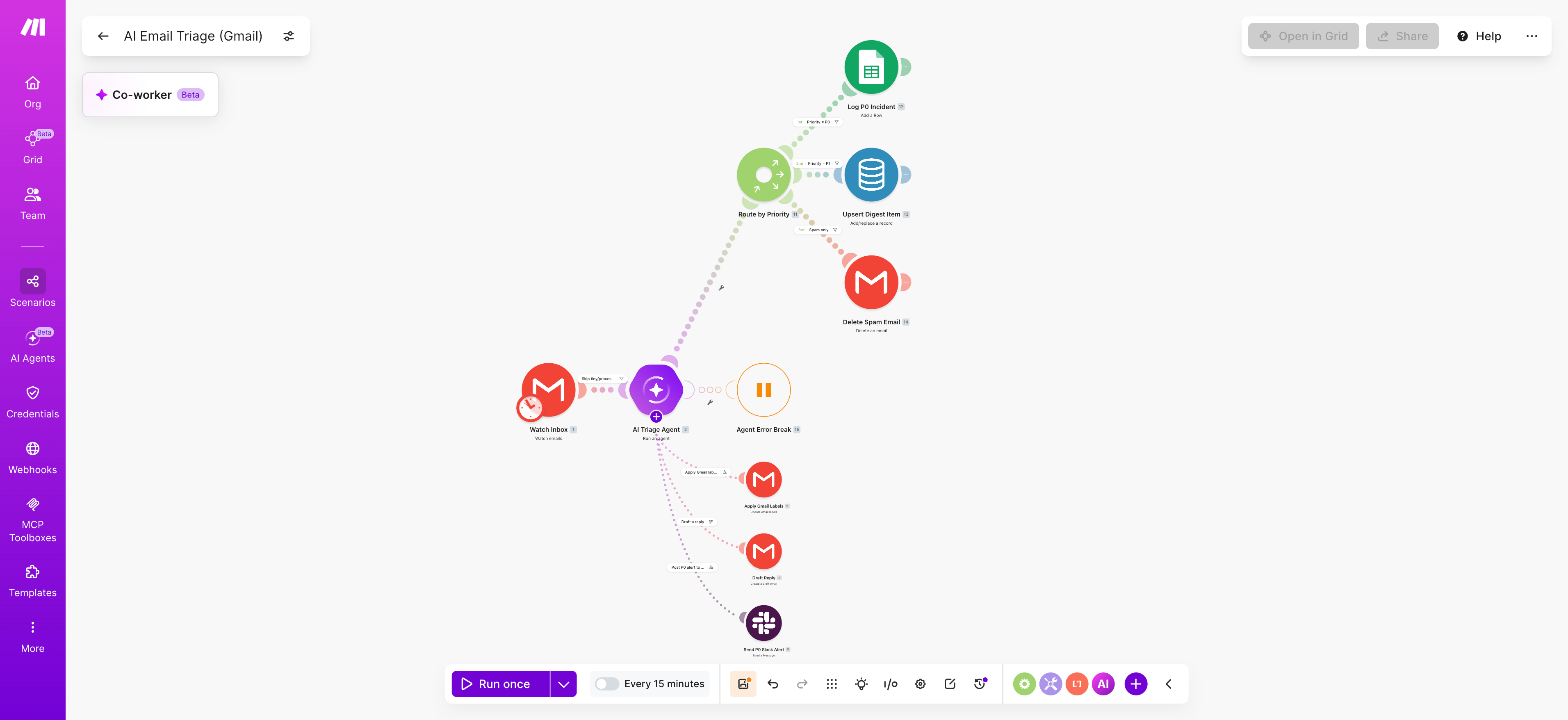
Even with the agent calling tools directly, a downstream Router earns its place for actions outside the agent's authority: analytics logging, manual review queues, and digest aggregation. Route by priority tier, not by category.
- Add a Router module after Run an agent
- Route 1: 'P0' priority to Google Sheets > Add a Row for incident review logging
- Route 2: 'P1' priority to Data store > Add/Replace a Record for the daily digest
- Route 3: anything labeled 'spam' to Gmail > Delete an Email, but only after a two-week stable run
- Default fallback route: no-op for low-priority already labeled
💡 PRO TIP: Wrap the Run an agent module in an Error Handler with 'Break' set to "Allow storing of incomplete executions." When the underlying LLM rate-limits, the scenario pauses cleanly instead of dropping the email. Resume from the failed bundle without reprocessing the whole batch.
Step 5: How do you handle attachments and threaded replies?
Attachments and threading are where triage scenarios silently break. The agent classifies a single message in isolation, missing context from the rest of the thread.
Without threading context, a reply to an urgent client complaint can land in the same bucket as a cold outreach email with a similar subject line.
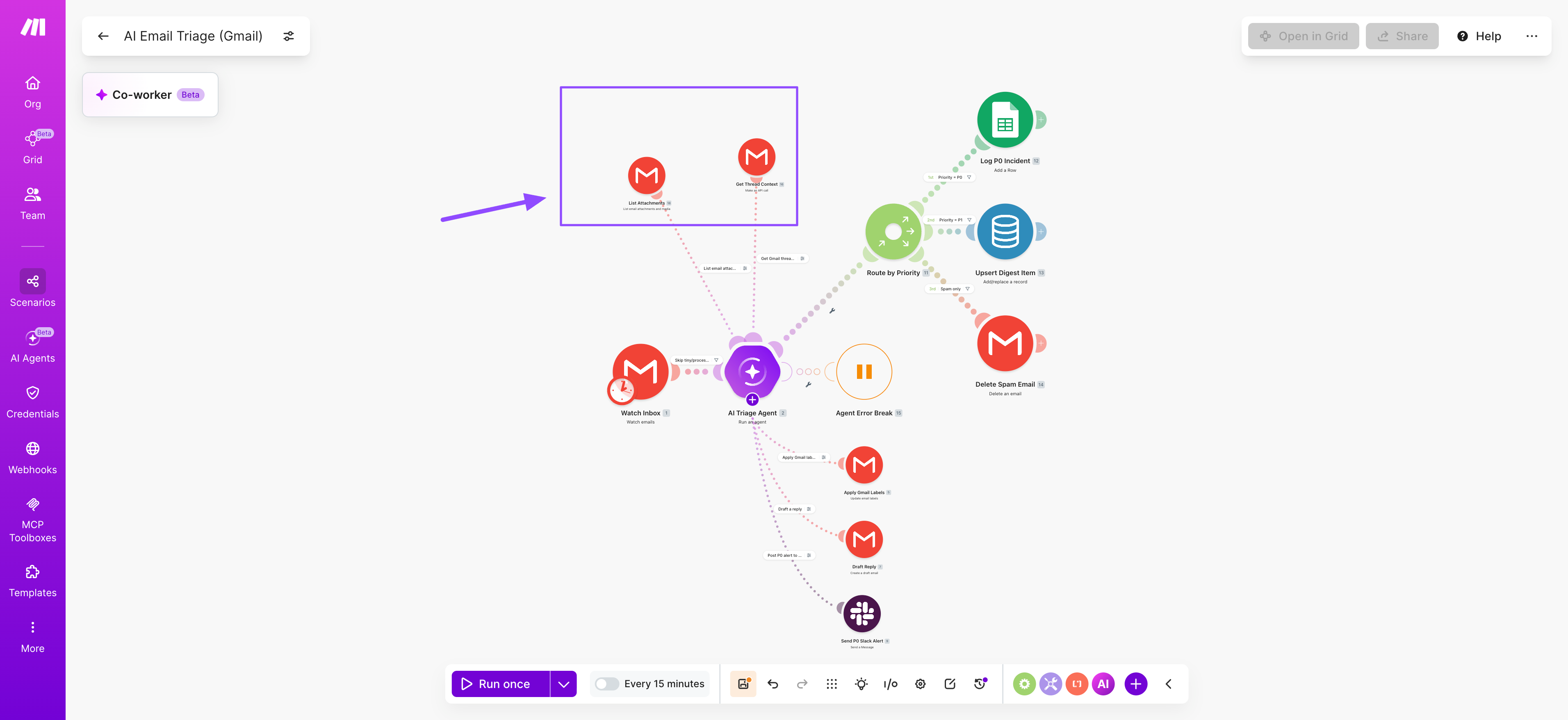
- Add Gmail > Get a Thread as a second tool the agent can call when a subject line starts with "Re:" or "Fwd:"
- Pass 'thread_id' to the agent so it maintains conversation context across runs
- For attachments, add Gmail > List Attachments as a tool; next-gen Make AI Agents support multimodal input including PDFs and images directly
- Strip HTML and signatures from the message body before passing to the agent to save tokens and improve classification accuracy
Step 6: How do you activate and schedule the scenario?
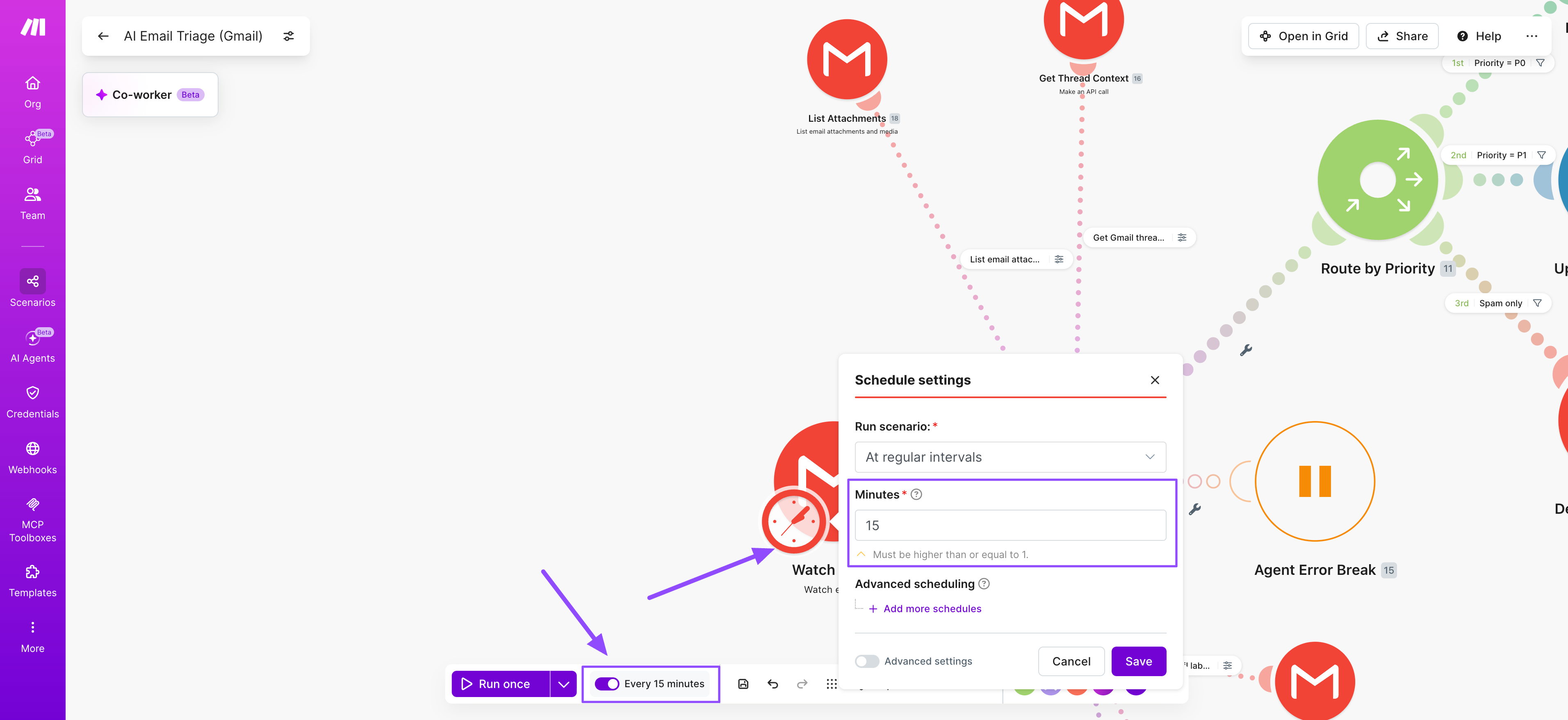
A scenario that polls every minute costs roughly 43,200 credits per month on trigger checks alone, before a single email is processed.
A 15-minute interval cuts that to 2,880. The right interval depends on how quickly your team needs to act on incoming messages.
- Set the scenario schedule to "Every 15 minutes" as a balanced default for most inboxes
- For VIP inboxes, use Webhooks > Custom webhook plus Gmail Push Notifications via Google Cloud Pub/Sub for sub-second triggers.
- Activate the scenario and monitor the first 50 executions in run history before raising the trigger limit above 10
For teams managing multiple inboxes or agent definitions, Make Grid gives you a single view of every scenario's status, credit consumption, and execution health.
Testing and troubleshooting
A triage agent that misclassifies an urgent email is worse than no agent at all. Test methodically before going live and keep oversight tight in the first two weeks.
The Reasoning Panel is your primary tool here: every run shows you exactly which tools the agent called, in what order, and what it decided at each step.
How do you test the agent without flooding your real inbox?
Start with a controlled set of messages before pointing the scenario at a live inbox.
- Use the 'Run once' button against a single test email in a sandbox Gmail label before activating the scenario
- Send yourself 10 emails covering each category and verify that labels and Slack alerts fire correctly for each one
- Open the Reasoning Panel after each run to audit which tools the agent called and why
- Confirm the agent did not apply labels you never defined; hallucinated category names break downstream Router routes
What are the most common failure modes?
Most failures fall into three patterns. Knowing them before go-live saves you from diagnosing them at midnight.
Failure | Symptom | Fix |
Polling lag | Watch emails misses recent messages | Switch to Pub/Sub webhook trigger |
Wrong label | Agent applies a category name not in your system prompt | Tighten system prompt with an allowed-label enum |
Loop | Agent reprocesses the same email repeatedly | Add 'processed' label as a Gmail filter exclusion |
If the agent consistently misclassifies a specific sender or thread type, the fix is almost always in the system prompt.
Add a concrete example of that message type to the relevant category definition and re-test.
See the LLM agents guide on Make for a deeper treatment of failure modes and fallback path design.
Variations and next steps
The triage scenario above handles one inbox with one agent.
These three extensions take the same agent definition further, each adding a layer of value without rebuilding the scenario from scratch.
In every case, the system prompt stays the same; only the tools and triggers change.
Variation | What changes | Primary benefit |
Multi-inbox triage | Watch emails on a shared mailbox such as support@ or billing@ | Centralized team queue with the same agent logic |
CRM enrichment | Add HubSpot or Salesforce > Search Contacts as an agent tool | Agent routes based on sender's deal stage |
Weekly summary digest | Scheduled scenario reading the Data store to send a Friday recap | Full visibility into what the agent handled all week |
Each variation reuses the same Make AI Agents definition.
Set up the agent once, then share it across scenarios and teams via the Library of Agents for production-ready templates.
So what should you deploy first?
The scenario this article builds watches your inbox, applies labels, drafts replies, and escalates 'P0' items to Slack without manual review.
Start with your own inbox to calibrate the system prompt, run for one week before letting the agent send anything, then port the Make AI Agents definition to a shared inbox once classification is stable.
Sign up for Make free to get started, or browse the Make AI Agents and Gmail integration options.
Frequently asked questions
Q1: Can an AI agent sort emails without seeing the message body?
For privacy-sensitive use cases, configure the agent to receive only sender, subject, and metadata. Classification accuracy drops, but the agent can still handle sender-based and subject-line routing while bodies stay private.
Q2: How accurate is AI email sorting?
A properly configured agent typically reaches 90 to 95 percent category accuracy on stable inboxes after a week of prompt refinement. Accuracy drops on edge cases such as multi-topic threads, sarcasm, and non-English content. Always layer a low-confidence fallback that routes to manual review.
Q3: Do you sort Gmail with AI?
Yes. Either use Gmail's native categories (Primary, Promotions, etc.) for basic sorting, or build a Make AI Agents scenario that watches the inbox, classifies each message with an LLM, and applies custom labels. The latter is what this article covers.
Q4: How much does it cost to run an email triage agent in Make?
On Make's Core plan ($9 per month for 10,000 credits), a 15-minute polling triage scenario processing 30 emails per day uses roughly 4,000 to 6,000 credits per month. Bring your own OpenAI or Anthropic key on any paid plan since Nov 6, 2025; LLM tokens then bill to your provider directly.
Q5: Can the agent reply to emails on my behalf?
Technically yes, but start with Gmail > Create a Draft rather than Send an Email. Drafts let you review the agent's wording before sending. Move to auto-send only for categories the agent has handled correctly for at least two weeks.