How to add Google Calendar to Outlook calendar: Step-by-step guide
Sync Google Calendar and Outlook automatically with Make. No copy-pasting, no missed invites, and no developer required.
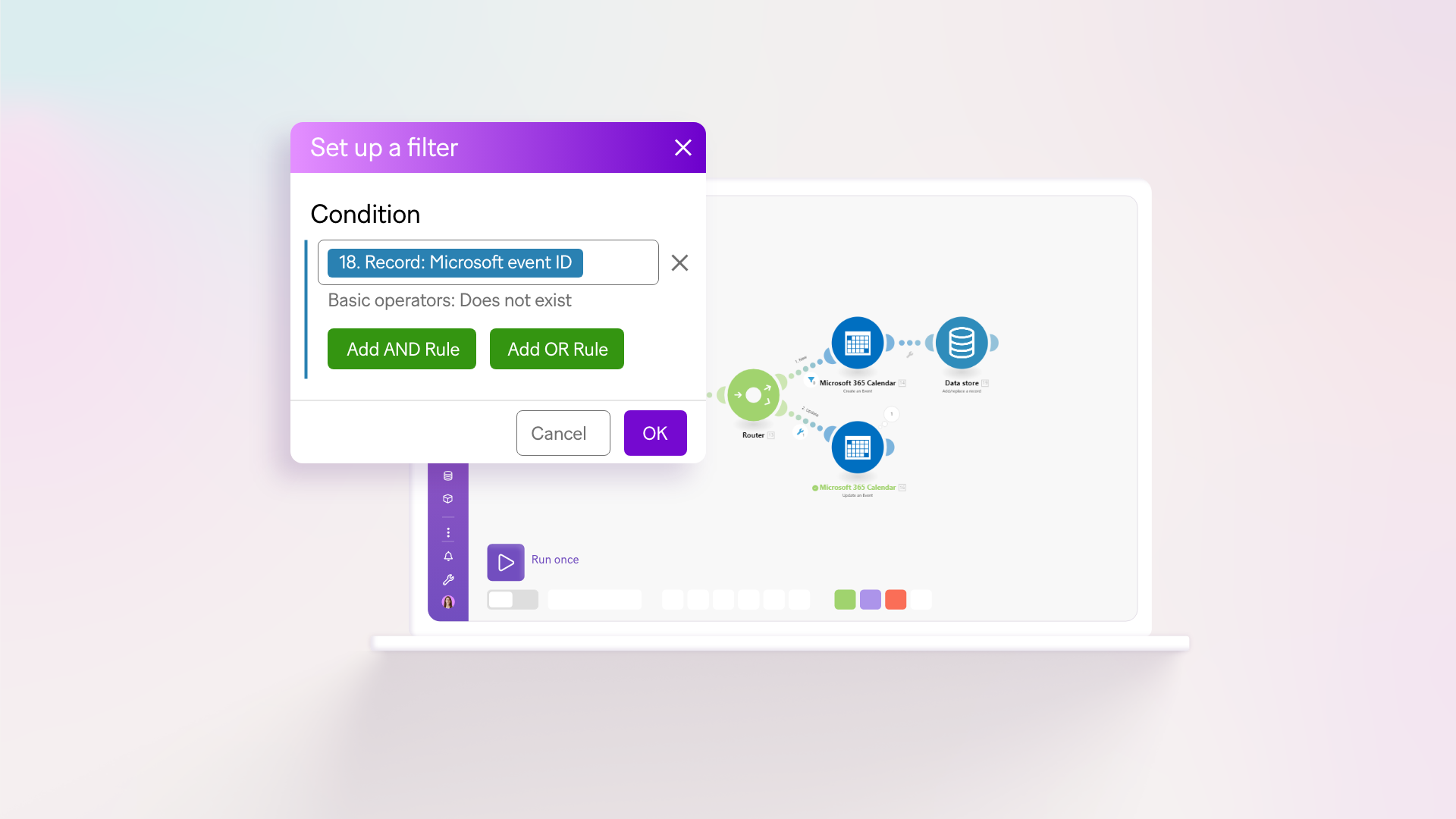
Adding Google Calendar to Outlook keeps both calendars showing the same meetings, without copy-pasting or missed invites.
Calendar synchronization is the process of automatically updating events, appointments, and availability across multiple digital calendars to ensure consistency.
Two-way calendar synchronization involves replicating changes made in either calendar to the other, maintaining identical event data in both systems.
With 64% of organizations now running both Microsoft 365 and Google Workspace simultaneously (Medha Cloud, 2026), keeping those two calendars in sync isn't a nice-to-have – it's an operational necessity.
Unlike a static ICS subscription or a custom API script, Make gives you a visual canvas to build, monitor, and adjust the sync without writing code.
This calendar sync guide shows the Make build that fixes the gap.
What you need before you start
Before building the calendar sync scenario, gather the accounts and access required to authenticate both calendar platforms inside Make. The setup takes a few minutes once credentials are ready, and the Google Calendar Outlook integration page lists every supported trigger and action for reference.
- An active Make account on any plan that allows scheduled scenario runs, including the free tier for low-volume testing.
- A Google account with admin access to the source calendar, plus permission to grant OAuth connection approval for the Google Calendar - Watch Events module.
- An Outlook account (Microsoft 365 or Outlook.com) with write access to the destination calendar for the Microsoft 365 Calendar - Create an Event module.
- Basic familiarity with field mapping inside the Make Scenario Builder.
Why manual calendar syncing fails
Manual calendar syncing fails because human copy-pasting cannot keep pace with how often meetings shift, get rescheduled, or get added across two separate accounts.
When a sales lead books time on your Google Calendar and your team only watches Outlook, the manual sync delay between the booking and the Outlook entry creates a double-booking risk that often surfaces only when two attendees join different rooms.
The pain compounds with every additional calendar. Recurring events change on one side and not the other, time zones drift after travel, and shared resources like meeting rooms get reserved twice.
Most people rely on memory or a morning glance to reconcile both views, which breaks the moment a same-day invite lands.
A clear workflow automation overview shows why event-driven syncing beats periodic manual checks: events trigger the update the instant they happen, so the two calendars never drift far enough apart to cause a conflict during a busy week.
The Make scenario that syncs Google Calendar to Outlook
The Make scenario that syncs Google Calendar to Outlook uses a watch trigger on one calendar, a field mapping stage, and a create or update module on the other calendar to keep both sides aligned automatically.
At its core sit Google Calendar - Watch Events and Microsoft 365 Calendar - Create an Event, joined by a Router that handles new, updated, and deleted entries on separate routes.
Workflow diagram showing Google Calendar events syncing through Make scenario into Outlook calendar
For two-way sync, a mirrored scenario reverses the direction with Microsoft 365 Calendar - Watch Events feeding Google Calendar - Create an Event, while a Data Store tracks event ID pairs to prevent loops.
Make's Scenario Builder exposes every field mapping (title, start, end, attendees, location, description) so you control exactly what crosses between systems and what stays private.
How can you build the sync in Make?
Building the Google Calendar to Outlook scenario takes six modules arranged in a linear flow with one Router for create-versus-update logic.
The scenario watches your Google Calendar, checks whether each event already exists in Outlook, then either creates a new event or updates the existing one.
Total build time is roughly fifteen minutes once your connections are authenticated.
Step 1: Create the scenario and add the Google Calendar trigger
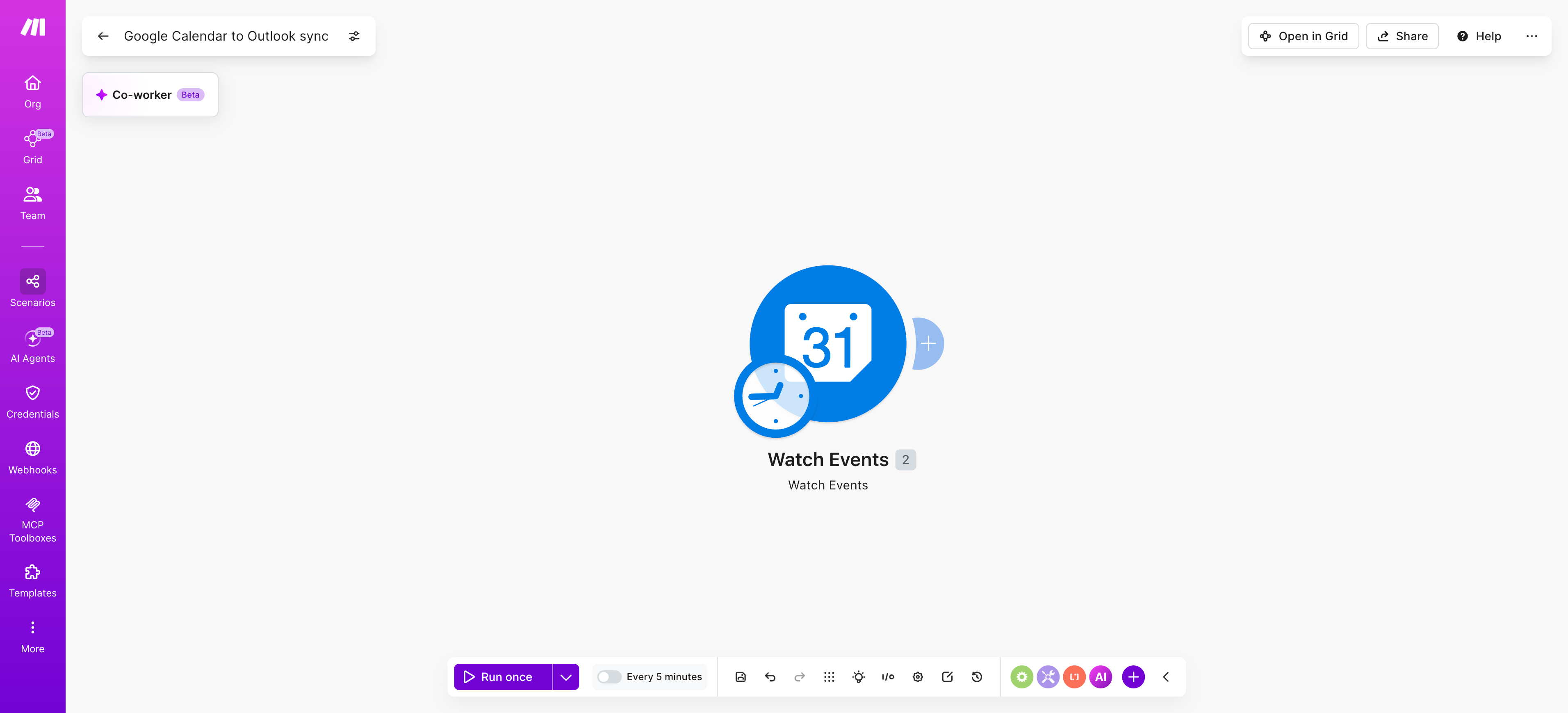
Open the Scenario Builder, click Create a new scenario, and add Google Calendar - Watch Events as the first module. This trigger polls your calendar for new or changed events at a fixed interval.
- Authenticate the connection with the Google account that owns the source calendar.
- Set Calendar to Primary, or pick a specific secondary calendar if you only sync work events.
- Under Watch by, select Updated date to capture both new and edited events.
- Set Limit to 10 per run to keep operation consumption predictable.
Step 2: Search Outlook for an existing event
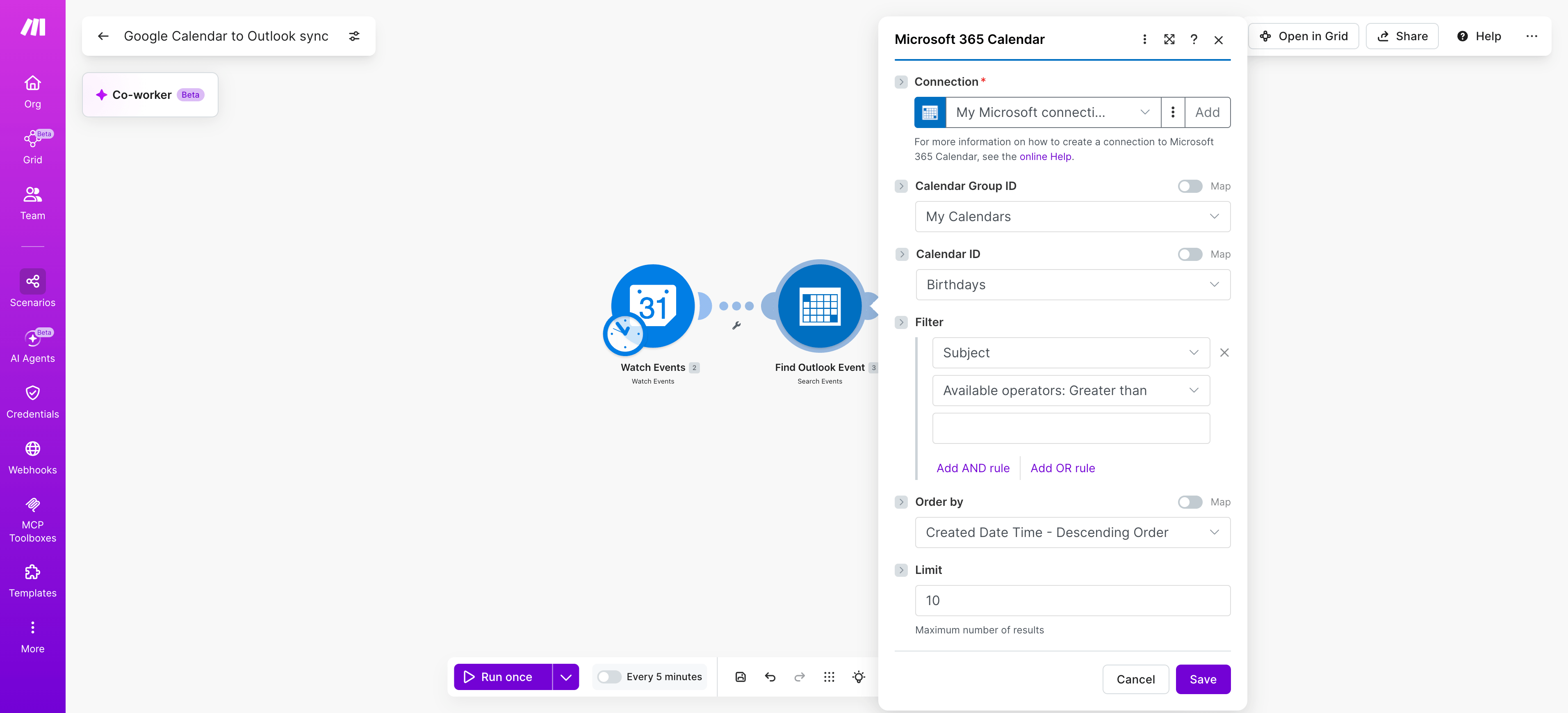
Add Microsoft 365 Calendar - Search Events as the second module. Map the Google event ID into a custom property field, or search by exact subject and start time. This lookup tells the Router downstream whether to create or update.
- Connect the target Outlook account and pick the destination calendar.
- Set Maximum number of results to 1 to keep the response lean.
- Use the Google Event ID as the search key for reliable matching.
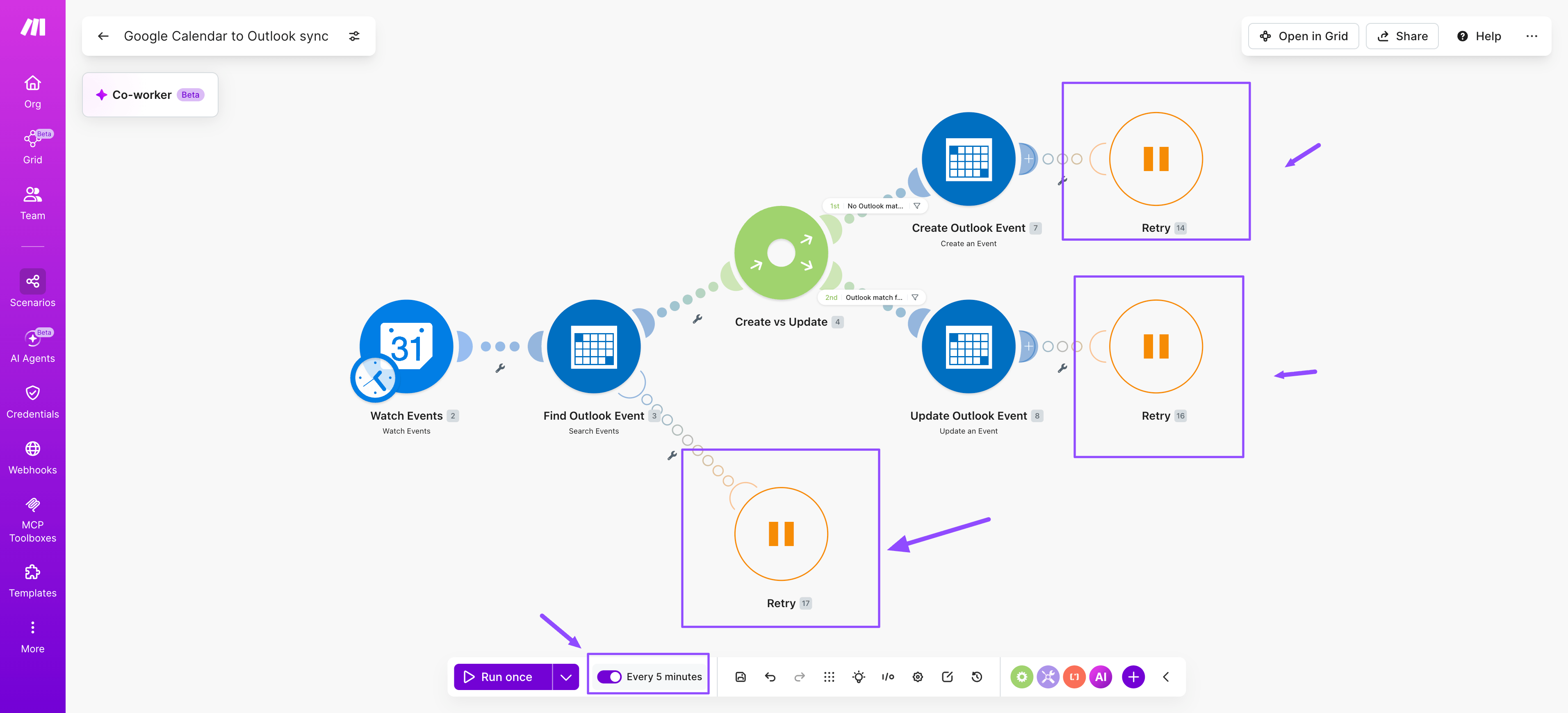
PRO TIP: Set the trigger scheduler to a 5-minute polling interval and store the last synced Google Event ID in a Make Data Store. On every run, filter out any bundle whose ID matches the stored value to prevent duplicate Outlook entries when Google reissues edits in rapid succession.
Step 3: Add a router for create versus update logic
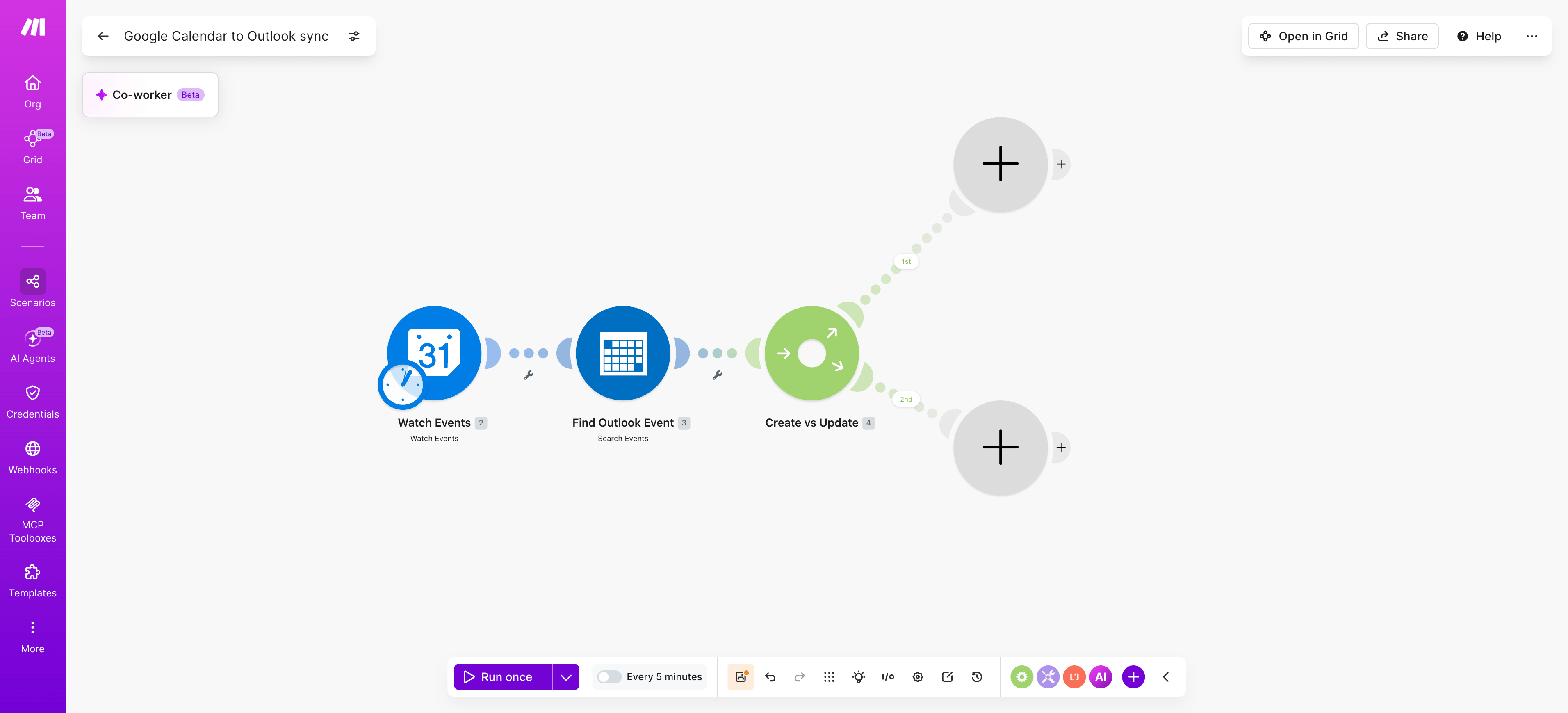
Insert a Router after the search module.
The Router creates two routes: one for events that do not yet exist in Outlook, and one for events that already exist and need updating.
- Top route filter: Event ID from the search module output is empty (no match found – run the create branch).
- Bottom route filter: Event ID from the search module output is not empty (match found – run the update branch).
Step 4: Create the Outlook event on the new-event route
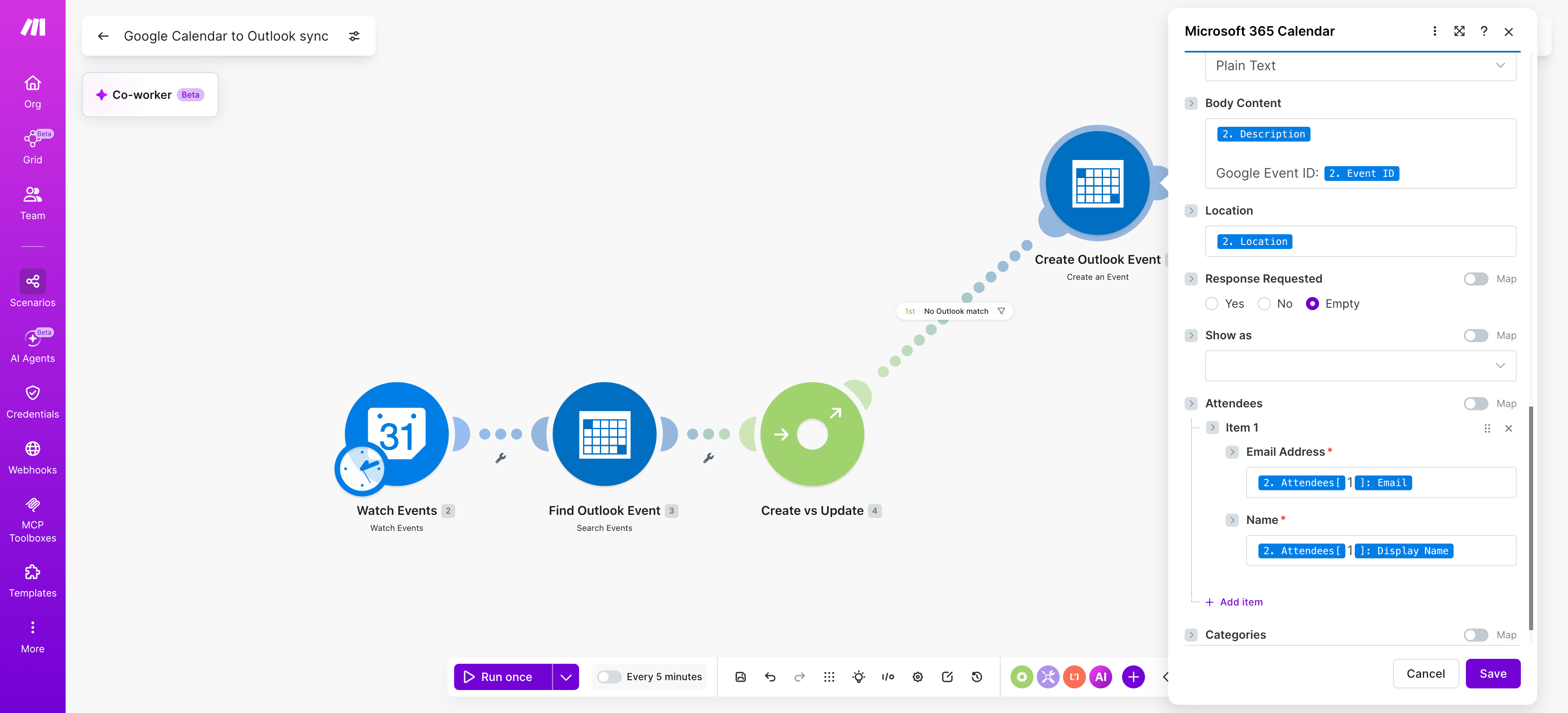
On the top route, add Microsoft 365 Calendar - Create an Event.
Map Subject from Google Summary, Start and End from the Google datetimes, Body from Description, Location from Location, and Attendees from the attendees collection.
Step 5: Update the Outlook event on the existing-event route
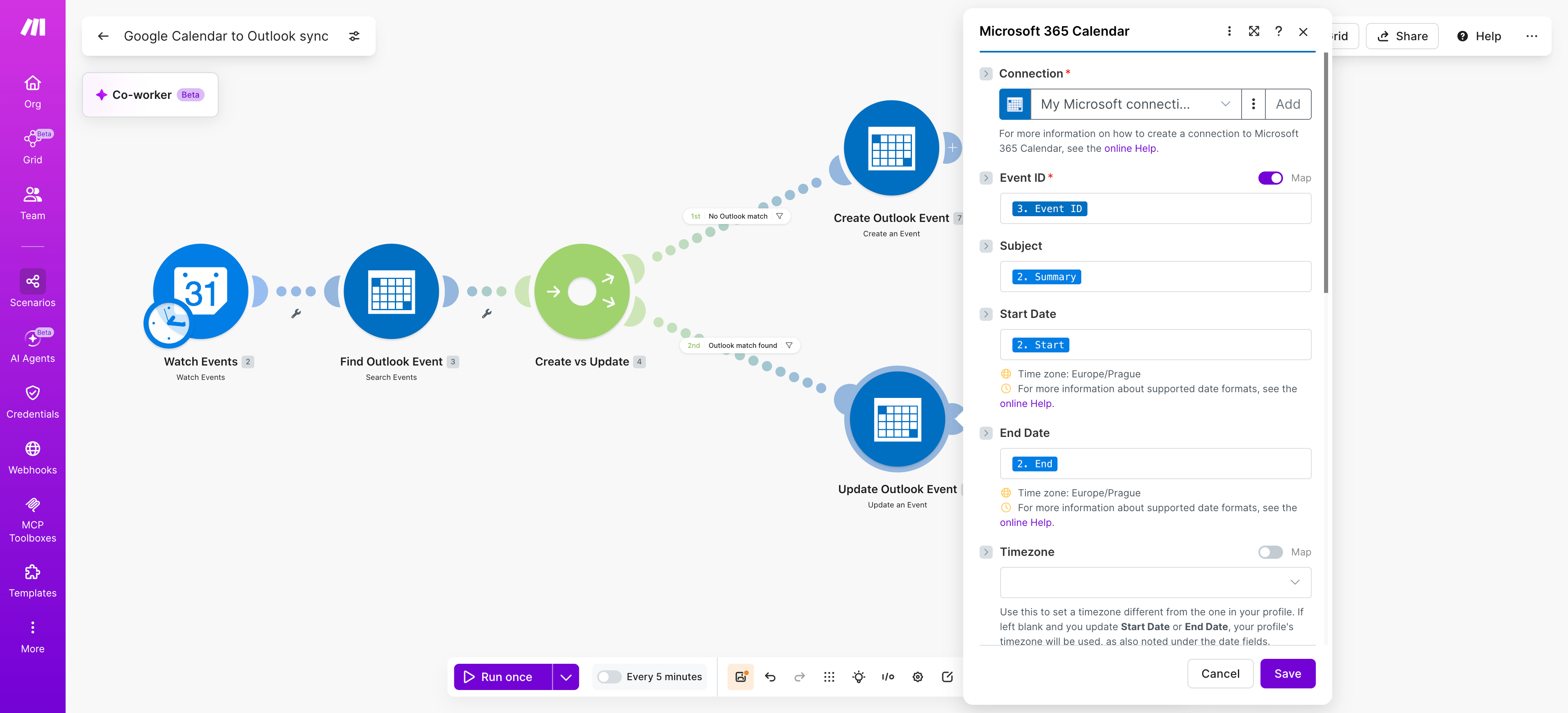
On the bottom route, add Microsoft 365 Calendar - Update an Event.
Map the Event ID returned by the search module, then remap the same Google fields so changes in Google overwrite the Outlook copy.
PRO TIP: Wrap the create and update branches as a reusable subscenario using the subscenarios feature, so the same sync logic can be called from other scenarios like a Salesforce meeting trigger or a Notion calendar database without duplicating module mappings.
Step 6: Add error handling and activate the scenario
Right-click each Outlook module and add a Break error handler so transient API failures retry instead of stopping the scenario.
For a similar end-to-end pattern across two SaaS tools, the Jira and Slack integration walkthrough shows the same router plus error handler structure.
How to test and troubleshoot the sync
Test the scenario by running a single test event run before enabling the schedule, which surfaces mapping errors, authentication gaps, and timezone mismatches in seconds.
Open the Scenario Builder, click "Run once," then create a test event in Google Calendar with a clear title like "Make sync test."
Watch each module light up green and inspect the output bundle from Google Calendar - Watch Events to confirm the event ID, start time, and attendees flow into Microsoft 365 Calendar - Create an Event correctly.
If the Outlook event appears with shifted hours, the timezone field is the culprit; map the source timezone explicitly rather than relying on defaults.
Similar logic applies if you later sort emails automatically alongside calendar events.
Common sync errors to check:
- Expired OAuth connection tokens, reauthorize from the connection panel.
- Duplicate Outlook events caused by missing deduplication on event ID.
- Recurring events losing their RRULE, map the recurrence field directly.
- Attendee emails dropped when the source field is empty, add a null check.
Outcomes you can expect from automated calendar sync
Automated calendar sync between Google Calendar and Outlook delivers measurable time saved, fewer conflicts, and a single trusted source of availability across both platforms.
Once the scenario runs on its schedule, your team stops copying meeting details by hand, stops missing updates when an organizer reschedules, and stops double booking the same slot across two calendars.
The qualitative shift is the bigger win: assistants and managers reclaim focused hours, sales reps trust their availability inside the tool they already use, and recurring events propagate without manual cleanup.
Before and after comparison showing manual calendar entry versus automated Google and Outlook sync results
For finance and ops teams calculating the real cost of meeting friction, pair this scenario with the meeting cost calculator to quantify hours recovered each week.
Variations and next steps
The base scenario covers one-way sync from Google Calendar into Outlook, but the same pattern adapts to richer use cases once the core connection works.
Two-way sync, selective filtering by calendar or category, and AI-driven event triage are the most common extensions teams ask for after the first rollout.
Each variation reuses the same Microsoft 365 Calendar and Google Calendar modules with different routing logic.
The core sync is entirely rule-based – no AI needed.
The AI triage row below adds intelligence on top of the deterministic foundation, and is only worth adding once the base sync is stable.
Use case | Approach | Difficulty |
Two-way sync between calendars | Add a second scenario watching Microsoft 365 Calendar, push to Google Calendar, tag events with extended properties to prevent loops | Medium |
Filter by calendar or category | Insert a Router with conditions on calendar ID or event category before the create step | Low |
AI triage and summarization | Use build AI agents to classify events and rewrite descriptions before sync | High |
Where do you go from here?
Automating the sync between Google Calendar and Outlook with a Make scenario removes the daily friction of double bookings, missed meetings, and manual copy-pasting between two calendars that refuse to talk to each other natively.
With Google Calendar - Watch Events feeding Microsoft 365 Calendar - Create an Event, plus a Data Store mapping event IDs, your two calendars stay aligned within minutes, updates propagate, and deletions clean up after themselves.
Build it once, monitor the scenario history weekly, and extend it later with filters, routers, or a reverse Outlook to Google leg.
A Make scenario syncing Google Calendar with Outlook eliminates double bookings, manual copy-pasting, and missed updates – keeping both calendars aligned automatically so your team spends less time checking two screens and more time on the work that matters. Ready to put this into production across your team?
Get started for free and ship your first calendar sync today.
Frequently asked questions
Q1: Does Outlook have a built-in Google Calendar sync? Outlook supports a one-way subscription to a Google Calendar ICS feed, which displays events as read-only and refreshes on Microsoft's schedule. It does not write changes back to Google. For a true two-way sync with controlled timing, a Make scenario using Google Calendar - Watch Events and Microsoft 365 Calendar - Create an Event is fit for purpose.
Q2: Will the sync work both ways? Yes. Build two scenarios: one watching Google with Google Calendar - Watch Events writing to Outlook, and a second watching Outlook with Microsoft 365 Calendar - Watch Events writing back. Use a tag or external ID field on each event to prevent loops, so updates from one side are not rewritten by the other.
Q3: How often does the Make scenario run? The scenario run frequency is configurable in the scheduler. Common settings are every 15 minutes for routine calendars, every 5 minutes for client-facing calendars, or on demand via webhook. Faster intervals consume more operations, so match the cadence to how quickly invitees need to see changes.
Q4: Can I sync only specific events or calendars? Yes. Select a single source calendar in Google Calendar - Watch Events, then add a Make filter that checks event color, a keyword in the title, a category, or attendee domain. Only matching bundles reach the Microsoft 365 Calendar - Create an Event module, keeping personal items out of work calendars.
Q5: Is my calendar data secure during sync? Make uses OAuth connections for Google and Microsoft, so credentials never sit in the scenario. Data transfers over TLS, and you can scope access, revoke tokens, and review execution logs. Restrict team access to the scenario and store sensitive identifiers in data stores rather than mappable fields.
Related guides
Tool and strategies modern teams need to help their companies grow.
How-to guides
Salesforce Outlook integration: How to sync emails and calendars in 2026
Build a Make scenario that keeps Salesforce contacts, emails, and calendar events in sync with Outlook, no manual logging required.

Raife Dowley
June 12, 2026