Jun 12, 2026 | 8 minutes
Salesforce Outlook integration: How to sync emails and calendars in 2026
Build a Make scenario that keeps Salesforce contacts, emails, and calendar events in sync with Outlook, no manual logging required.
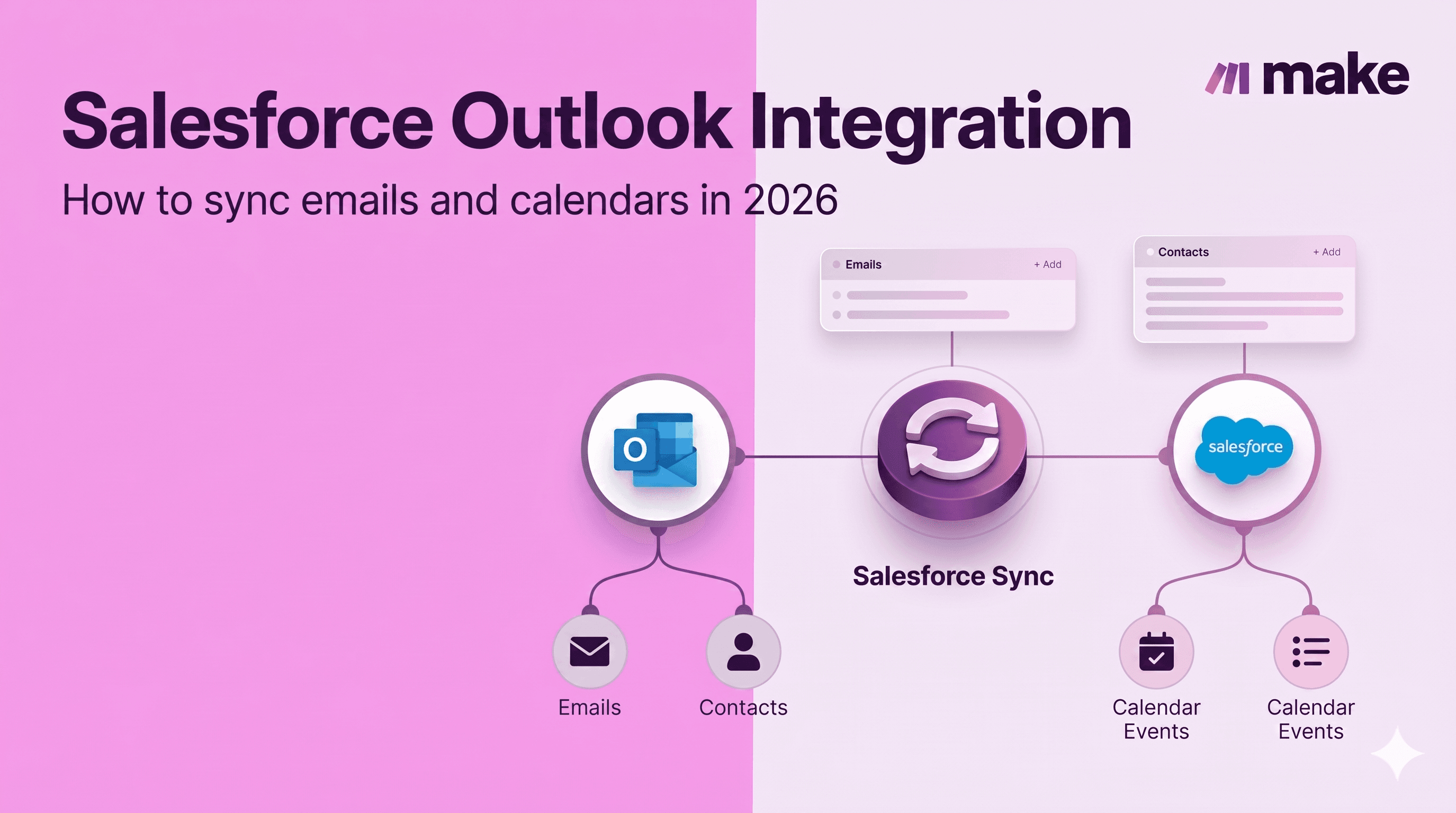
A reliable Salesforce Outlook integration keeps email threads, contacts, and calendar events flowing between both systems without manual copy-paste.
This matters because Gartner predicted that 40% of enterprise applications would feature task-specific AI agents by the end of 2026, up from less than 5% in 2025.
A scenario is the building block of automation in Make: a sequence of modules that watches for events in one system and triggers actions in another.
The build guide below shows how to construct a scenario in Make that syncs both platforms reliably.
What you need before connecting Salesforce and Outlook
Before building the scenario, gather the accounts, permissions, and reference data that the Salesforce - Watch Records and Microsoft 365 Email - Watch Emails modules will need.
Confirm each item below so the connection step inside Scenario Builder completes without authorization errors.
Each module represents a specific action in a scenario, such as watching for new records in Salesforce or creating a calendar event in Outlook.
The pre-built Outlook Salesforce connector templates assume these basics are already in place.
A Make account on a paid plan with enough operation volume to cover two-way sync traffic.
Salesforce access with API enabled, plus permission on Contact, Lead, Event, and Task objects.
An Outlook 365 account (work or school tenant) with delegated mailbox and calendar permissions.
Admin consent for the Microsoft Graph scopes Mail.ReadWrite and Calendars.ReadWrite.
A field map listing which Salesforce records correspond to which Outlook folders and calendars.
Why native Salesforce Outlook sync falls short for mid-market teams
Native Salesforce Outlook sync falls short for mid-market teams because Einstein Activity Capture and the standard Outlook integration leave persistent sync gaps and hide email data behind a 24-month retention window.
This forces reps to log activities by hand when automatic capture misclassifies a thread. Contacts created in Outlook never reach Salesforce.
Calendar invites with external attendees fail to be associated with the correct opportunity. Replies sent from a phone vanish from the account timeline.
Reps spend the first hour of every day reconciling missing meetings. Operations managers run weekly scripts to deduplicate contacts and revenue leaders make forecast calls on incomplete activity history.
Make's approach to sales automation treats these sync failures as events that trigger structured scenarios, not manual corrections.
The deeper issue is governance. Native sync offers limited field mapping, no conditional logic to determine which threads belong to which record, and no audit trail when a sync silently drops.
Mid-market teams running multi-region pipelines need control over routing, deduplication, and retention that the out-of-the-box connection simply does not expose.
The Make scenario that syncs Salesforce and Outlook reliably
The Make scenario that syncs Salesforce and Outlook reliably uses a dual trigger pattern, paired with a deduplication layer and structured error handling, to keep contacts, emails, and calendar events accurate in both systems.
At the heart of the design sits a Salesforce - Watch Records trigger module on one side and a Microsoft 365 Email - Watch Emails trigger module on the other, feeding a shared Router that decides whether each bundle creates, updates, or skips a record.
For two-way sync, a Microsoft 365 Calendar - Watch Events trigger module mirrors meetings into Salesforce activity records, while Salesforce - Search Records prevents duplicate contacts by matching on email and domain before any write.
The data flow stays fully auditable in Make's Scenario Builder, so reps and admins see exactly which fields cross the boundary.

Error handling lives on every write module: a Break directive with retry and an exponential backoff catches API throttling, while a fallback route logs failed operations to a Google Sheet for review.
How to build the Salesforce Outlook integration in Make
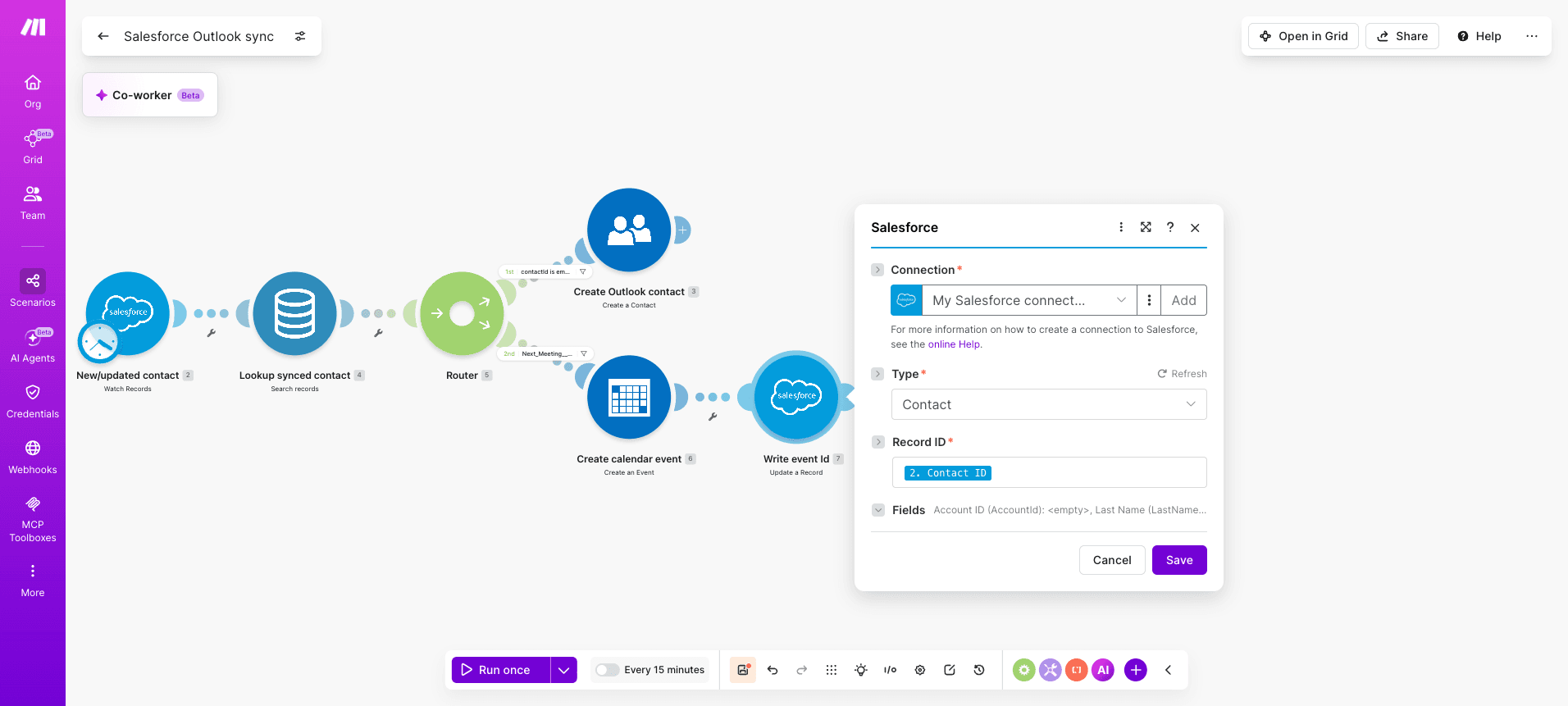
Building the Salesforce Outlook integration in Make takes seven modules arranged in a single scenario that watches Salesforce records, deduplicates them, and pushes contacts and calendar events into Outlook.
The build below uses a Salesforce trigger, a data store for deduplication, a Router for contact and event branches, and Outlook modules for the writes.
Field mappings preserve ownership and timestamps so both systems stay in sync.
Step 1: How do you configure the Salesforce trigger?
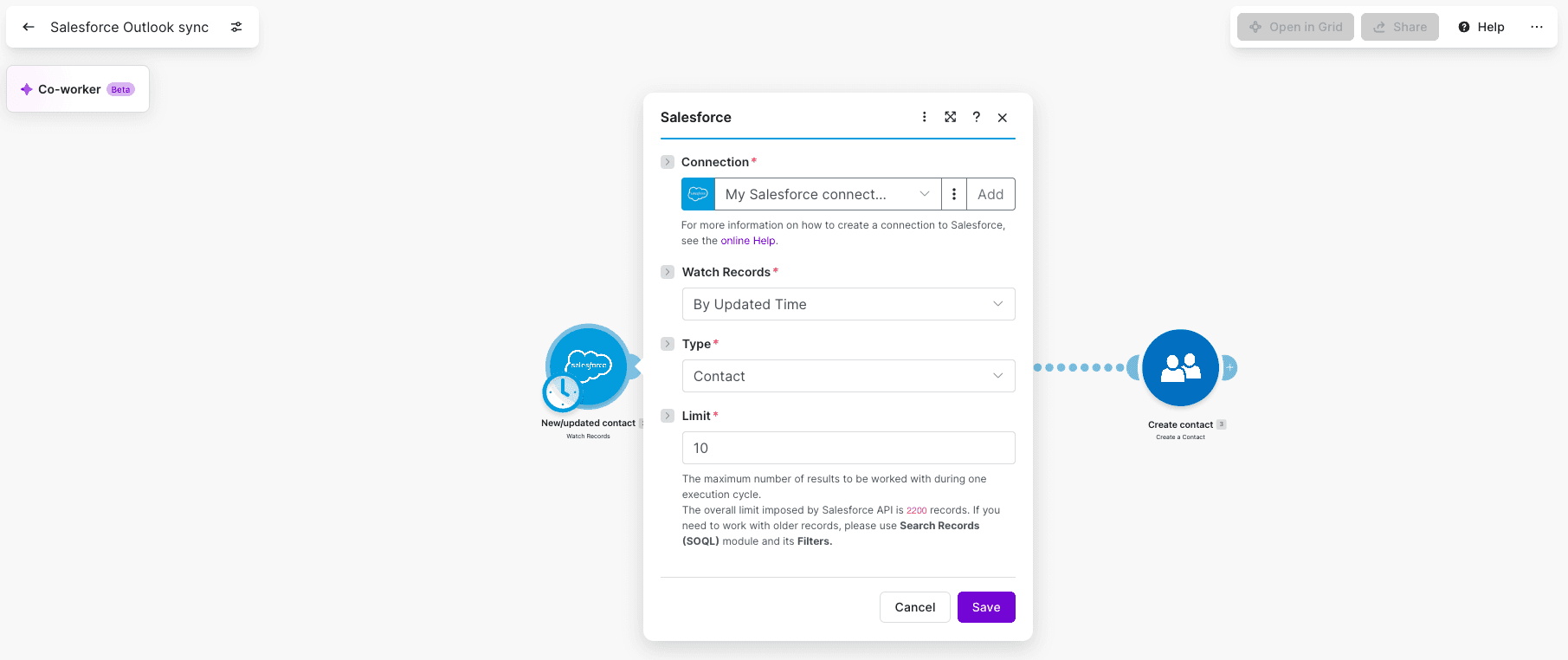
Add the Salesforce - Watch Records module as the first module in your scenario.
This trigger detects new or modified contacts on a polling interval and emits one bundle per record.
Object: Contact
Watch by: Modified Date
Limit: 10 records per cycle
Schedule: every 15 minutes
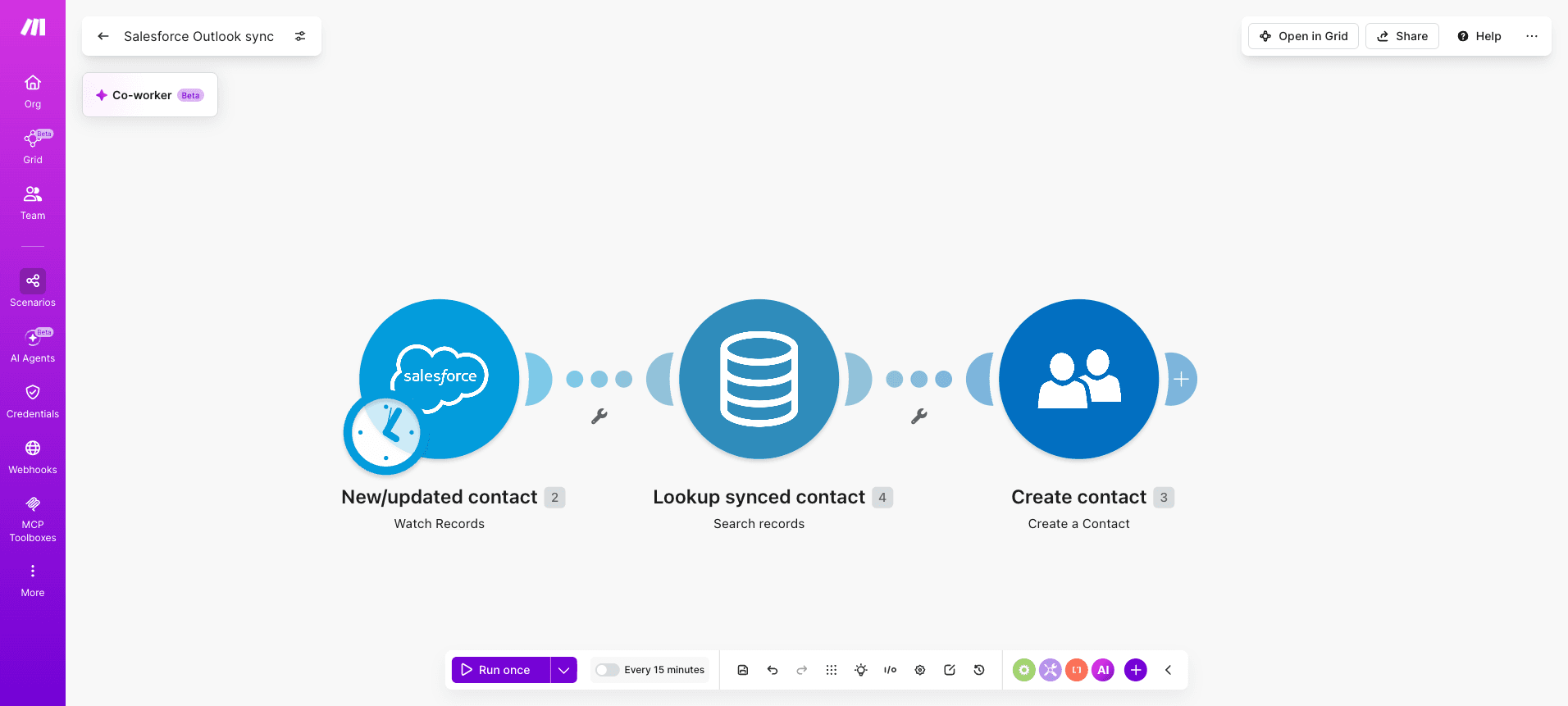
Step 2: How do you add a data store for deduplication?
Create a Data Store - Search Records module right after the Salesforce trigger, keyed on the Salesforce Contact Id.
Before writing anything to Outlook, check if the contact has already been synced.
If a match exists, route the record to an update path; if not, route to a create path.
PRO TIP: Use Make's data store to dedupe Salesforce contacts before creating Outlook events. Configure the Data Store - Add or Replace a Record module with the Salesforce ID as the primary key and store the Outlook contact Id plus LastModifiedDate. This stops duplicate Outlook contacts when the same Salesforce record fires twice within one polling window.
Step 3: How do you add a router to split contact and calendar branches?
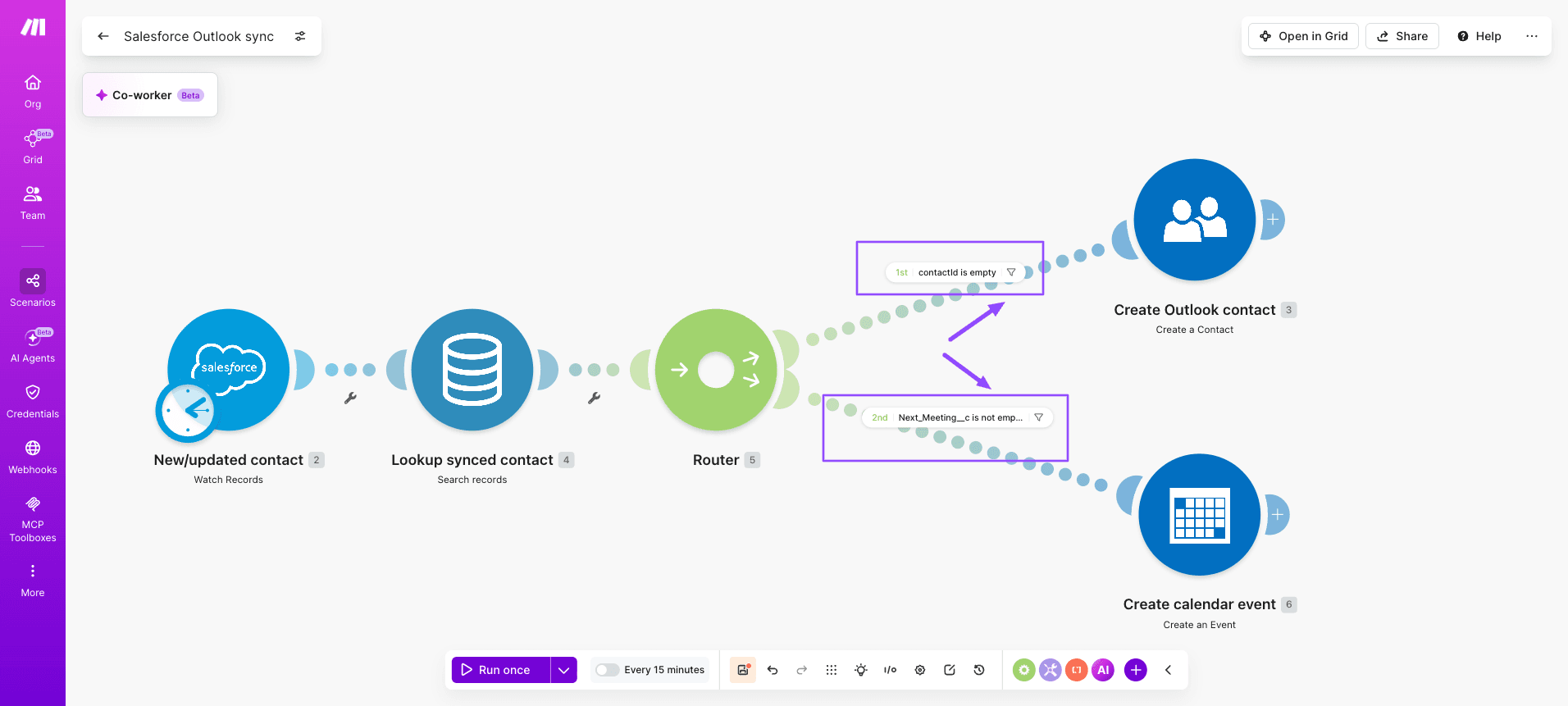
Drop a Router module after the data store.
The first route handles the Outlook contact write; the second route handles calendar event creation when the Salesforce record carries a Next_Meeting__c value.
Route 1 filter: Outlook contact Id is empty
Route 2 filter: Next_Meeting__c is not empty
Step 4: How do you map fields into the Outlook contact module?
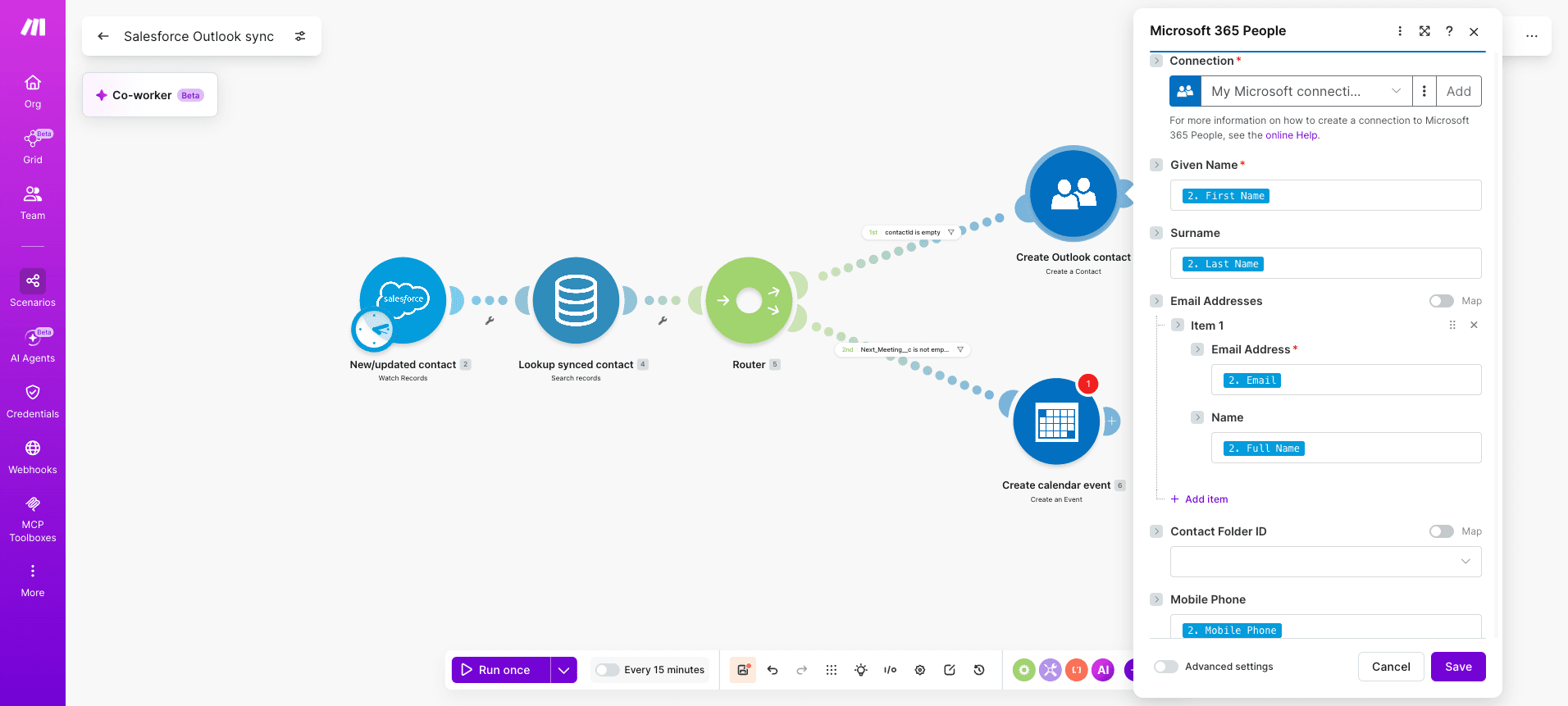
On route one, add the Microsoft 365 People - Create a Contact module.
Map Salesforce FirstName, LastName, Email, Phone, AccountName, and OwnerId into the corresponding Outlook fields.
Store the returned Outlook contact Id back in the data store. Patterns from the HubSpot Salesforce build apply here for handling owner mapping across systems.
Step 5: How do you create the Outlook calendar event?
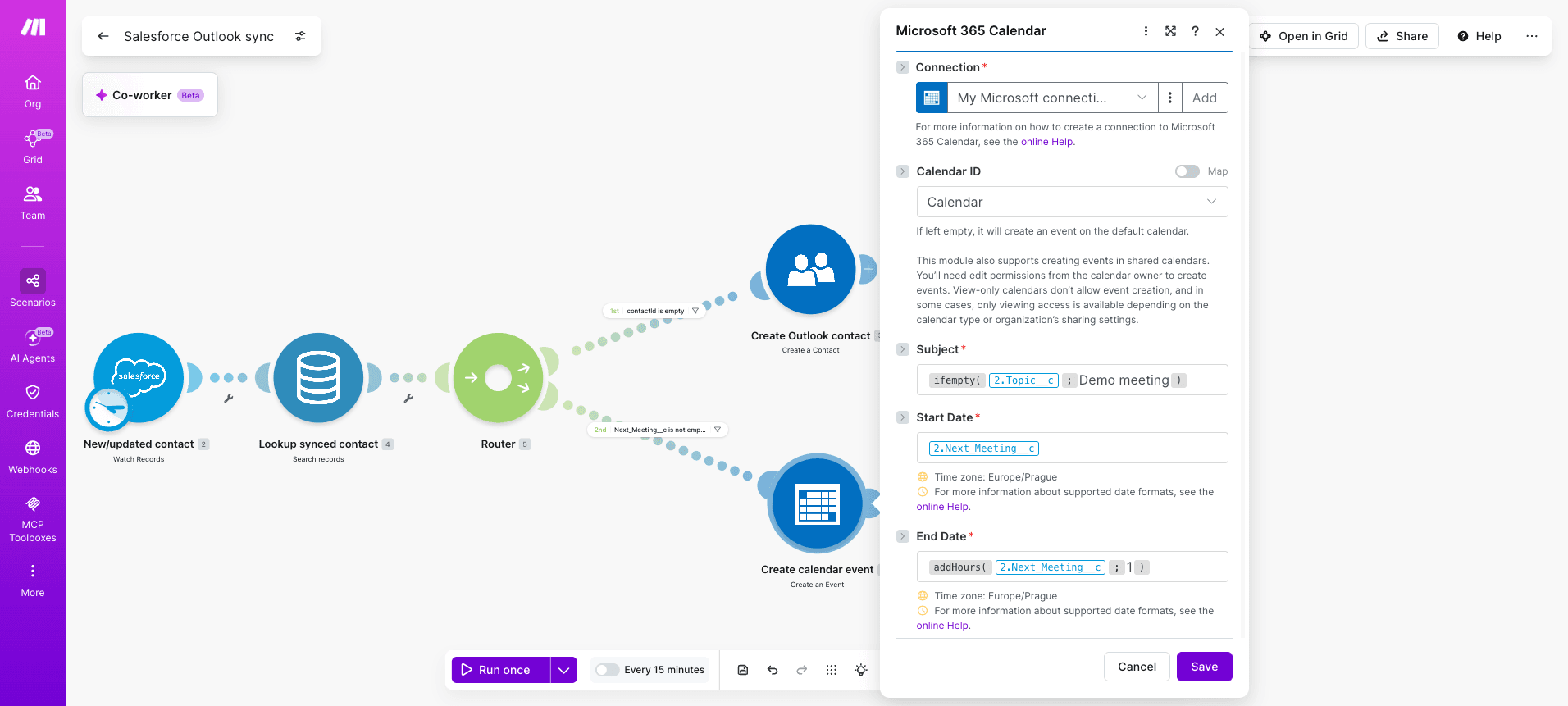
On route two, add the Microsoft 365 Calendar - Create an Event module.
Map Salesforce Next_Meeting__c to Start, calculated end time to End, Subject from Topic__c, and the contact email as an attendee.
The Outlook calendar guide documents timezone handling that prevents off-by-one event drift.
Step 6: How do you write back to Salesforce?
Add a Salesforce - Update a Record module after the Outlook event creation to write the Outlook event Id into a Salesforce custom field.
This closes the loop, so reps see the linked event from the Salesforce contact view.
Step 7: How do you add error handling and activate?
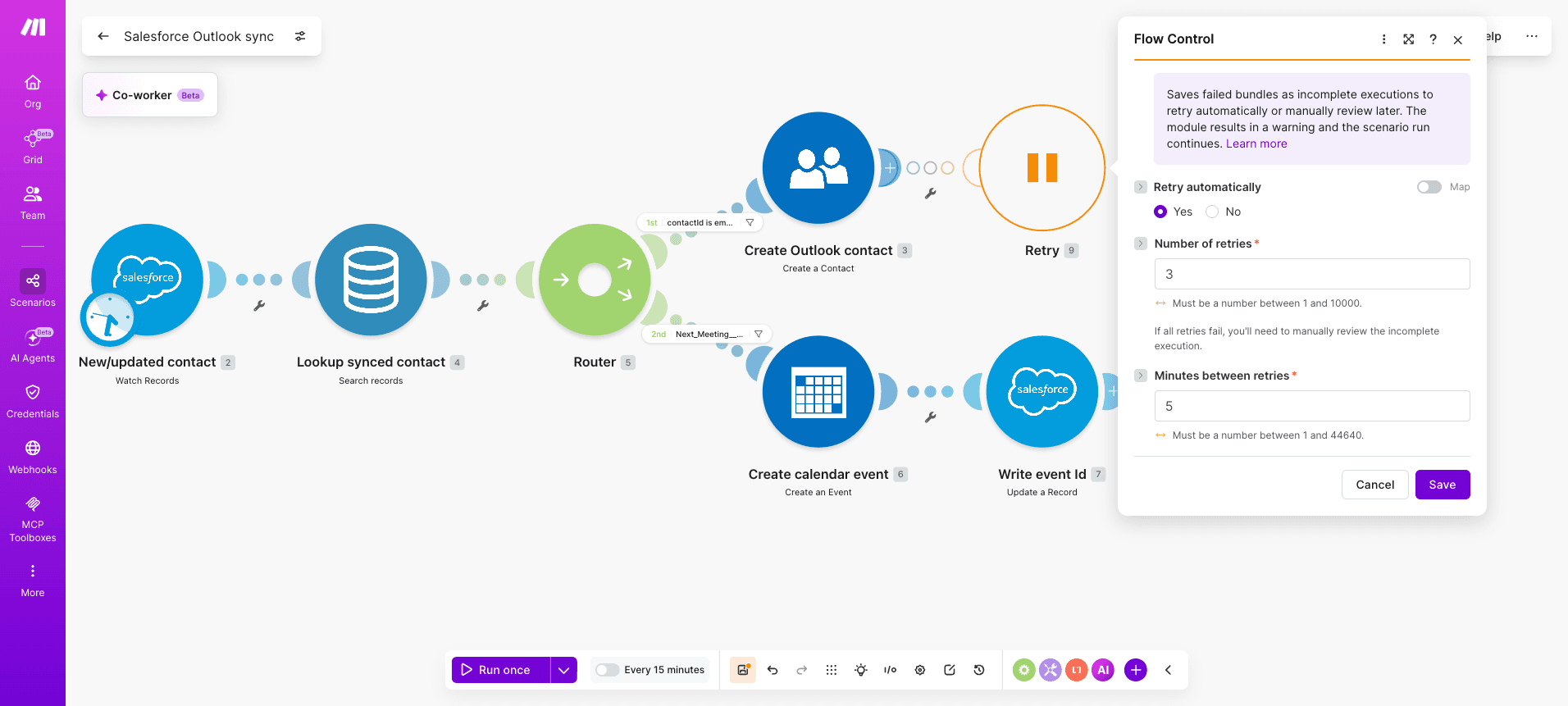
Right-click each Outlook module and attach an error handler with a Break directive set to retry three times at five-minute intervals.
Patterns from the ServiceNow Salesforce setup show how to log failed bundles to a separate sheet for review.
PRO TIP: Set the scenario to "Sequential processing" under settings so a single failed bundle does not block the queue; combined with the data store key, retries become idempotent and never create duplicate Outlook contacts.
How do you test and troubleshoot the sync?
Test the Salesforce Outlook scenario by triggering one real email and one calendar event end to end before turning on full automation.
Run the scenario manually with a controlled record, then inspect each bundle in the execution history to confirm field mapping, deduplication logic, and write directions behave as designed.
Switch on Make's incremental run mode to replay only failed operations while you tune filters.
Run a test email through the sort emails agent guide to validate routing rules.
Common sync errors to check first:
Connection token expired: reauthorize the Salesforce - Watch Records and Microsoft 365 Email - Watch Emails connections, then rerun.
Duplicate contacts: tighten the email match filter before Salesforce - Create a Record.
Calendar event drift: confirm timezone offsets in Microsoft 365 Calendar - Create an Event.
Rate limit 429: insert a Sleep module between batched writes.
What outcomes can you expect after integrating?
A well-built Salesforce Outlook integration in Make delivers measurable time saved, higher data accuracy, and stronger rep adoption within the first weeks of rollout.
Sales teams stop retyping email threads into Salesforce, account owners see meeting notes attached to the right opportunity automatically, and managers gain a trustworthy activity timeline for forecasting calls.
Because the scenario writes back to Salesforce on every relevant Outlook event, pipeline hygiene improves without requiring reps to log work manually, which is an outcome echoed in the Perk efficiency customer success story.
Expect cleaner contact records, fewer duplicate leads, and a noticeable drop in shadow spreadsheets used to track customer conversations across inboxes.
Variations and next steps for Salesforce Outlook workflows
The Salesforce Outlook scenario becomes a foundation for richer revenue operations once the base sync is stable.
Teams extend it by routing calendar events into Salesforce Tasks, attaching email threads to Opportunities, or layering an agent that summarises meeting notes before logging activity.
Each variation reuses the same Microsoft 365 Email - Watch Emails trigger and Salesforce - Search Records lookup pattern, swapping the destination object or adding enrichment modules.
Use case | Approach | Difficulty |
Calendar events to Salesforce Tasks | Microsoft 365 Calendar - Watch Events into Salesforce - Create a Record with a Router splitting meetings and calls | Medium |
AI meeting summaries on Opportunities | OpenAI - Create a Chat Completion summarises body, then updates Opportunity | Medium |
Bidirectional contact enrichment | Salesforce - Watch Records paired with Microsoft 365 Contacts - Update a Contact | Hard |
Where to next?
A reliable Salesforce Outlook integration in Make turns email and calendar chaos into a clean, auditable record of customer activity, without forcing reps to live inside a sidebar plugin.
The scenario you built around Microsoft 365 Email - Watch Emails, Salesforce - Search Records, and Salesforce - Create/Update a Record gives mid-market teams a fit-for-purpose sync that respects field history, deduplicates contacts, and logs calendar events as Salesforce activities.
Pair it with the variations table to extend coverage to bookings, attachments, and meeting notes as your pipeline matures.
When you're ready to ship the workflow across your revenue team, get started for free and move your first scenario from sandbox to production this week.
Frequently asked questions
Q1: Is Salesforce Outlook integration free?
Salesforce includes a free Outlook Integration add-in for basic email logging, but advanced sync features like Einstein Activity Capture require Sales Cloud Einstein or Inbox licenses. Make offers a Free plan covering 1,000 credits per month, often sufficient for small sync volumes.
Q2: Does Make replace Einstein Activity Capture?
Make complements Einstein Activity Capture rather than replacing it. Einstein captures emails passively into a separate activity store, while a Make scenario writes structured records directly into Salesforce objects, giving you full control over field mapping, retention, and reporting.
Q3: Can I sync calendar events both ways?
Yes. Bidirectional calendar sync is achievable by building two scenarios: one using Microsoft 365 Calendar - Watch Events writing to Salesforce, and another using Salesforce - Watch Events writing to Outlook. Add an external ID field on both sides to prevent echo loops.
Q4: How are duplicate contacts prevented?
Duplicates are prevented by using the Salesforce - Search Records module on email address before creating a contact, then routing matches through a Router to update existing records. A unique external ID field on the Contact object also enforces deduplication at the API level.
Q5: Is the data encrypted in transit?
All data flowing through Make between Salesforce and Outlook is encrypted in transit using TLS 1.2 or higher. OAuth 2.0 secures every connection, tokens are stored encrypted at rest, and Make offers EU and US data residency options for compliance with GDPR and SOC 2 requirements.
Ready to make the automation revolution happen?