Jul 21, 2026 | 8 minutes
Salesforce WhatsApp integration: step-by-step 2026 guide
Learn how to create a Salesforce WhatsApp integration that connects your Salesforce CRM with your WhatsApp Business API to automate message exchange and log interactions directly within your CRM.
This guide shows mid-market revenue teams how to build a Salesforce WhatsApp integration in Make, so sales reps can trigger WhatsApp messages from CRM records and automatically log replies.
Meta reported more than 10 million weekly business-AI conversations on WhatsApp and Messenger in its Q1 2026 earnings call, a tenfold jump from 1 million at the start of the year.
As that volume moves through WhatsApp, connecting it to Salesforce is no longer optional for revenue teams.
Make's Salesforce integration handles both directions inside one visual scenario, so you don't need a separate messaging tool or manual copy-paste between systems to keep pace with that volume.
What you need before building the Salesforce WhatsApp integration
Before you open the Scenario Builder in Make, gather the accounts, permissions, and API credentials that the Salesforce and WhatsApp Business modules will need at authentication time.
Having these ready keeps the connection setup quick and prevents mid-build blockers when you map fields between records and message templates.
A Make account on any paid plan.
Salesforce access with API permissions, a connected app for OAuth, and read/write rights on Contact, Lead, and Opportunity objects.
WhatsApp Business API access through Meta Cloud API or a BSP, including a verified phone number, permanent access token, and at least one approved message template.
Familiarity with Make's category for chat apps so you know which messaging modules pair well with Salesforce.
A test Salesforce record and an opted-in recipient phone number for end-to-end verification.
Why Salesforce and WhatsApp rarely talk to each other cleanly
Salesforce and WhatsApp rarely communicate cleanly because WhatsApp Business messaging runs through Meta's Cloud API with strict template rules, session windows, and phone number provisioning.
Salesforce, meanwhile, expects structured records, opportunity stages, and case ownership that don't map neatly to a chat thread.
It’s common for sales reps to end up copying phone numbers into WhatsApp Web, pasting replies back into activity logs, and losing message context when leads move between owners.
Make differentiates by offering a visual, no-code platform to build and maintain Salesforce WhatsApp integrations without custom development or additional Salesforce Digital Engagement licenses.
This gap has a real cost: Salesforce Digital Engagement supports WhatsApp but requires a paid add-on, per-conversation pricing, and admin work to wire message channels to routing rules.
Teams on Sales Cloud or Service Cloud Essentials often lack that entitlement entirely, so reps fall back to manually copying messages between systems, which stretches first-response times from minutes to hours.
Building direct API connections between the two platforms usually means custom middleware, webhook handlers, and template approval workflows that most revenue teams cannot maintain in-house without dedicated engineering support.
Teams considering that build vs a managed one can compare notes in this Salesforce integration guide.
The Make scenario that fixes it
The Make scenario that fixes this Salesforce WhatsApp integration issue is a bidirectional workflow that watches Salesforce for record changes, sends approved WhatsApp templates through the WhatsApp Business Cloud API, then captures inbound replies and logs them back onto the originating Salesforce record.
It removes copy-paste between systems and gives revenue teams a single audit trail across both platforms.
The scenario runs on deterministic rules: a router, filters, and a data store, with no AI required.
AI agents are an optional layer for drafting replies, covered later in the article, not a dependency for the integration to work.
Every message that goes out follows an explicit rule you can inspect in the Scenario Builder, not a model's best guess.
At the trigger end, Salesforce - Watch Records fires whenever a Lead, Opportunity or Case reaches a defined stage.
A Router splits traffic by message type: onboarding, quote follow up, or support acknowledgement. Each route feeds a WhatsApp Business Cloud - Send a Template Message module, mapping Salesforce fields into template variables so personalization stays consistent.
This routing logic keeps a single scenario serving several business processes without duplication, and it fits naturally alongside broader sales automation work already running in your org.
A second scenario handles inbound replies. Webhooks - Custom Webhook receives Meta callbacks, an Iterator module unpacks message payloads, and Salesforce - Update a Record writes the reply into a Message object linked to the contact.
Reusable subscenarios encapsulate template selection and reply logging so both scenarios stay maintainable.
How to build the Salesforce WhatsApp integration in Make
These six steps take you from Salesforce trigger to a logged WhatsApp reply. It includes a trigger on Salesforce records, dedupe with a data store, filter for eligible contacts, format the phone number, send a WhatsApp template, then log the outbound message back to Salesforce.
Each step is a discrete module in the Scenario Builder, and the flow reads left to right so any teammate can audit it later.
For deeper builder patterns, see the Make Grid guide.
Step 1: Configure the Salesforce trigger
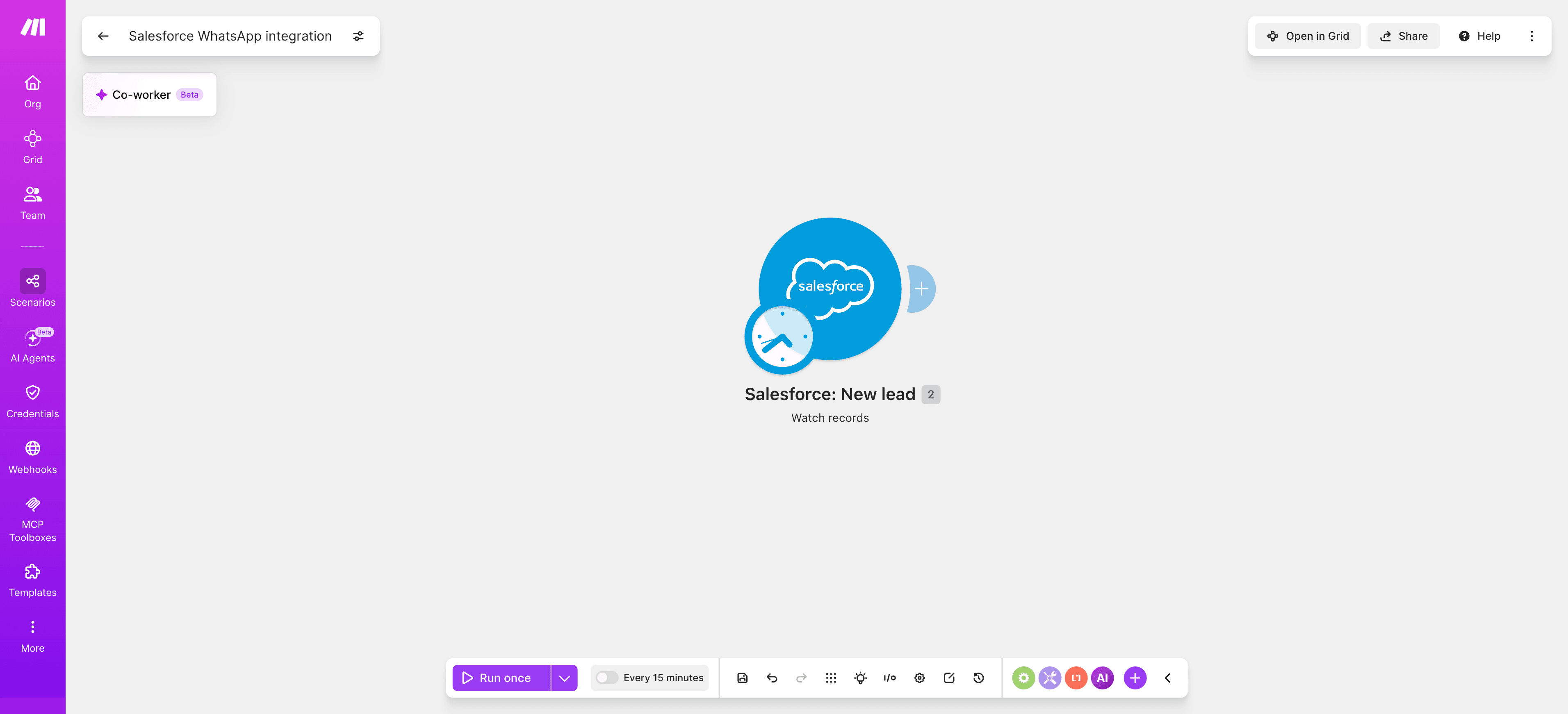
Add Salesforce - Watch Records as the first module.
Create a connection to your Salesforce org using OAuth, select the Lead object, and set the watch field to Created Date.
Map ID, FirstName, LastName, Phone, MobilePhone, Email, Status, and OwnerId so downstream modules can reference them.
Set the limit to 10 records per operation to control API consumption.
Schedule the scenario every 15 minutes for near real time flow.
Run once to confirm a sample bundle returns populated fields.
Step 2: Dedupe with a data store
Add Data Store - Add/Replace a Record keyed on the Salesforce record ID.
This prevents double sending when a record is updated shortly after creation or when replays occur.
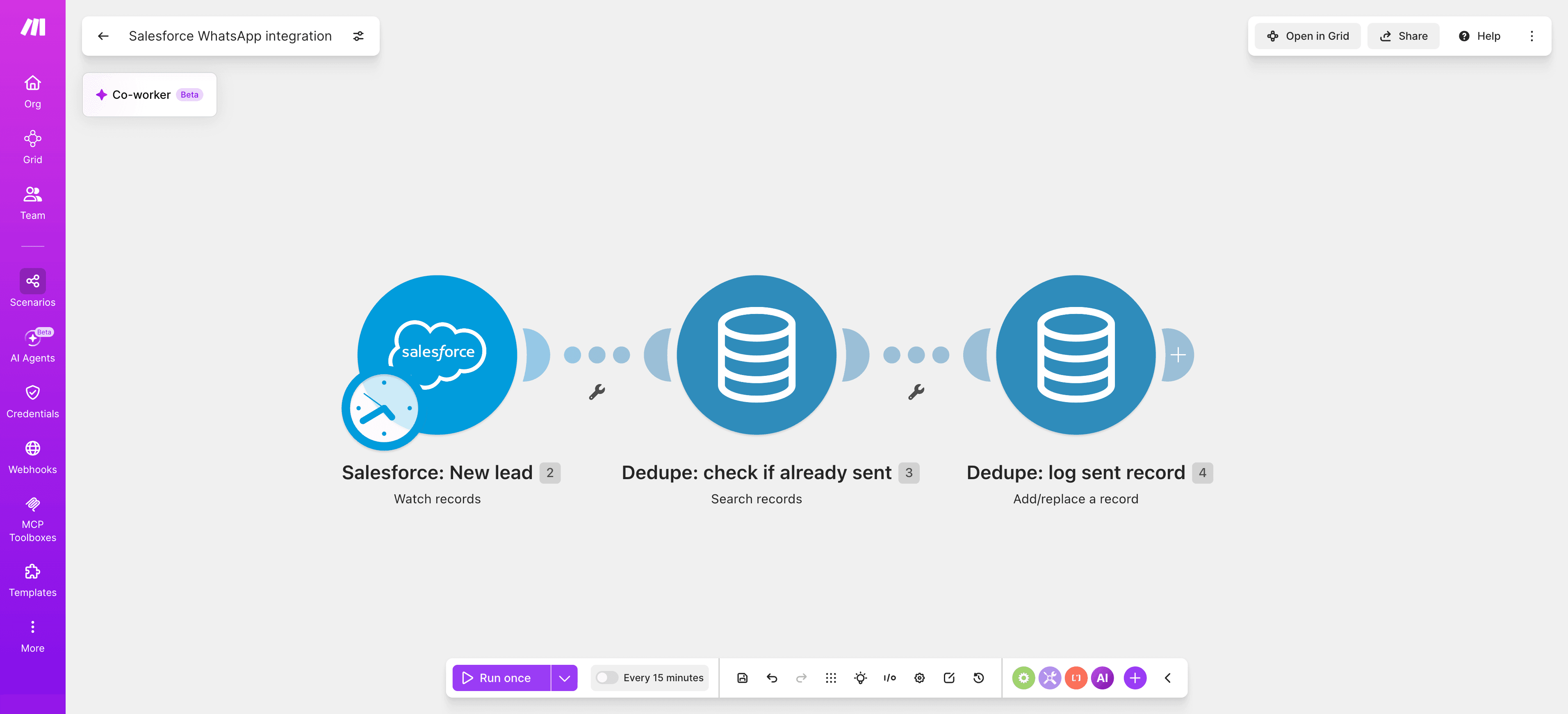
PRO TIP: Use a data store to dedupe WhatsApp messages by Salesforce record ID. Precede the send module with Data Store - Search Records and route to the send only when the ID is not found, then commit with Data Store - Add/Replace a Record after a successful send. This protects against replays during retries and template resubmissions.
Step 3: Filter for eligible contacts
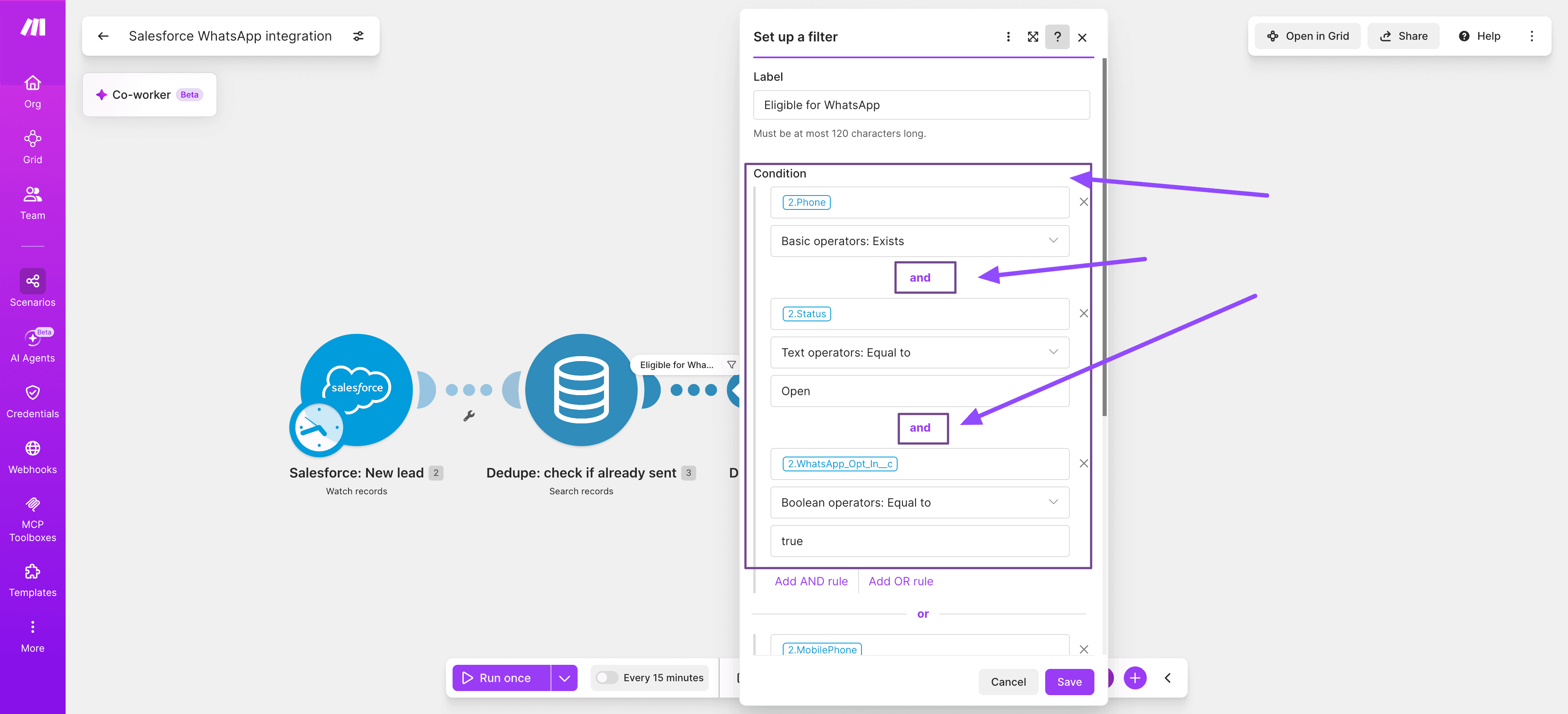
Insert a filter between the trigger and the sender.
Require Phone to be present, Status to be a value that permits outreach, and consent flags to be true.
Consent gating is the most common failure point in a Salesforce WhatsApp integration.
Step 4: Format the phone number and template variables
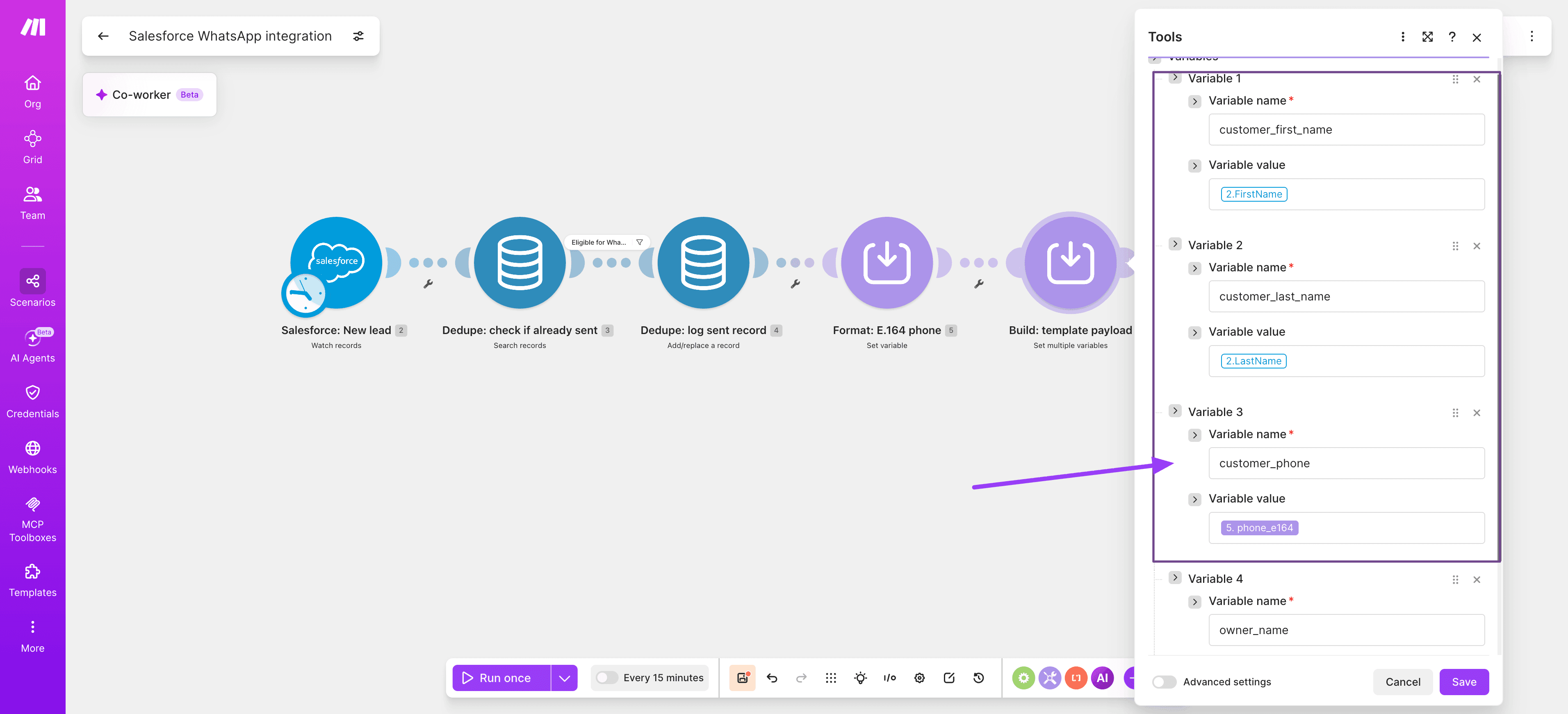
Add Tools - Set Variable to normalize Phone to E.164 format.
Chain a second Set Variable module to build the template payload, including customer first name, owner name, and any dynamic parameters your approved WhatsApp template requires.
Strip spaces, dashes, and parentheses from the raw phone value.
Prepend the country code when missing based on the record region.
Store the formatted number in a variable named phone_e164.
Step 5: Send the WhatsApp template
Add a WhatsApp Business Cloud - Send a Template Message.
Select the pre-approved template name, target the phone_e164 variable, and map the template parameters in order.
Meta must approve the template in Business Manager before you send it.
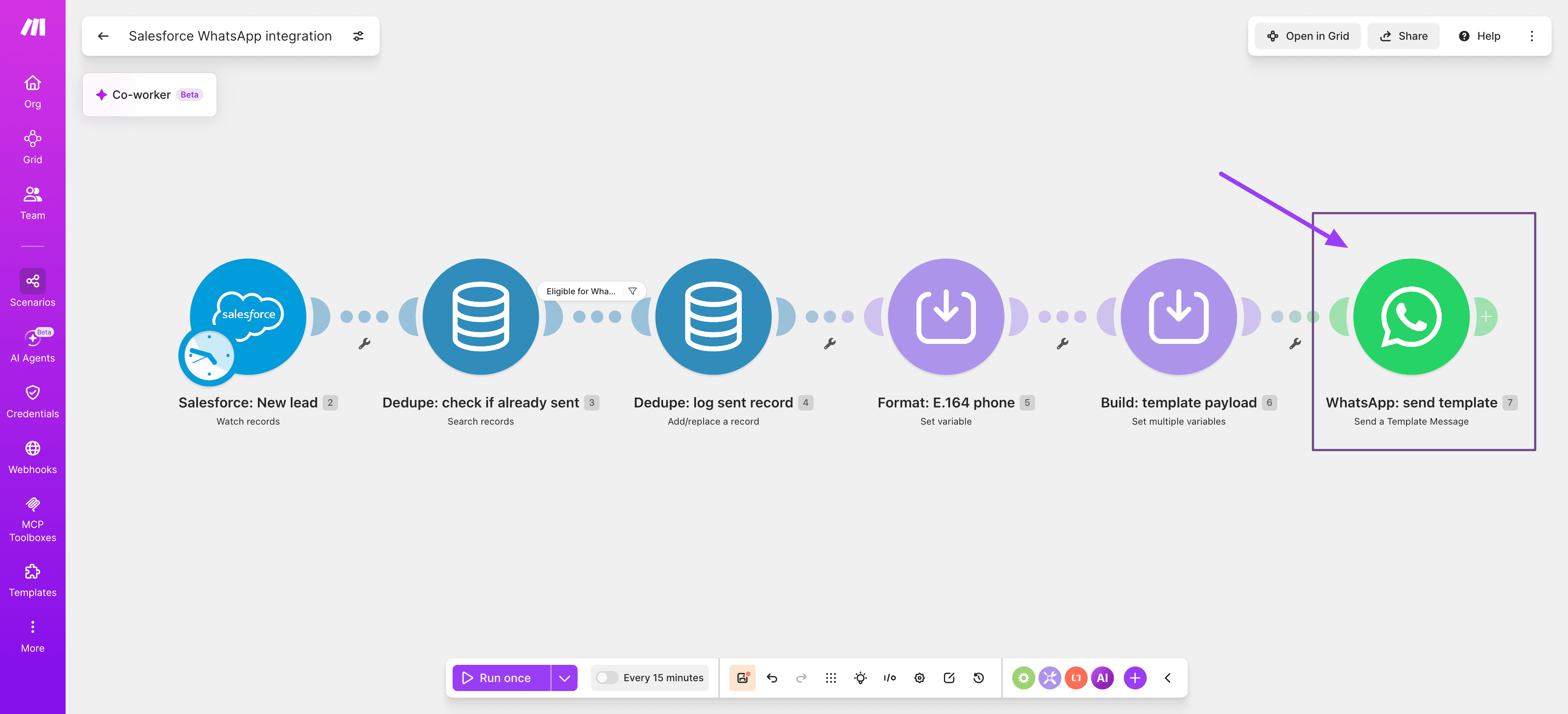
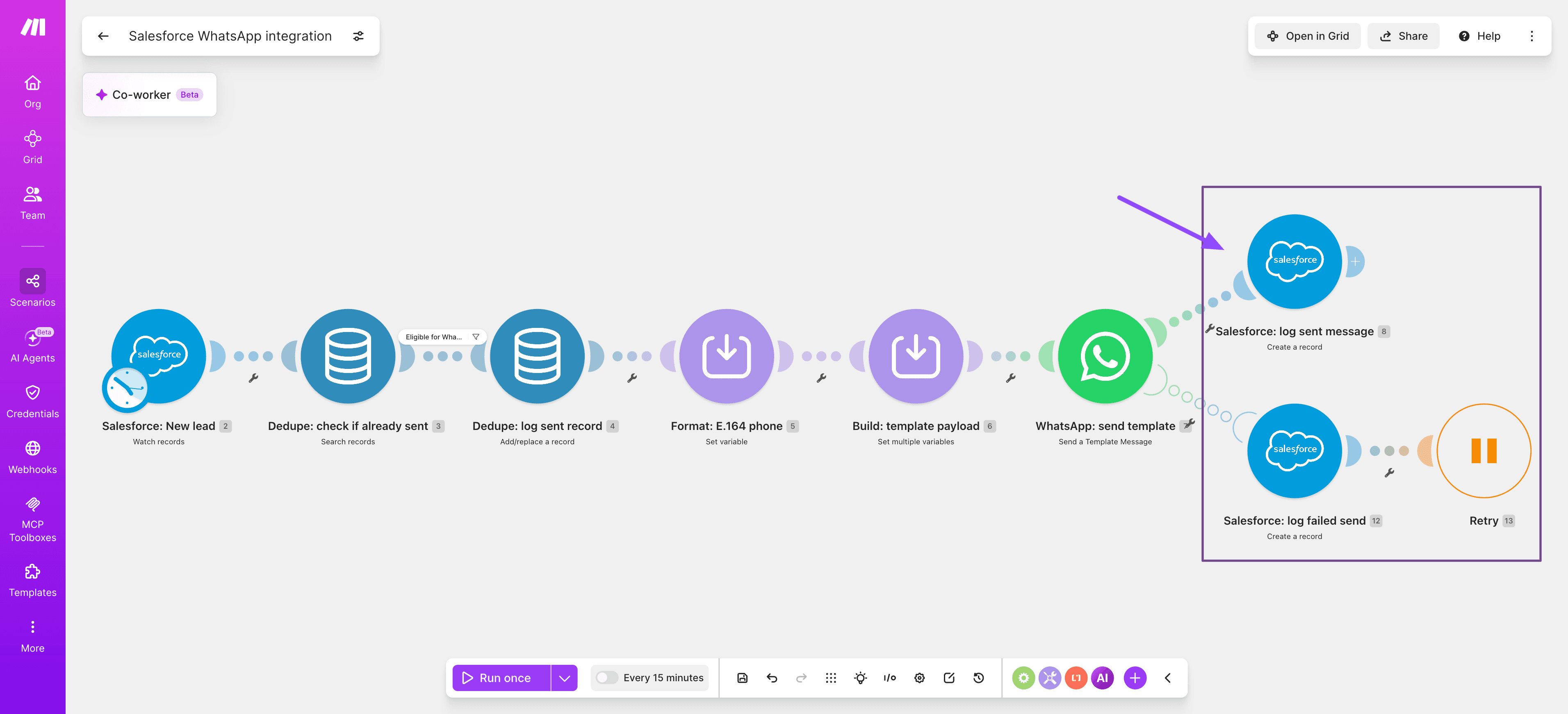
PRO TIP: Wrap the WhatsApp Business Cloud - Send a Template Message module with an error handler route using the Break directive. Retry twice with a 60-second interval, then log the failure to a Salesforce Task via Salesforce - Create a Record so no failed send is silently lost.
Step 6: Log the outbound message and add the error route
Add a Salesforce - Create a Record module to log the message as a Task or custom object tied to the Lead ID.
Then right click the send module and add a Second, create a record Salesforce module and use this as the error handler route that catches template rejections and writes them to a monitoring task.
For related build patterns, browse the how-to guides library.
How to test and troubleshoot the scenario
Start with a controlled run once test in the Scenario Builder, using a single Salesforce record you control.
Trigger the scenario manually, watch each bundle traverse the route, and inspect the output of the Salesforce - Watch Records module before it reaches the WhatsApp Business Cloud - Send a Template Message step.
Confirm the phone number is E.164 formatted, the template name matches the approved asset in Meta Business Manager, and every placeholder variable resolves to real data rather than an empty string.
When something breaks, most failures fall into a small set of patterns.
Teams operating at scale often speed up this diagnosis by debugging with Make Grid, which surfaces failed operation traces across related scenarios.
Template rejected: the template status in WhatsApp Manager is paused; resubmit or switch to an approved variant.
Phone number invalid: add a Set Variable step to normalize numbers to E.164 before the send module.
Salesforce auth error: refresh the connection, verify the OAuth scope includes API access.
Missing inbound reply: confirm the webhook URL is registered in Meta, and the connection is verified.
What results can you expect from this integration?
The Salesforce WhatsApp scenario you have just created in Make replaces manual copy-paste between the CRM and mobile devices with an event-driven connection that fires the moment a lead status changes.
Sales reps can now stop hunting through record detail pages to greet inbound prospects, and customers receive contextual replies while intent is still warm.
Because every step happens inside one auditable scenario, teams can trace exactly which record triggered which message, at what time, and who owns the follow-up.
Operationally, the Salesforce - Watch Records trigger, the Router, and the WhatsApp Business Cloud - Send a Template Message modules handle template selection, opt-in checks, and reply logging without manual intervention.
Support leaders running similar workflows describe patterns comparable to Stellantis in this customer support automation story: fewer tickets touched manually, cleaner audit trails inside Salesforce, and consistent conversation quality across regions and shifts.
That consistency compounds as more Salesforce objects, such as Cases, Opportunities, and Leads, feed into the same scenario pattern, extending the same logic used in broader CRM automation efforts.
Variations and next steps
The Salesforce WhatsApp integration can be extended beyond outbound alerts once the base scenario is stable.
The same pattern applies regardless of the trigger object: a CRM record change fires a templated outbound message, then a logged inbound reply closes the loop, whether that record is a Lead, an Opportunity, or a Case.
This makes the pattern reusable across teams and objects, not just the specific Lead-based build detailed above.
Teams typically branch into case updates, opportunity nudges, and inbound reply routing by adding a Router with filtered routes, or by chaining Make AI Agents that read Salesforce context and draft replies before a human approves.
Adjacent patterns include AI chatbots for triage, or autonomous handling with AI agents that decide which template fires.
Use case | Approach | Difficulty |
Case status updates to WhatsApp | Salesforce - Watch Records on Case, Router by status, WhatsApp Business Cloud - Send a Template Message | Medium |
Inbound reply logging to Salesforce | Webhook trigger, Salesforce - Search Records by phone, Salesforce - Create a Record for Task | Medium |
AI-drafted opportunity nudges | Salesforce - Watch Records, OpenAI - Create a Chat Completion, human approval, WhatsApp send | Hard |
Take your customer engagement to the next level
The Salesforce WhatsApp integration you have now built in Make replaces a fragmented messaging stack with a governed, auditable workflow where every inbound reply and outbound template flows through a single scenario.
Sales and service teams reach customers on their preferred channel, while Salesforce remains the record of truth for conversation history, opt-ins, and campaign attribution.
The Salesforce - Watch Records trigger, WhatsApp Business Cloud - Send a Template Message module, and inbound webhook route together cover the full lifecycle.
Ready to move past pilots into daily operational use across revenue teams? Get started for free and build your first production scenario this week.
FAQs
Q1: Does Salesforce have a native WhatsApp integration?
Salesforce offers WhatsApp channels through Digital Engagement and Service Cloud licenses, but coverage is limited to specific clouds and requires additional licensing. Make provides a lighter alternative that connects any Salesforce edition with the WhatsApp Business API through a visual scenario.
Q2: Do I need the WhatsApp Business API to connect Salesforce?
Yes. The consumer WhatsApp app and WhatsApp Business app do not support programmatic messaging.
You need a WhatsApp Business API account through Meta or a Business Solution Provider, plus an approved sender number, before the WhatsApp Business Cloud - Send a Message module can transmit anything.
Q3: Can Make send WhatsApp templates from Salesforce records?
Yes. Map Salesforce field values into the template variables inside the WhatsApp Business Cloud - Send a Template Message module.
Meta must pre-approve every template, and each variable slot in the bundle corresponds to a placeholder like {{1}} or {{2}} defined during template submission.
Q4: How do inbound WhatsApp replies get logged in Salesforce?
Configure a webhook scenario triggered by WhatsApp Business Cloud - Watch Events. Match the sender phone number against Contact or Lead records using Salesforce - Search Records, then append the message body to a Task or custom Message object with Salesforce - Create a Record.
Q5: Is this integration compliant with WhatsApp policies?
Compliance depends on how you use it. Outbound messages outside the 24-hour customer service window require approved templates, and marketing content needs explicit opt-in stored on the Salesforce record.
Log consent timestamps and honor stop requests inside the same scenario that sends messages.
Ready to make the automation revolution happen?